HTML Tags vs. Elements: Clear and Concise Overview
Plain Guide to Differentiating HTML Tags from Elements
Every website you visit, whether it’s a news site, a social media site, or this blogs built on a fundamental structure. It is created using HTML.
In this blog, we will understand what HTML is, why we use it, what tags and elements are, the difference between block and inline elements, and look at the most common tags you will use daily.
First, let’s understand what HTML is and why it is the foundation of the web.
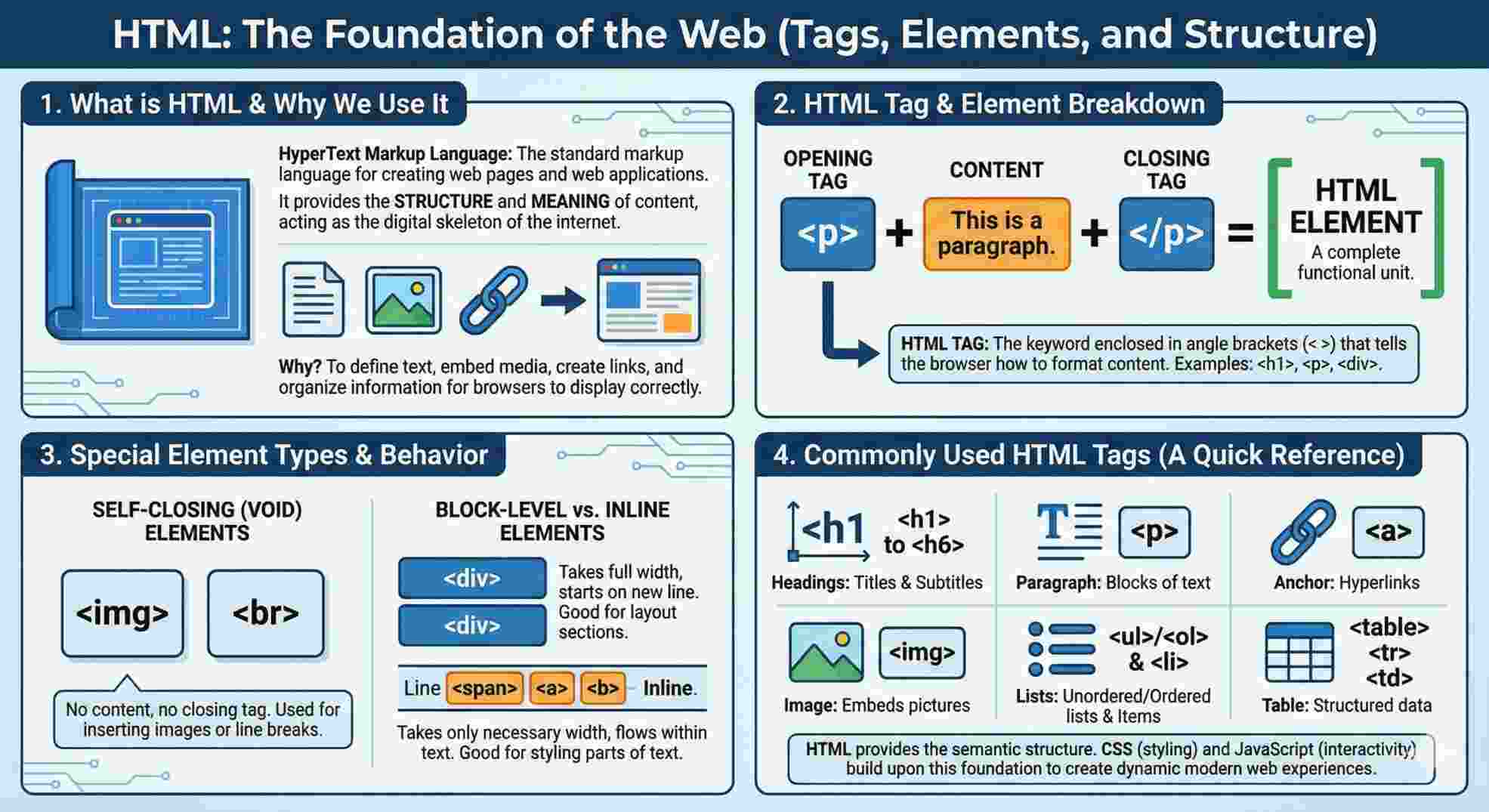
What is HTML, and why do we use it
HTML stands for HyperText Markup Language. It is not a programming language like C or C++; it is a markup language. This means it is used to "mark up" or label different parts of a document so the computer knows what they are.
We use HTML to tell the web browser how to structure the content. It tells the browser: This part is a heading, This part is a paragraph, and This part is an image.
Without HTML, a browser would just see messy text. HTML gives that text meaning and structure.
What is an HTML tag
The building blocks of HTML are called tags. A tag is a keyword surrounded by angular brackets (< and >).
Tags are like instructions for the browser. When the browser sees a tag, it knows it needs to do something specific with the content inside it. For example, the <b> tag tells the browser to make the text bold.
Opening tag, closing tag, and content
Most HTML structures consist of three parts:
The Opening Tag: This marks the start of an element (e.g.,
<p>).The Content: The information you want to display (text, images, etc.).
The Closing Tag: This marks the end of an element. It looks just like the opening tag but includes a forward slash (e.g.,
</p>).
Example:
<p>Hi, I am Asif.</p>
<p>is the opening tag.Hi, I am Asif.is the content.</p>is the closing tag.
What an HTML element means
Beginners often confuse tags and elements. Here is the difference:
A tag is just the
<...>part.An element is the entire package: the opening tag
<...>+ the content + the closing tag</…>.
So, when we say paragraph element, we mean the whole thing from start to finish.
Self-closing (Void) elements
Most elements follow the rule of Open, Content, Close. However, some elements are empty. They do not hold any text or other elements inside them. Because they have no content to wrap, they do not need a closing tag.
These are called Self-closing or Void elements.
Common Examples:
<br>: Inserts a line break.<img>: Embeds an image.<hr>: Creates a horizontal line.
You just write the tag, and it does its job immediately.
Block-level vs Inline Elements
All the elements do not behave the same way on a page. The two major categories of behavior are Block-level and Inline.
1. Block-level Elements
These elements act like distinct(own) blocks.
They always start on a new line.
They take up the full width available (stretching from left to right).
Examples:
<div>,<h1>to<h6>,<p>.
2. Inline Elements
These elements flow with the text.
They do not start on a new line.
They only take up as much width as necessary.
Examples:
<span>,<a>(anchor/links),<b>(bold).
Commonly used HTML tags
To get started, you don't need to memorize every tag. Let’s build a real HTML file together. We will start with the root and keep adding tags one by one to see how the structure grows into a full page.
1. <html>
The root of the document. Every HTML document starts with this. It tells the browser, Everything inside here is HTML code.
<html>
</html>
2. <head>
This contains metadata/information of the document(like the title) that isn't shown on the main page. We place this inside the <html> tag.
<html>
  <head>
    <title>Tech Blogs | Mohd Asif</title>
  </head>
</html>
3. <body>
It contains everything visible to the user. If you want people to see it, every visible part should be inside the body tag. We place this tag after the <head>, but still inside the <html>.
<html>
  <head>
     <title>Tech Blogs | Mohd Asif</title>
  </head>
  <body>
    </body>
</html>
4. <div>
A generic container tag used to group elements together. Since we want our content to be organized, let's put a main-container <div> inside the body.
<html>
  <head>
     <title>Tech Blogs | Mohd Asif</title>
  </head>
  <body>
    <div class="main-container">
    </div>
  </body>
</html>
5. <h1> to <h6>
Headings are used to title your content. Let's add a main heading inside our <div>.
<h1>…</h1> is the primary heading.
<h1>…</h1> only once in the web page for better SEO.<html>
<head>
<title>Tech Blogs | Mohd Asif</title>
</head>
<body>
<div class="main-container">
<h1>Welcome to My Tech Blogs</h1>
</div>
</body>
</html>
6. <p>
Paragraphs are for normal text. Let's add a description under our heading.
/<html>
  <head>
    <title>Tech Blogs | Mohd Asif</title>
  </head>
  <body>
    <div class="main-container">
       <h1>Welcome to My Tech Blogs</h1>
      <p>Learning software development.</p>
    </div>
  </body>
</html>
7. <span>
This is used to add or style small parts of text without breaking the line (inline). Let's use it to highlight the word (usually) in our paragraph.
<html>
  <head>
    <title>Tech Blogs | Mohd Asif</title>
  </head>
  <body>
    <div class="main-container">
       <h1>Welcome to My Tech Blogs</h1>
      <p>Learning <span style="color: #fb923c;">software development</span>.</p>
    </div>
  </body>
</html>
8. <a>
The Anchor tag creates links. Let's add a link to the portfolio at the end of the content.
<html>
  <head>
    <title>Tech Blogs | Mohd Asif</title>
  </head>
  <body style="text-align: center;">
    <div class="main-container">
       <h1>Welcome folks to My Tech Blogs</h1>
      <p>Learning <span style="color: #fb923c;">software development</span>.</p>
      <a href="https://devasif-7.hashnode.dev/">Check out Mohd Asif's blogs.</a>
    </div>
  </body>
</html>
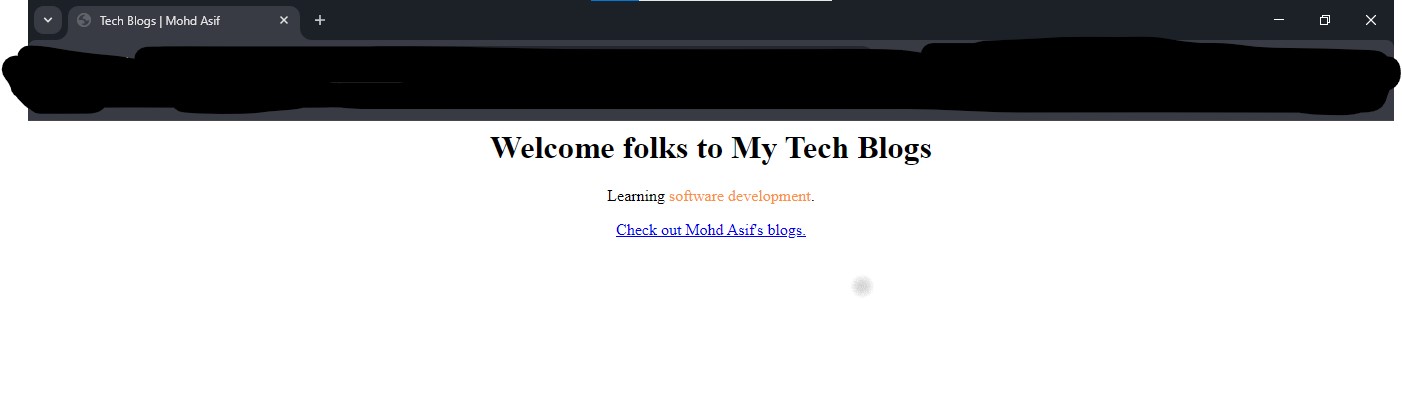
Now we have completed an HTML file! You can copy the final code, save it as index.html, and open it in your browser to see the result.
Conclusion
HTML creates the skeleton of the web page. It uses tags to define elements. Understanding these basic tags, elements, and their behaviors is the very first step to becoming a web developer. Once you understand HTML clearly, learning CSS and JavaScript becomes much easier.