JavaScript Objects Explained: Properties, Methods & More
Learn how JavaScript objects work, access and remove properties, and use Object.hasOwn() and the in operator with confidence.

What Is an Object in JavaScript, and How Can You Access Properties from an Object?
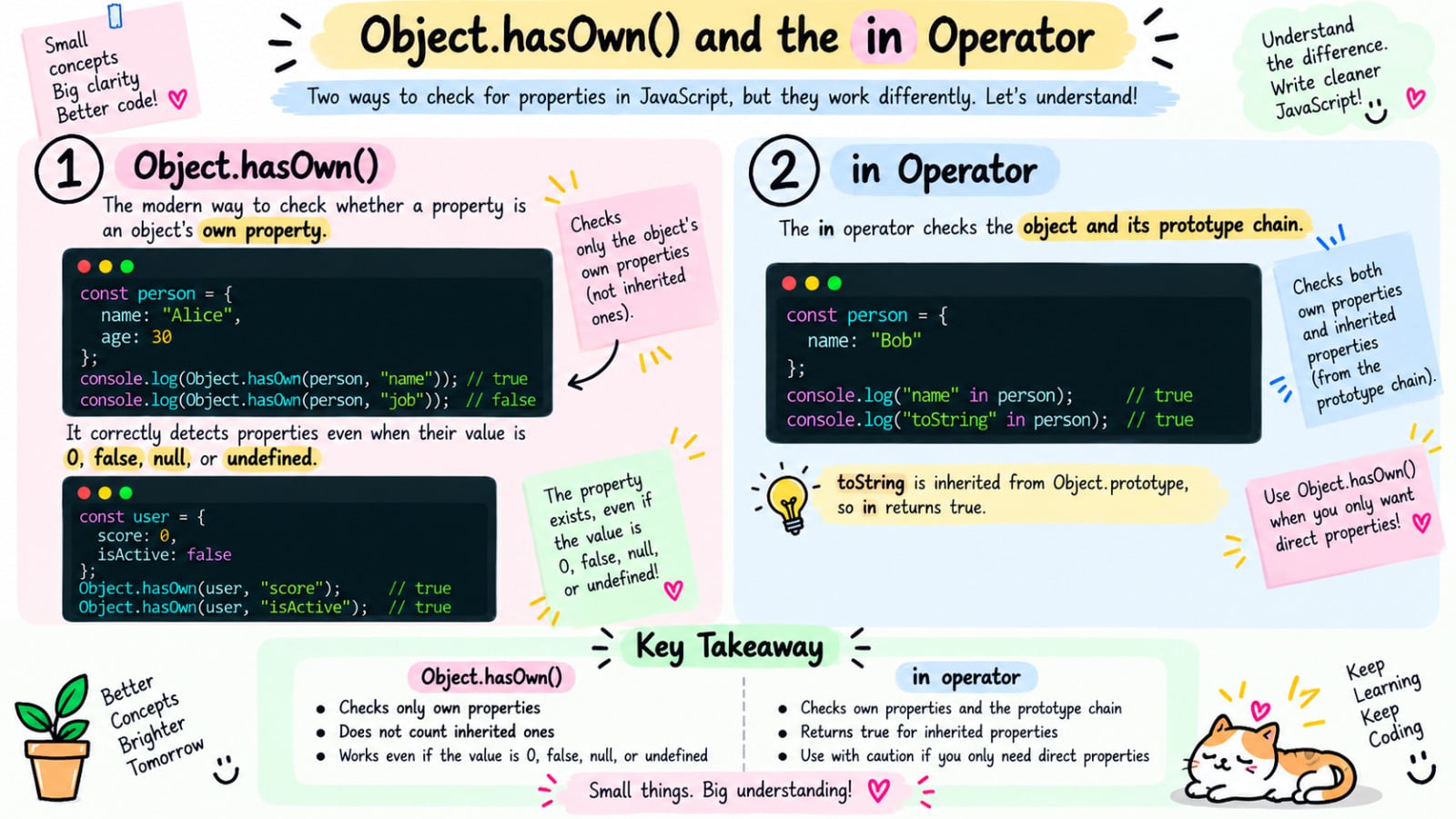
In JavaScript, an object is a fundamental data structure that allows you to store and organize related data and functionality.
You can think of an object as a container that holds various pieces of information, much like a filing cabinet holds different folders and documents.
These pieces of information are called properties, and they consist of a name (or key) and a value.
const exampleObject = {
  propertyName: value,
}
Objects are incredibly versatile and form the backbone of JavaScript. In fact, almost everything in JavaScript is an object or can be treated as one.
This includes arrays, functions, and even primitive data types like strings and numbers when used in certain ways.
This object-centric nature of JavaScript is one of the reasons it's such a flexible and powerful language. Let's look at how you can create an object:
const person = {
  name: "Alice",
  age: 30,
  city: "New York"
};
In this example, we've created an object called person with three properties: name, age, and city. Each property has a name and a value, separated by a colon. This is object literal.
How to access properties of object
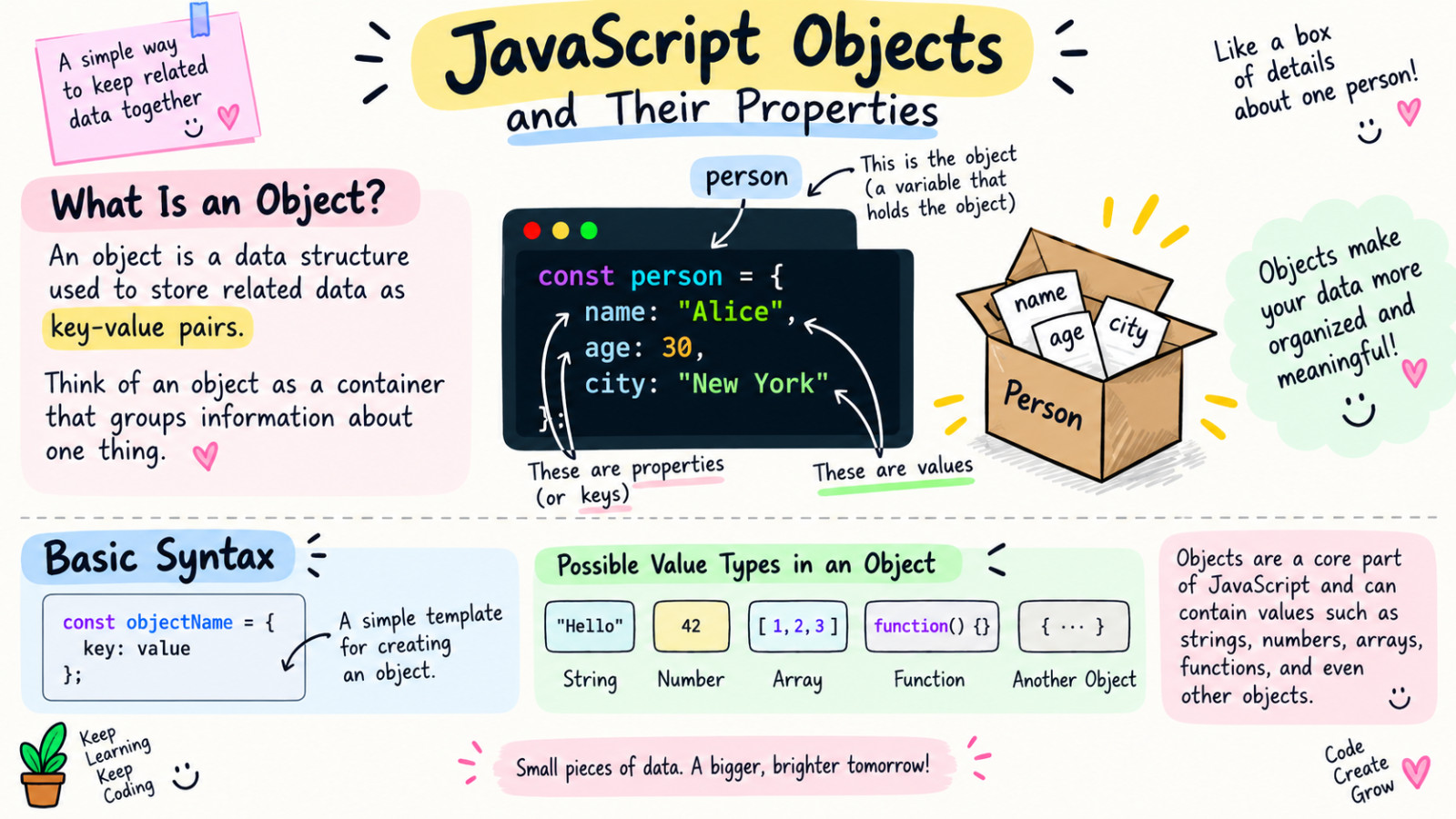
Now, let's explore how you can access these properties. There are two main ways to access object properties in JavaScript: dot notation and bracket notation.
Dot notation
Dot notation is the most common and straightforward way to access object properties. Here is the basic syntax for dot notation:
objectName.propertyName
Here's how you would use dot notation with our person object:
const person = {
  name: "Alice",
  age: 30,
  city: "New York"
};

console.log(person.name);  // Alice
console.log(person.age);   // 30
Dot notation is concise and easy to read, making it the preferred choice when you know the exact name of the property you want to access and that name is a valid JavaScript identifier (meaning it doesn't start with a number and doesn't contain special characters or spaces).
Bracket notation
Bracket notation, on the other hand, allows you to access object properties using a string inside square brackets. Here's how you would use bracket notation:
const person = {
  name: "Alice",
  age: 30,
  city: "New York"
};

console.log(person["name"]); // Alice
console.log(person["age"]); //  30
Bracket notation is more flexible than dot notation because it allows you to use property names that aren't valid JavaScript identifiers. For example, if you had a property name with spaces or that starts with a number, you'd need to use bracket notation:
const oddObject = {
  "1stProperty": "Hello",
  "property with spaces": "World"
};

console.log(oddObject["1stProperty"]);  // Hello
console.log(oddObject["property with spaces"]);  // World
Another advantage of bracket notation is that it allows you to use variables to access properties dynamically:
const person = {
  name: "Alice",
  age: 30,
  city: "Wonderland"
};

let propertyName = "city";
console.log(person[propertyName]); // Wonderland
This flexibility makes bracket notation particularly useful when you don't know the exact property name at the time you're writing the code, or when you're working with property names that come from user input or some other dynamic source.
It's worth noting that objects in JavaScript are incredibly powerful and versatile. They can contain not just simple values like strings and numbers, but also arrays, or other objects.
How Can You Remove Properties from an Object?
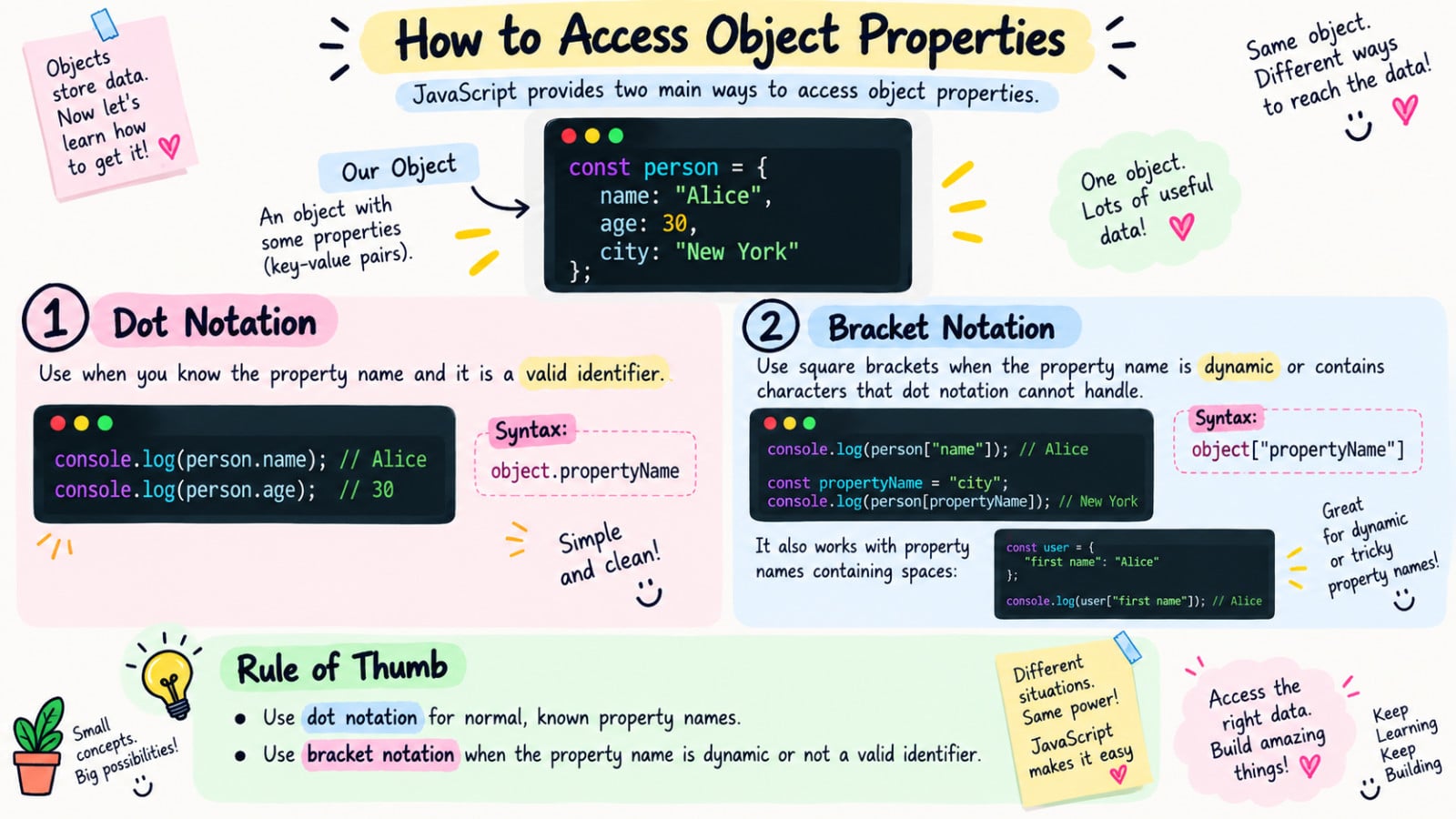
There are several ways to remove properties from an object, with the delete operator being the most straightforward and commonly used method.
When you use delete, it removes the selected property from the object. Here's an example of how to use the delete operator:
const person = {
  name: "Alice",
  age: 30,
  job: "Engineer"
};

delete person.job;

console.log(person.job); // undefined
In this example, we start with a person object that has three properties: name, age, and job. Then, we use the delete operator to remove the job property. After the deletion, the person object no longer has the job property.
Another way to remove properties is by using destructuring assignment with rest parameters. This approach doesn't actually delete the property, but it creates a new object without the specified properties:
const person = {
  name: "Bob",
  age: 25,
  job: "Designer",
  city: "New York"
};

const { job, city, ...remainingProperties } = person;

// { name: "Bob", age: 25 }
console.log(remainingProperties);
In this example, we use destructuring to extract job and city from the person object, and collect the remaining properties into a new object called remainingProperties. This creates a new object without the job and city properties.
How to Check If an Object Has a Property?
hasOwnProperty() method
In JavaScript, there are several ways to check if an object has a specific property. Understanding these methods is important for working effectively with objects, especially when you're dealing with data from external sources or when you need to ensure certain properties exist before using them.
We'll explore some common approaches: the hasOwnProperty() method, the Object.hasOwn() method, the in operator, and checking against undefined.
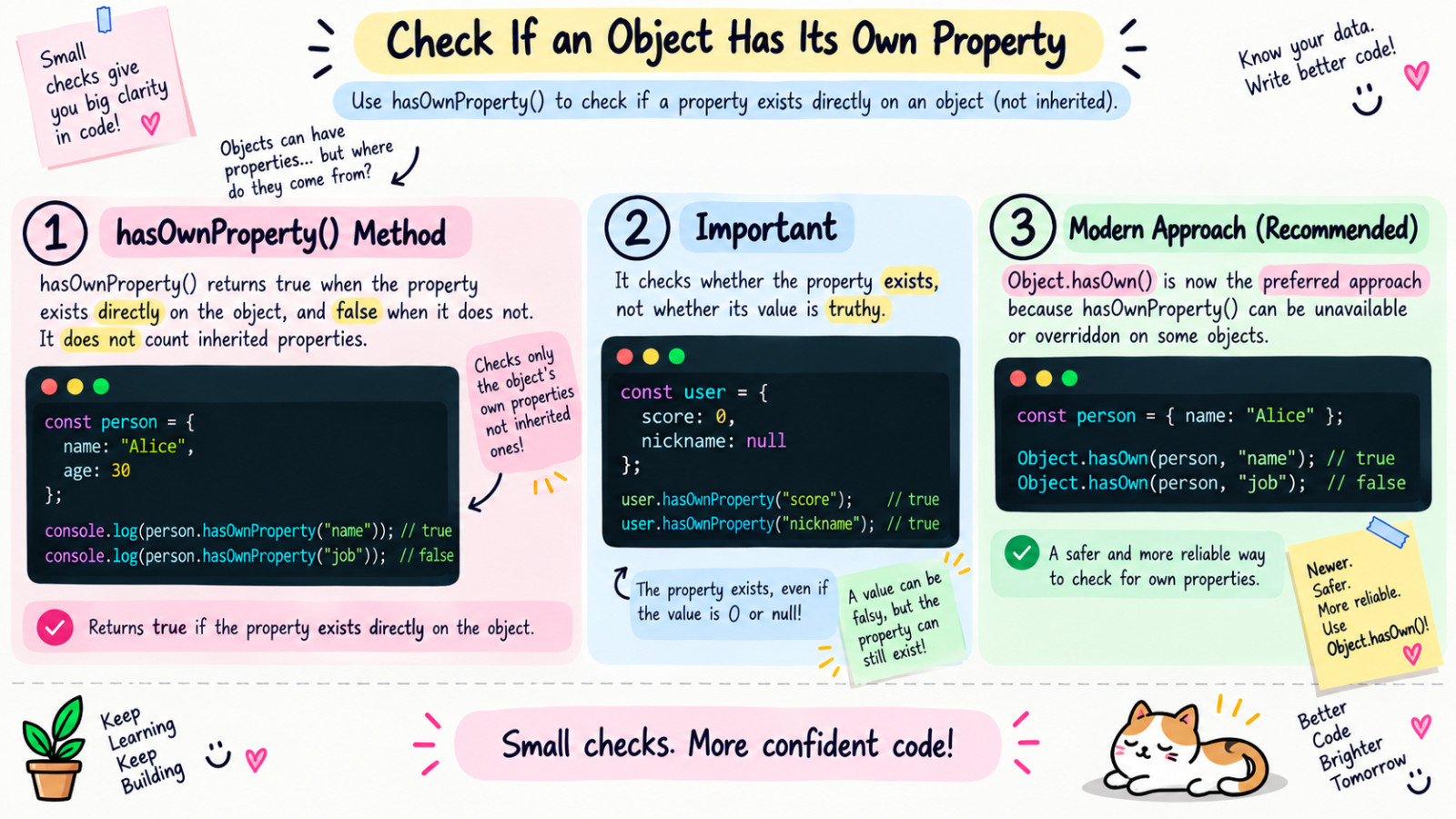
Let's start with the hasOwnProperty() method. This method returns a boolean indicating whether the object has the specified property as its own property. Here's an example:
const person = {
  name: "Alice",
  age: 30
};

console.log(person.hasOwnProperty("name")); // true
console.log(person.hasOwnProperty("job")); // false
In this example, we have an object called person with two properties: name and age. To check if name is a property in the person object, we use the hasOwnProperty() method. Since name is a property, it will return true. But when we use the hasOwnProperty() to check if job is a property, it will return false because it does not exist in the object.
Object.hasOwn() method
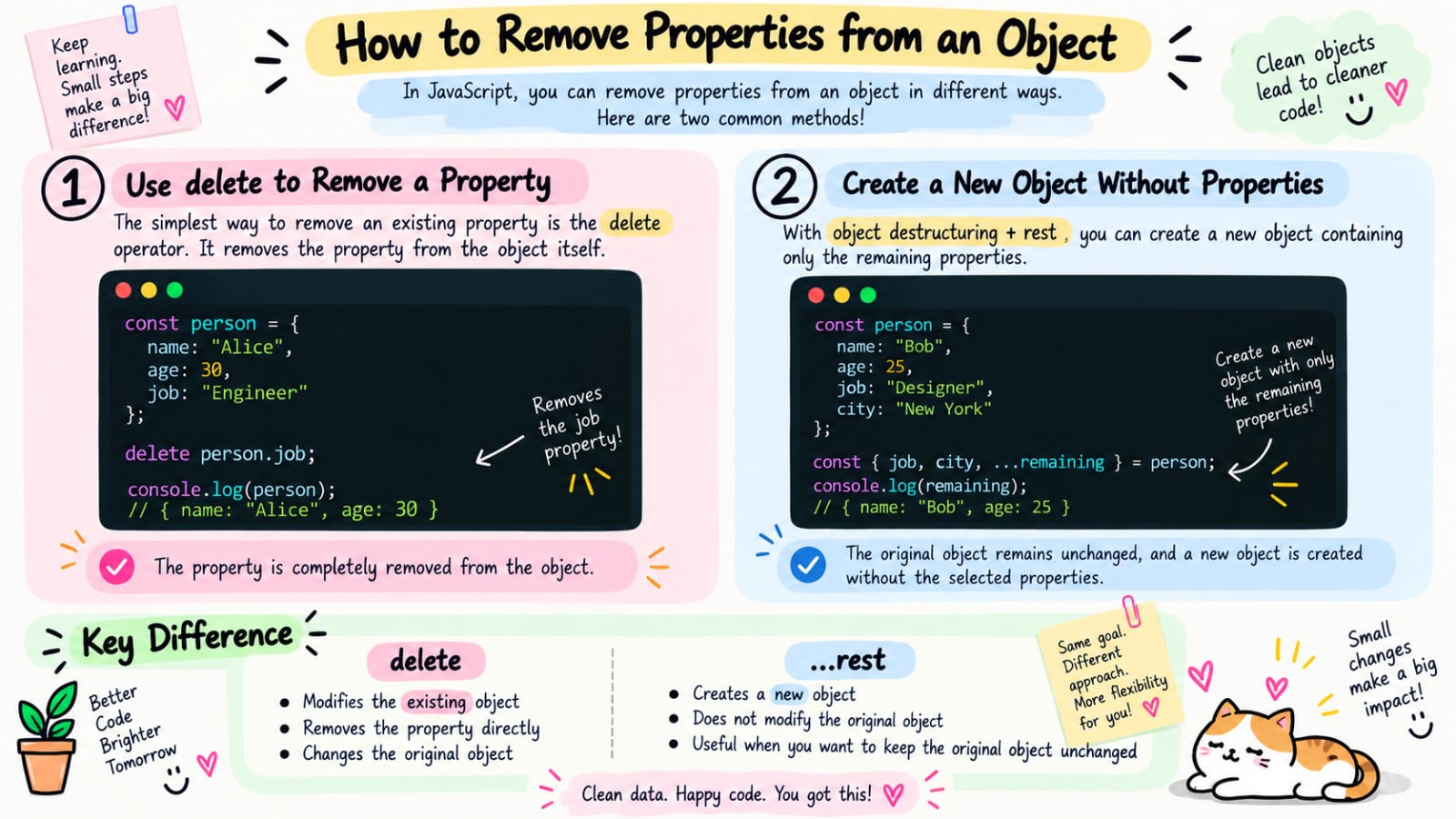
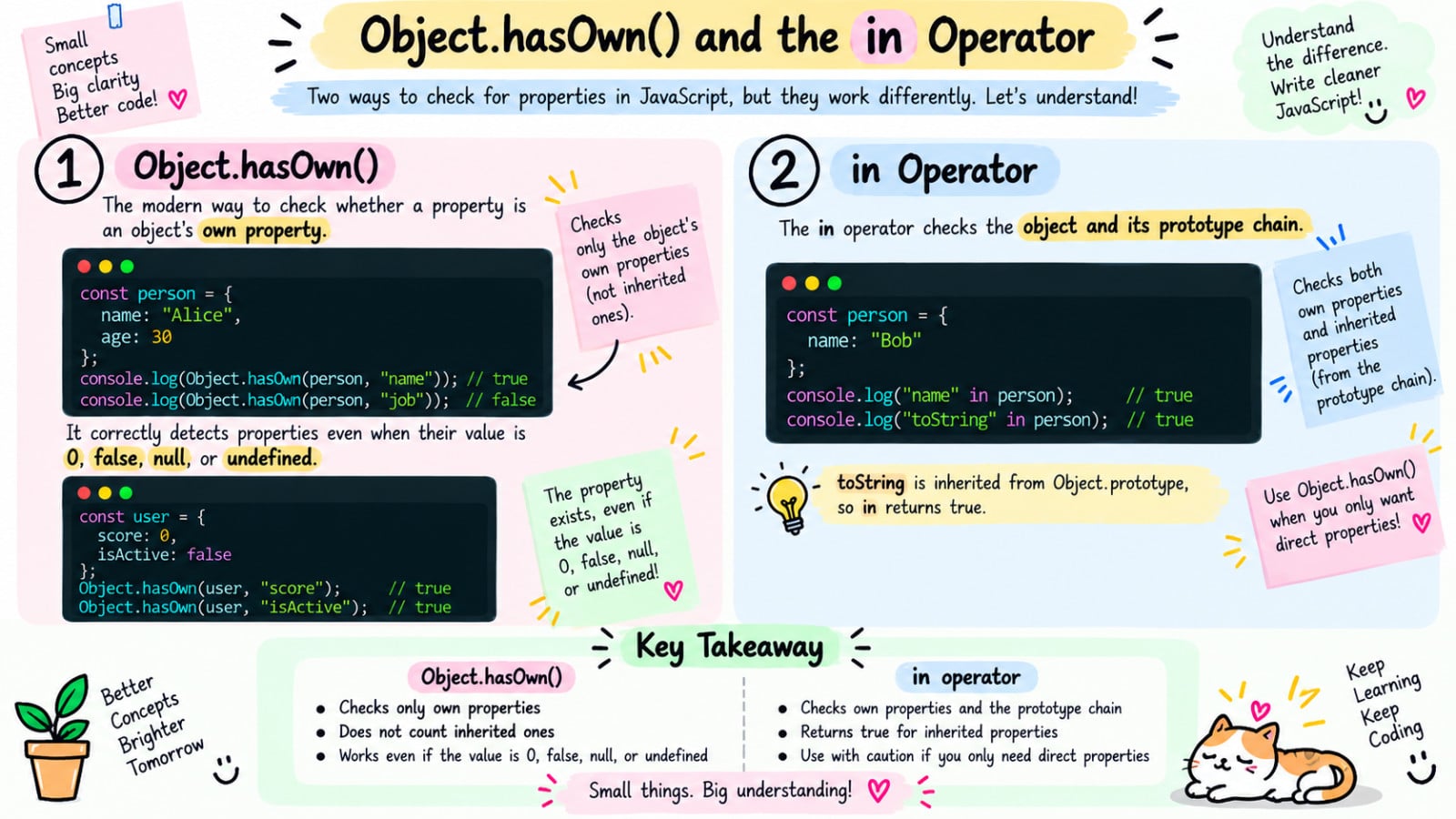
Object.hasOwn() is the modern, recommended way to check if an object has a property as its own (not inherited). Think of it as an upgraded, safer version of hasOwnProperty(). The syntax is Object.hasOwn(object, propertyName) — you pass the object as the first argument and the property name as the second.
Here is a basic example:
const person = {
  name: "Alice",
  age: 30
};

console.log(Object.hasOwn(person, "name")); // true
console.log(Object.hasOwn(person, "job")); // false
In this example, Object.hasOwn(person, "name") returns true because name exists directly on the person object. Object.hasOwn(person, "job") returns false because job was never added to the object.
Alert:
A very important thing to understand is that Object.hasOwn() only checks if the property exists - it does not care about the property's value. This means it still returns true even when the value is 0, false, null, or undefined:
const user = {
  username: "coder123",
  score: 0,
  isActive: false,
  nickname: null
};

// Object.hasOwn() correctly reports these all exist
console.log(Object.hasOwn(user, "score"));    // true  (value is 0, but property exists)
console.log(Object.hasOwn(user, "isActive")); // true  (value is false, but property exists)
console.log(Object.hasOwn(user, "nickname")); // true  (value is null, but property exists)
console.log(Object.hasOwn(user, "email"));   // false (property was never added)

// Danger! Using if() directly gives wrong results for falsy values
if (user.score) {
  console.log("Has score"); // This will NOT print even though score exists!
}

// Safe! Object.hasOwn() gives correct result
if (Object.hasOwn(user, "score")) {
  console.log("Has score:", user.score); // Has score: 0
}
in operator
Another way to check for the existence of a property in an object is to use the in operator. Like hasOwnProperty(), the in operator will return true if the property exists on the object. Here's how you can use it:
const person = {
  name: "Bob",
  age: 25
};
console.log("name" in person);  // true
In this example, "name" in person returns true because name is a property of person.
The third method involves checking if a property is undefined. This approach can be useful, but it has some limitations. Here's an example:
const car = {
  brand: "Toyota",
  model: "Corolla",
  year: 2020
};

console.log(car.brand !== undefined); // true
console.log(car.color !== undefined); // false
In this code, we check if car.brand and car.color are not undefined. This works because accessing a non-existent property on an object returns undefined. However, this method can give false negatives if a property explicitly has the value undefined.