
Linux File Permissions : A Beginner’s Guide
Learn how rwx, permission groups, chmod, octal values, and directory permissions work in Linux.
What is the mean of file permissions in Linux?
Although there are already a lot of good security features built into Linux based systems, but there is a one very important vulnerability can cause problem that is file permissions.
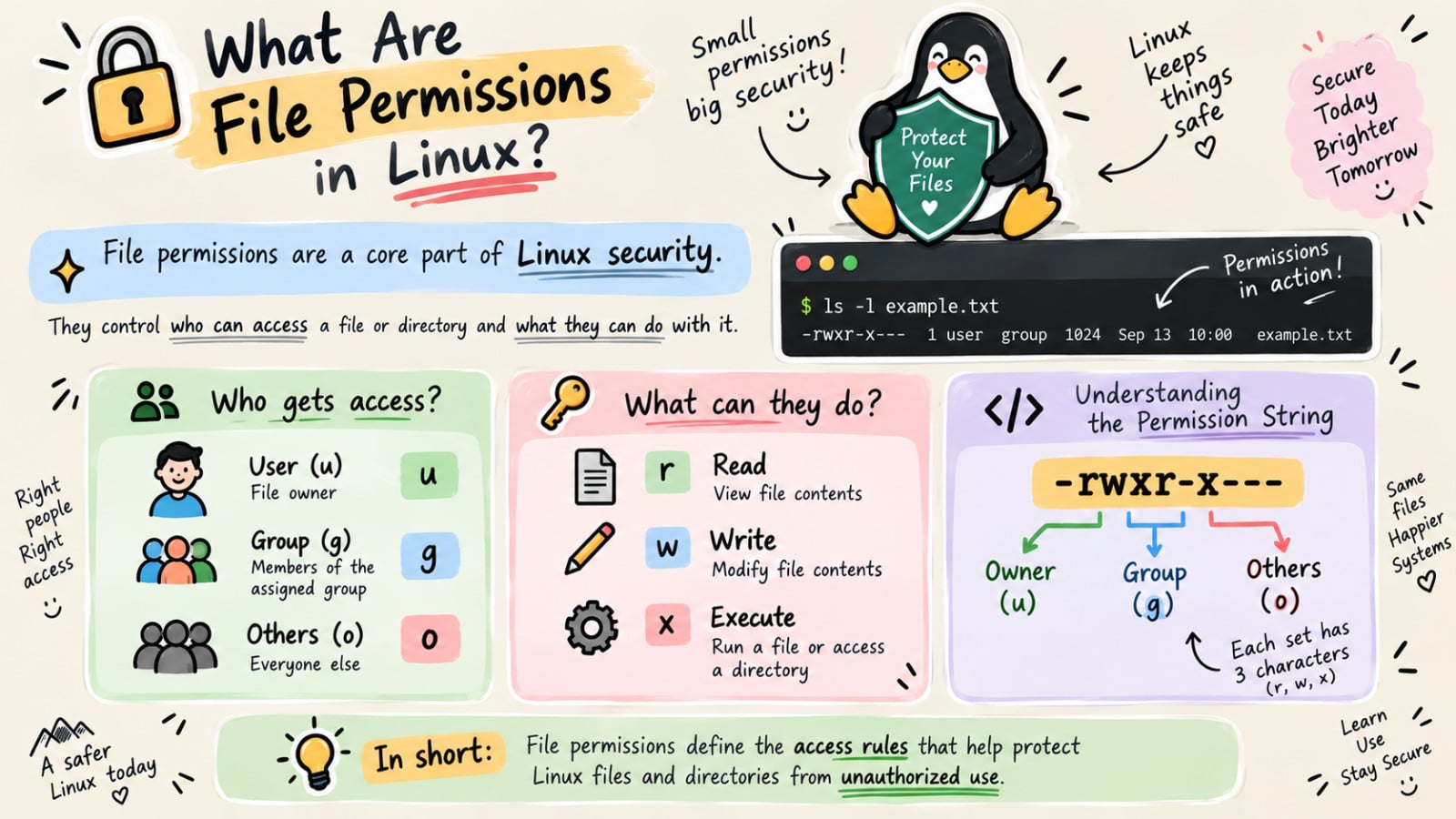
File permissions are one of the main ways Linux keeps your system secure.
It's the core to the security model used by Linux systems.
They determine (file permissions) who can access files and directories on a system and how.
This article provides an overview of Linux file permissions, how they work and how to change them.
How can you see Linux file permissions?
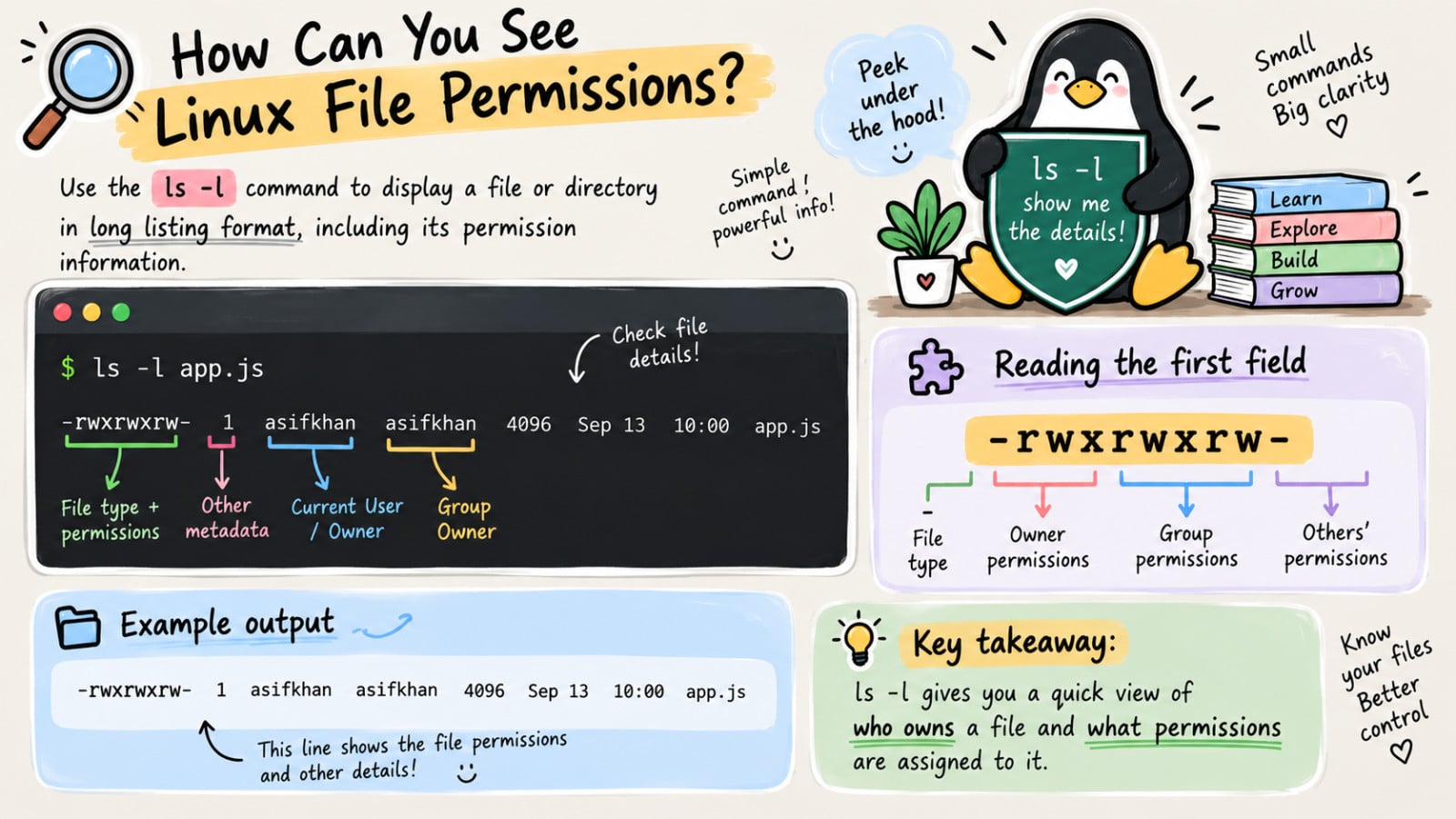
The ls command along with its -l (for long listing) option will show you metadata about your Linux files and directories, including the permissions set on files and directories.

In this example, you can see permissions for the app.js file. The first field of the ls-l ouput is a group of metadata that includes the permissions on the file.

Here are the components of the app.js file:
File type:
-Permission settings:
rwxrwxrw-Current User (User Owner):
asifkhanGroup Owner:
asifkhan
Permission Groups
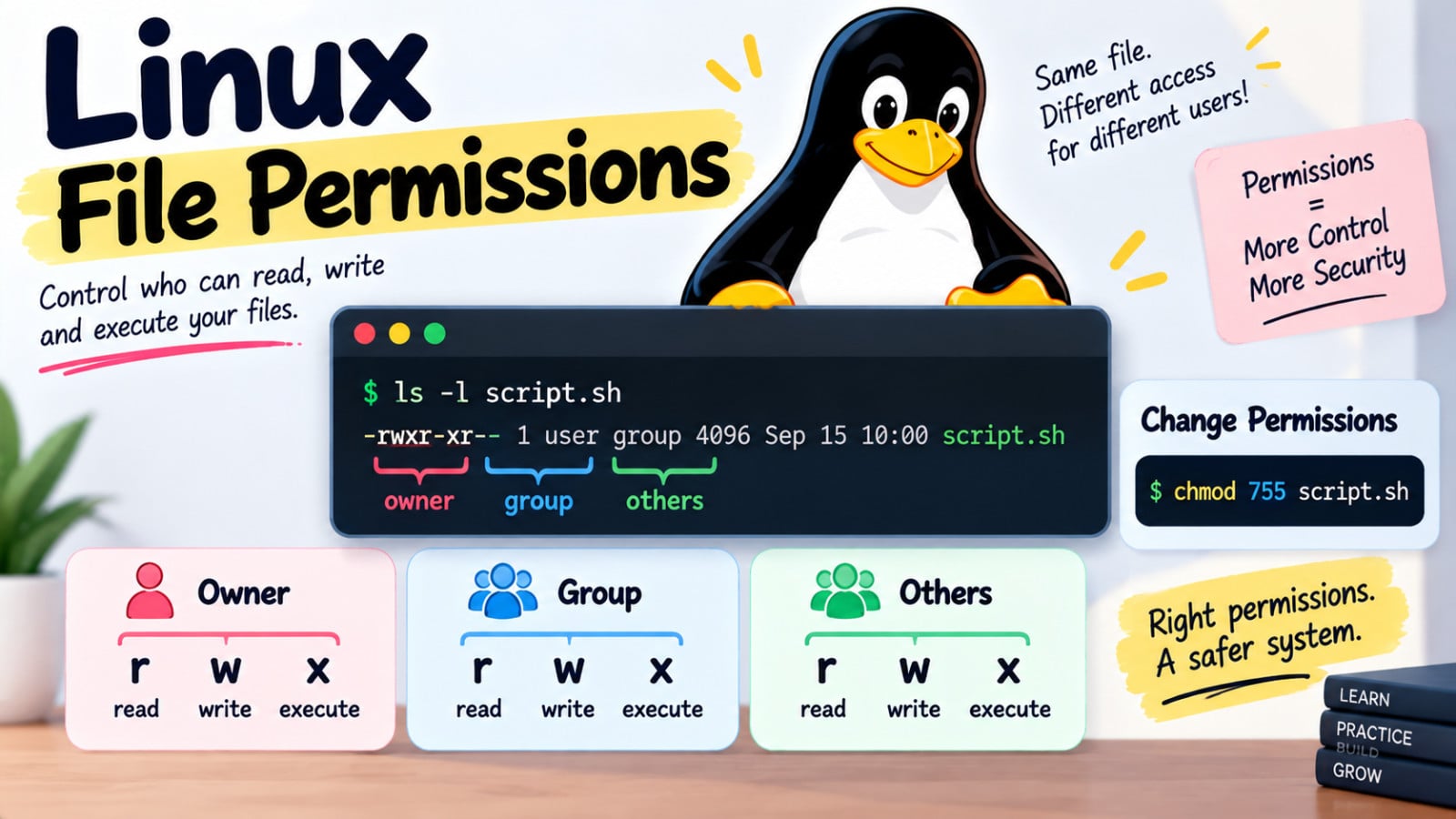
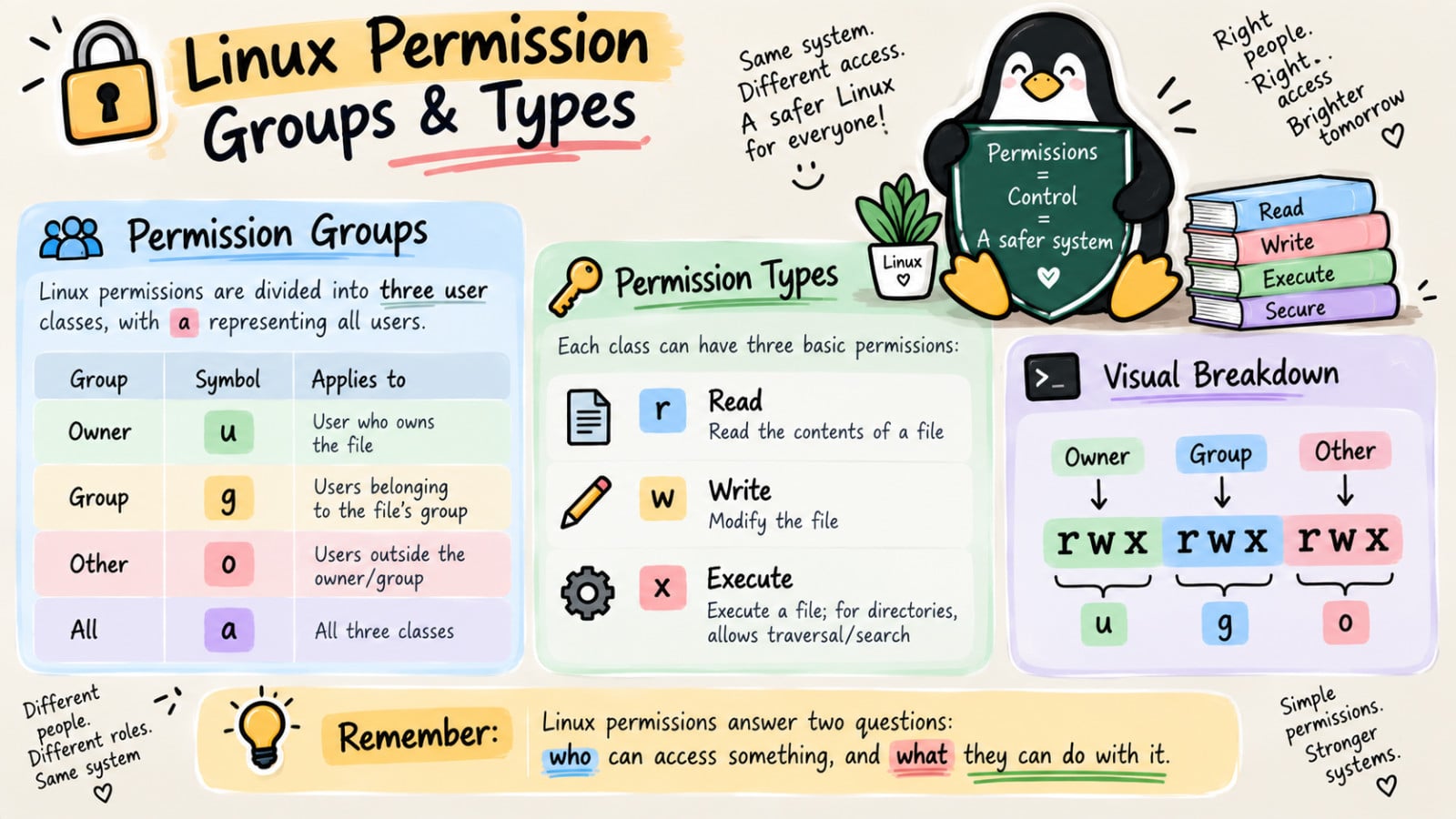
Each file and directory has three user based permission groups:
Owner
(u): The Owner permissions apply only to the owner of the file or directory, they will not impact the actions of other users.Group
(g): The Group permissions only apply to the group that has been assigned to the file or directory, the will not affect the actions of other users.Other
(o): The all Users permissions apply to all other users on the system, this is the permission group that you want to watch most.All users
(a): All users
Permission Types
Each file or directory has three basic permission type:
Read
(r): The read permission refers to a user's capability to read the content of the file.Write
(w): The write permission refers to a user's capability to write or modify the file and directory.Execute
(x): The execute permission refers to a user's capability to execute a file and view the content of the directory.
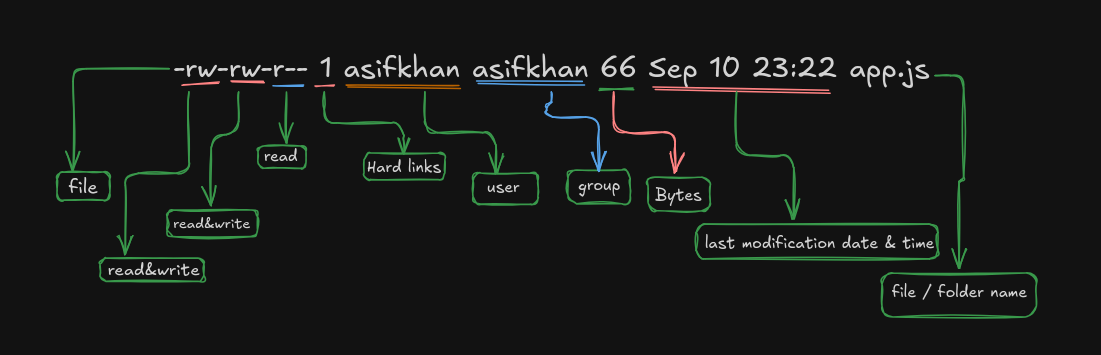
When a directory is created, the system allocates
4KBspace to that directory.
How do you read file permissions?
This article is about the permission settings on a file. The interesting permissions from the app.js listing are:
rwxrwxrw-
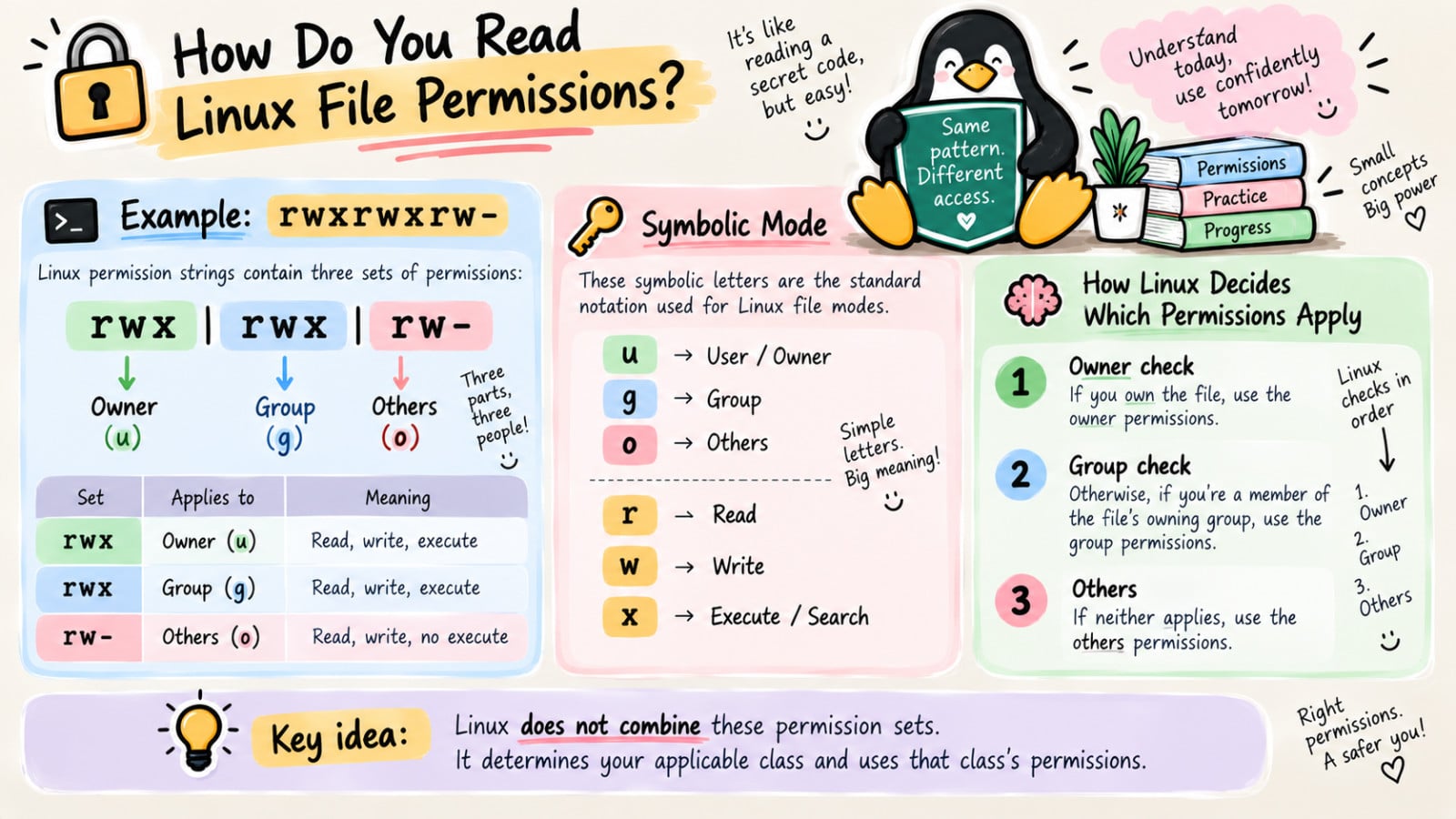
This string is actually an expression of three different sets of permissions:
rwxrwxrw-
The first set of permissions applies to the owner of file.
The second set of permissions applies to the user group that owns the file.
The third set of permissions is generally refereed to as others / all users. All Linux files belong to an owner and a group.
For users, u stands for user owner, g for group owner and o for others.
For permissions r stands for read, w for write, and x for execute.
When the system is looking at file's permissions to determine what information to provide you when you interact with the file, it runs through a series of checks:
It firstly checks to see whether you are the user that owns the file. If yes, then you are granted the user owner's permissions.
If you are not the user who doesn't own the file, it checks the group membership to see whether you belong to the group that matches the group owner of the file. If yes, then the system grants the group owner field permissions, and no further check will made.
Others permissions are applied when the account interacting with the file that neither in the user owner nor in the group that owns the file.
How do you modify Linux file permissions?
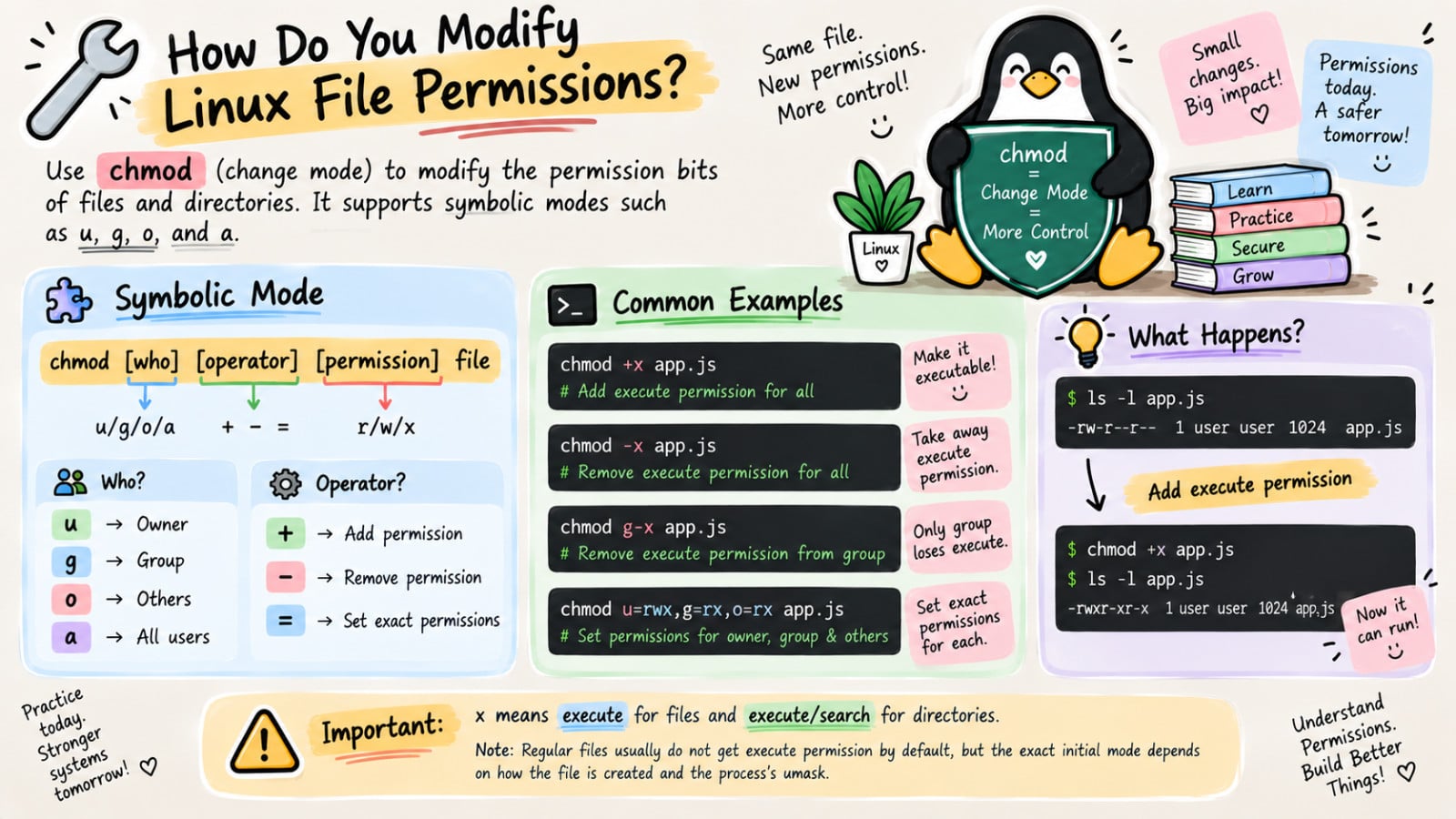
You can modify file and directory permissions with the chmod command, which stands for change mode.
To change file permissions in symbolic (like u, g, o) mode, you enter the u, g, or o (user class) and the permissions you want to grant them, next to it the filename.
chmod +x app.js: Grant execute permission to all. (Owner, Group, and Other)chmod -x app.js: Remove execute permission from all. (Owner, Group, and Other)chmod g-x app.js: Grant exeute permission to group.chmod u=rwx,g=rx,o=rx app.js: Grant permissions in one go.
What are octal values?
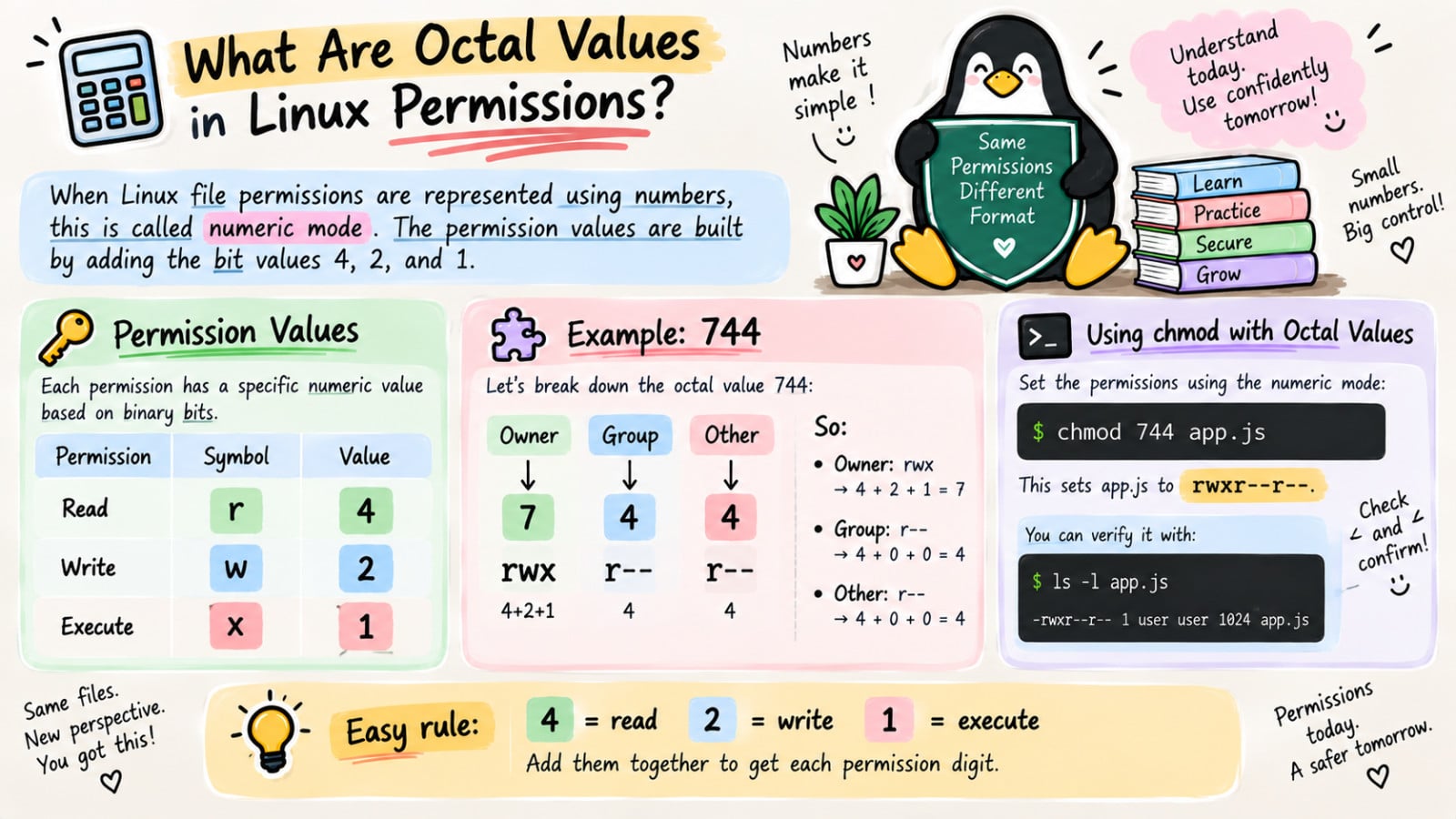
When Linux file permissions are represented by numbers, It's called numeric mode.
In numeric mode, a three digits value represents specific file permission (example: 744). These are called octal values.
The first digit is for owner permissions, the second digit is for group permissions, and the third digit is for other permissons.
r (read) : 4
w (write) : 2
x (execute) : 1
In the permission value 744, the first digit corresponds to the user, the second digit to the group, and the the third digit to the other users.
By adding up the value of each user classification, you can find the file permissions.
For an instance a file have read, write, and execute permissions to its owner, and only read permission to group and other. That looks like this:
Owner : rwx = 4+2+1 = 7
Group : r-- = 4+0+0 = 4
Other : r-- = 4+0+0 = 4
chmod 744 app.js
What do Linux file permissions actually do?
I have talked about how to view file permissions, these permissions apply to whom, and how to read what permissions are enabled or disabled. But what do these permissions actually do in practice?
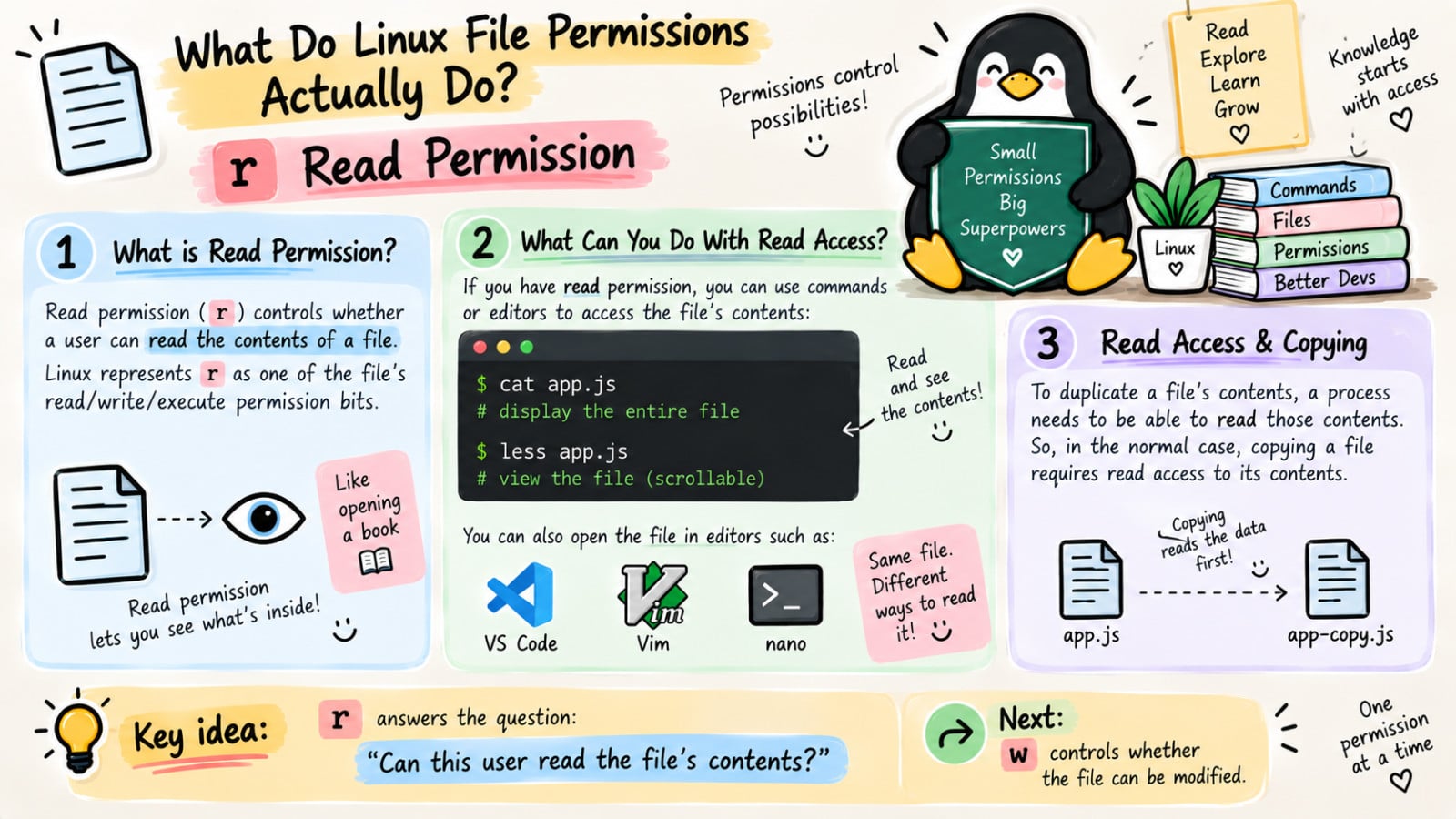
Read (r)
Read permission gives the access to see the content of the file. You can use a command like cat or less on the file to display the file contnet.
You can also use a text editior like VS Code, Vim, or nano etc on the file to display the content of the file.
Read permission is required to create a copy of a file because you need to access the content of the file to duplicate it.
Write (w)
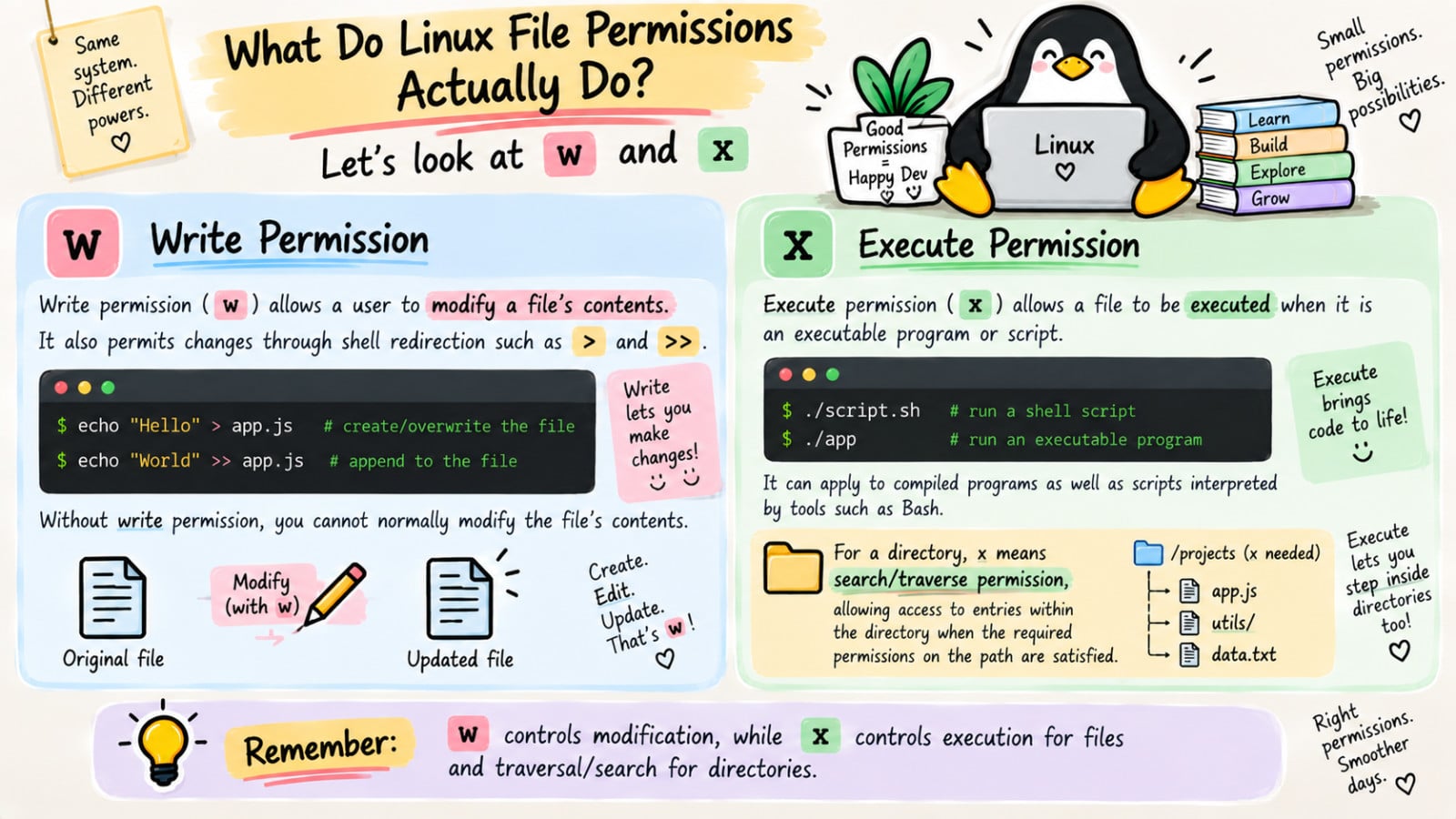
Write permission allows you to modify or change the content of the file.
Write permission also allows you to use the redirect or append operators (> or >>) in the shell to change the content of the file.
Without write permission changes to the file are not permitted.
Execute (x)
Execute permission allows you to execute the file.
Typically executables would be things like commands or compiled binary applications.
However, execute permission also allows someone to run Bash shell scripts, JavaScript program and a variety of interpreted languages.
Linux treats directory as a file.
How do directory permissions work?
Directory is indicated with d

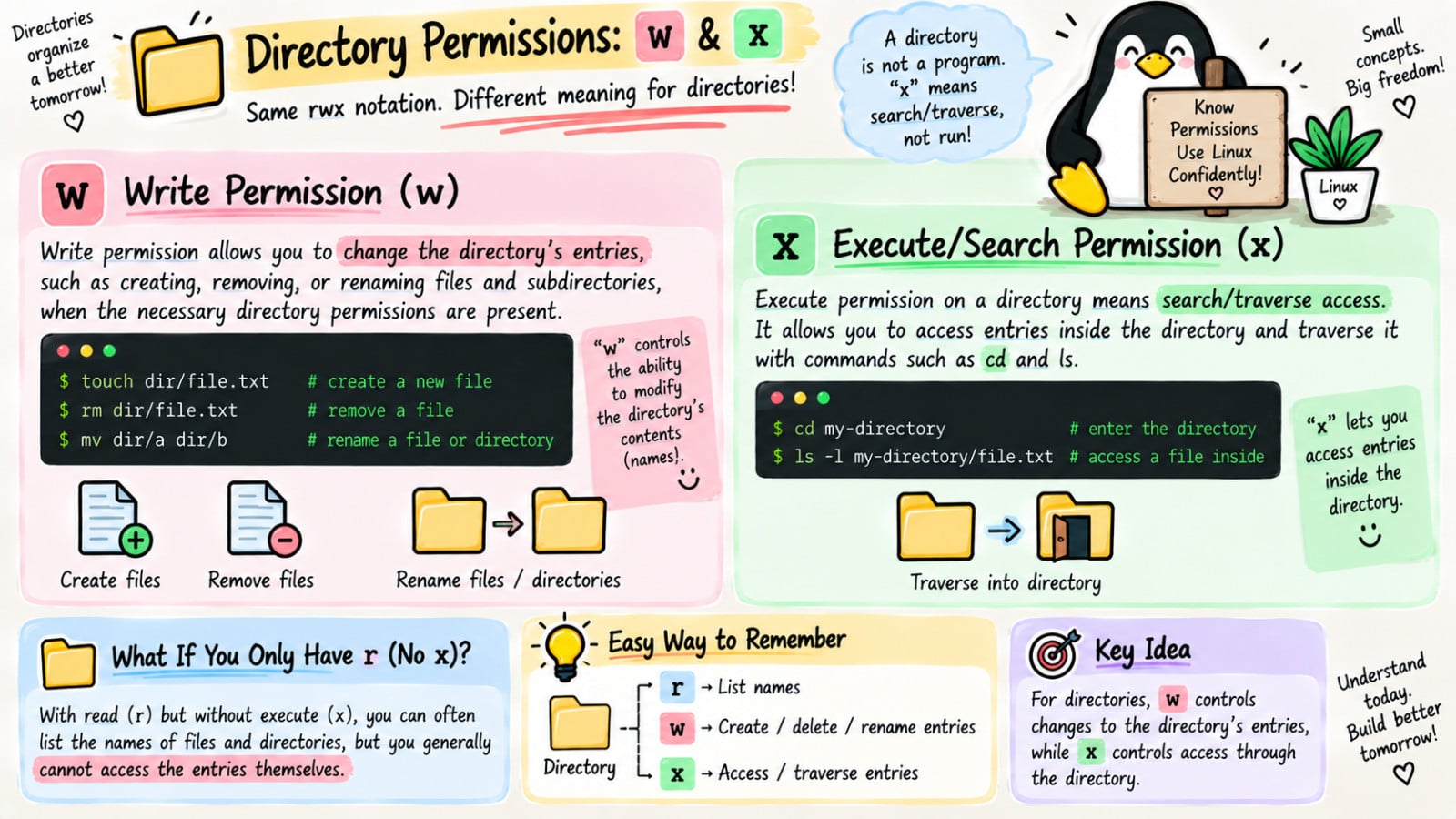
Conceptually, permissions operate on a directory in the same way as file, but directories interpret the operations differentely.
Read (r)
Like regular files, read permission allows you to read the content of the directory.
However***,*** it means that you can view the content (files) store within the directory.
This permission is required to work things like ls.

Write (w)
Like regular files, write permission allows you to modify or change the content of the directory.
When you're changing the content of the directory, you're either adding or removing the files from the directory.
You must have the write permission, to move mv , remove / delete rm, copy cp, or create touch the files to the directory.
Execute (x)
Execute permission is different on directories compared with the files.
You can think of it, as providing access to the directory. Having execute permission on a directory authorizes you to look at extended (more) information on the files of directory (using ls-l) but also allows you to change the directory (using cd).