
Linux Environment Variables: A Beginner’s Guide
Learn how environment variables work, how they differ from shell variables, and how to set, export, and persist them in Linux.

If you're working in a Linux environment, there are chances that you have encountered environment variables - even if you didn't realize it at the time.
Environment variables provides information that the shell and other programs use. They control things like the prompt and help the shell find programs when you type a command. Whether you're an experienced system administrator or a new Linux user, mastering environment variables is essential for customizing and controlling your shell experience.
prompt

In this article, we will understand what environment variables are in Linux. By the end of this article, you'll not only know how to view and set environment variables but also how to persist them.
What are Environment variables
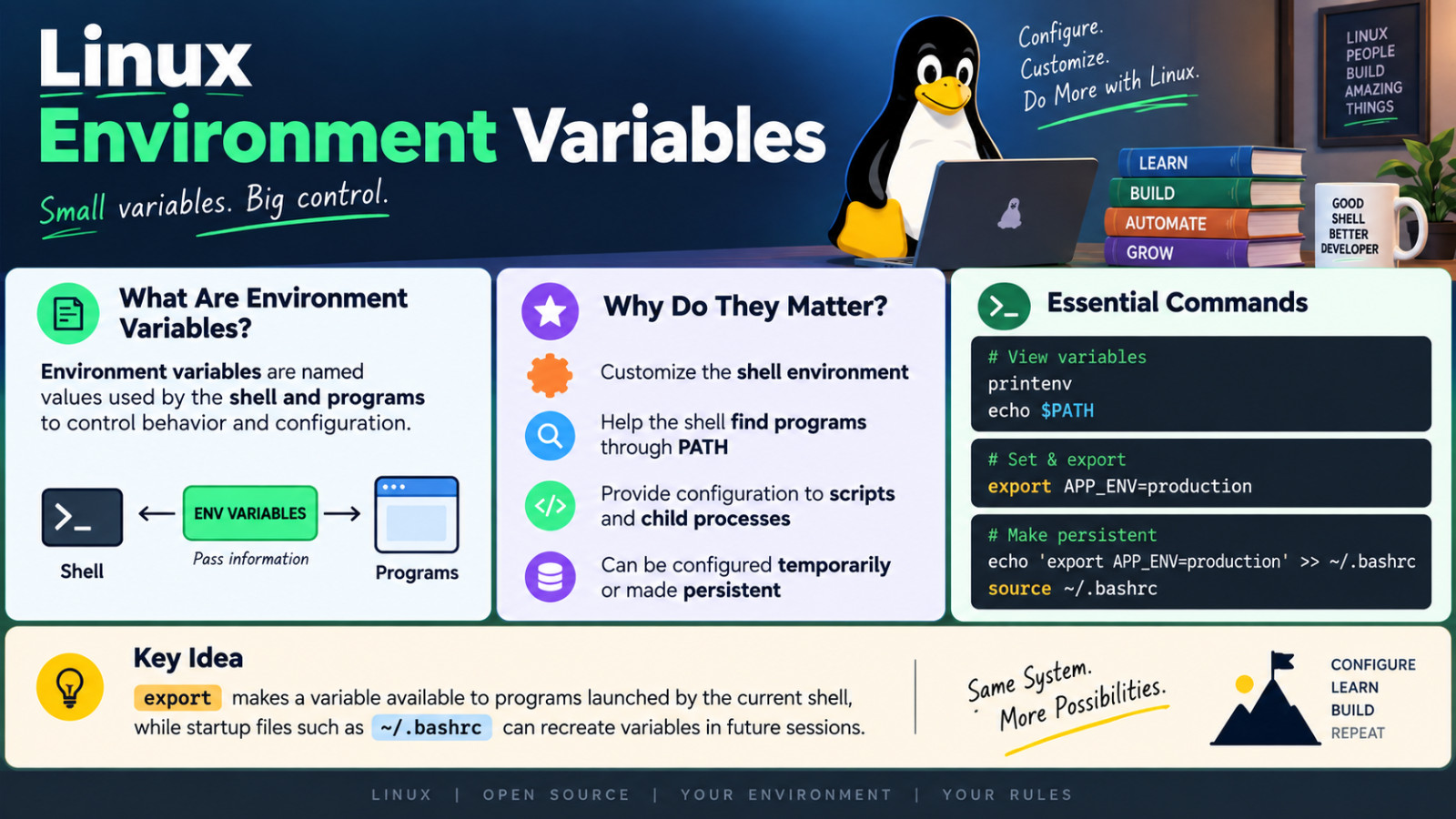
Environment variables are dynamic named values that programs use to get information and decide how they should work in Linux system.
For example:
HOME=/home/dev

#  HOME     --> name
# /home/dev --> value
Linux represents environment variables as name=value pairs. When a program starts by shell, program can recieve these values as a part of its environment.
You can think environment variables as configuration settings that the shell and program understand how they should operate.
For example:
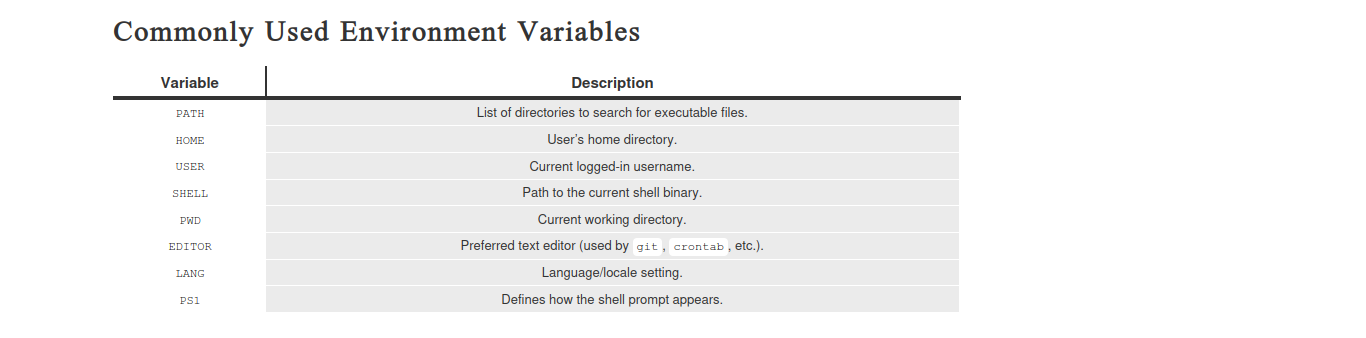
The
PATHvariable tells the shell where to search for executable command when you type.The
HOMEvariable stores the path of the home directory.The
LANGvariable defines system's language and character encoding.
What does the mean of shell builtin
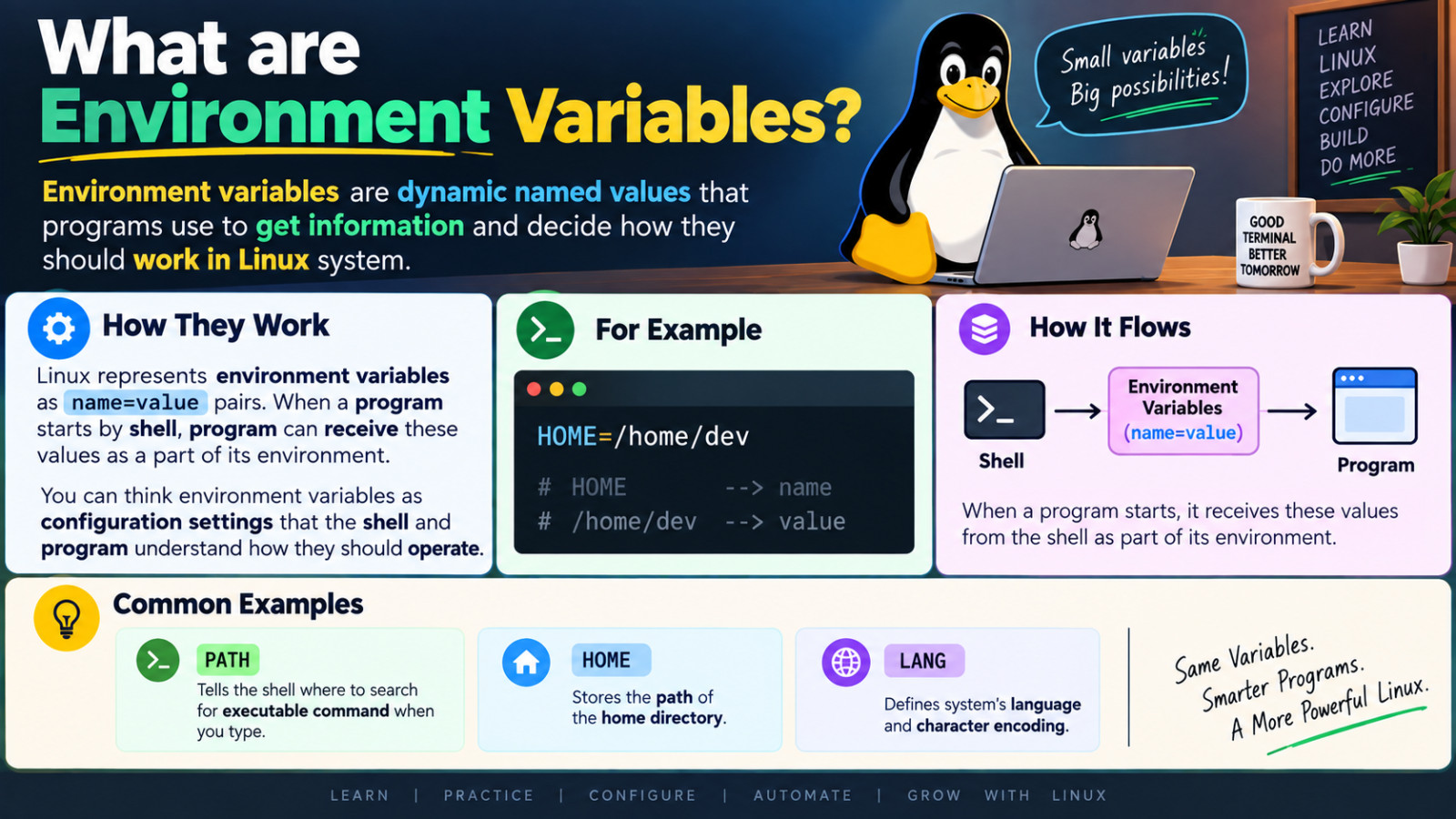
A shell built-in is a command built right into your shell program instead of being a seprate external file on your hard drive.
Environment variables themselves are not shell built-ins while Built-ins refer to the commands. Instead environment variables are pieces of data. It means shell is simply stored text (a string) in your computer's memory.
For example:
$SHELL
$HOME
$USER
USER=alex
HOME=/home/alex
PATH=/usr/bin:/bin
SHELL=Bash
What does it mean of executable
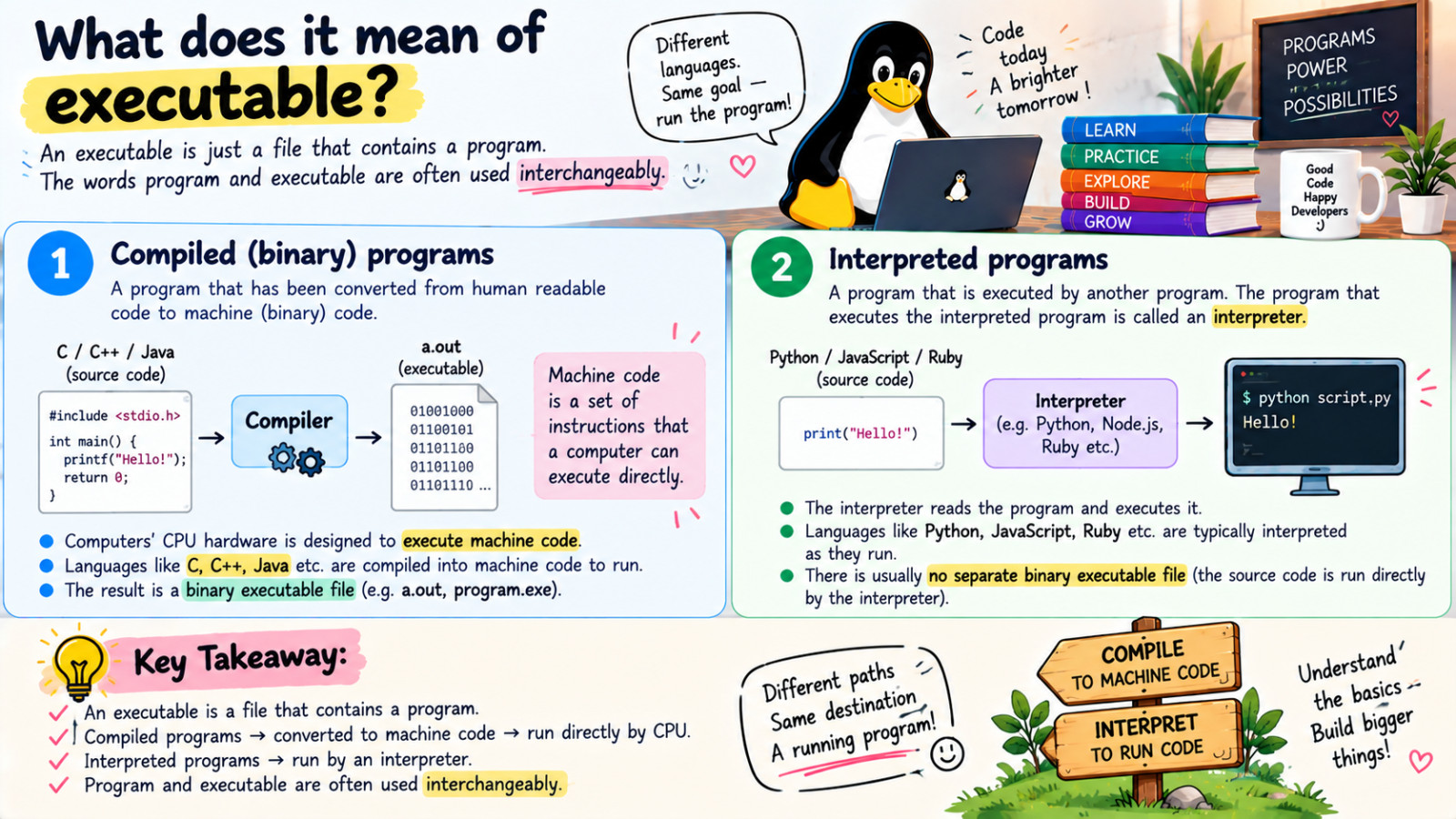
An executables is just a file that contains program. The words program and executable often used interchangably. There are two types of program.
Compiled (binary) programs
Interpreted programs
Compiled program : A program that has been converted from human readable code to machine (binary) code.
Machine code is a set of instructions that a computer can execute directly. Because computer's CPU hardware is designed to execute machine code. Programming languages like C, C++, JAVA etc their code is compiled into machine code to run.
Interpreted program : A program that is executed by another program. The program that executes the interpreted program is called an interpreter.
The interpreter reads the interpreted program and executes it. Programming languages like python, JavaScript, Ruby etc are typically interpreted as they run.
Another example of interperted programs is .sh shell scripts files. Those are interpreted by shell program.
The which command tells the location of an installed command line program.
For example : which sh tells the location of shell program.
which sh
Output:
/usr/bin/sh
If you were cat /usr/bin/sh, you would not see the human readable code, that is because the shell is a compiled program.
Run an executable in Linux
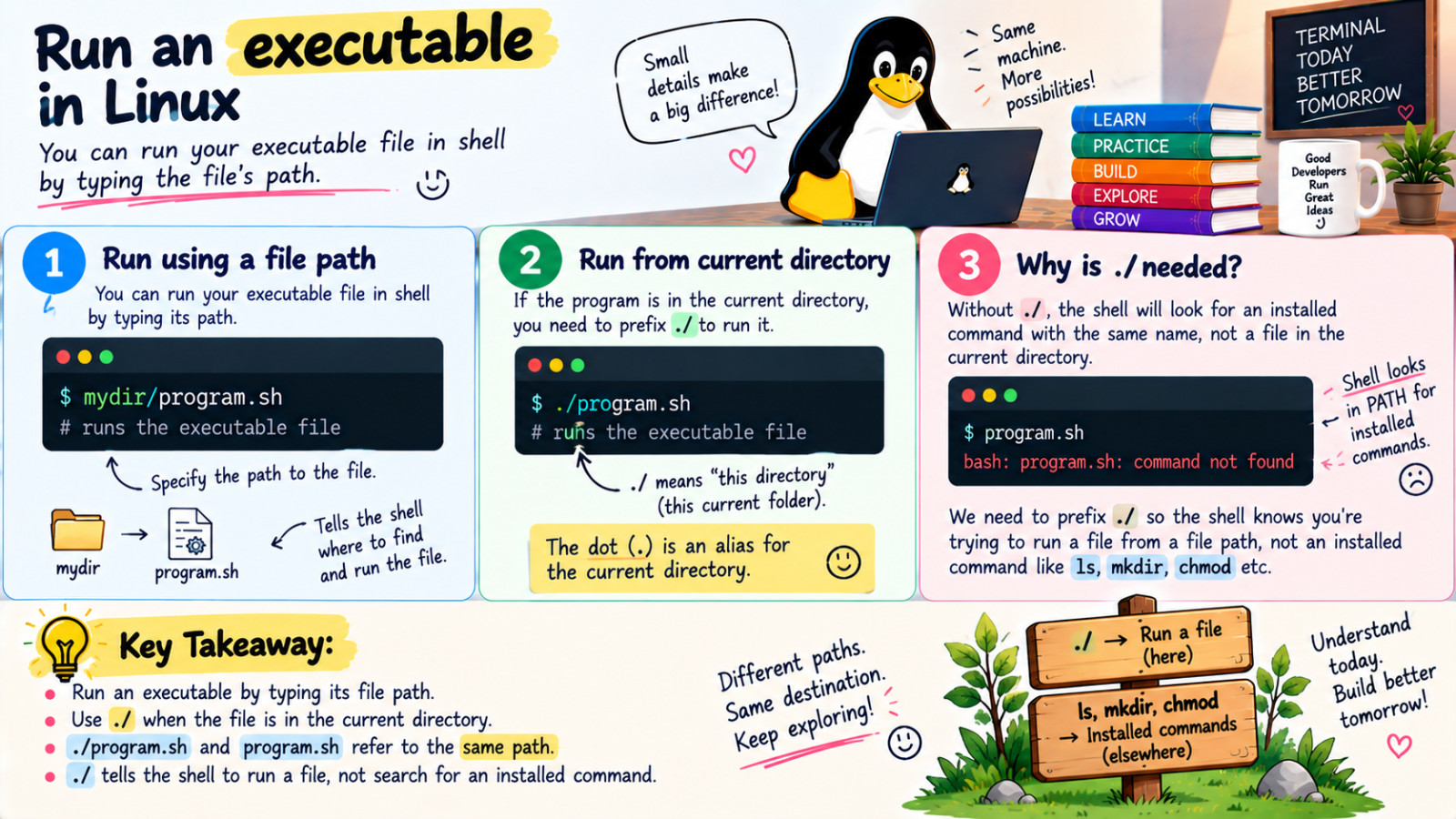
You can run your executable file in shell by typing file's path.
mydir/program.sh
Interestingly, if the program is in the current directory (mydir), you need to prefix ./ to run it.
./program.sh
As far as the file path go, ./program.sh and program.sh are same. The dot (.) is an alias for the current directory.
We need to prefix it when run executables so that the shell knew that you're trying to run a file from a file path not an installed command line programs like ls, mkdir, chmod etc.
What is shebang
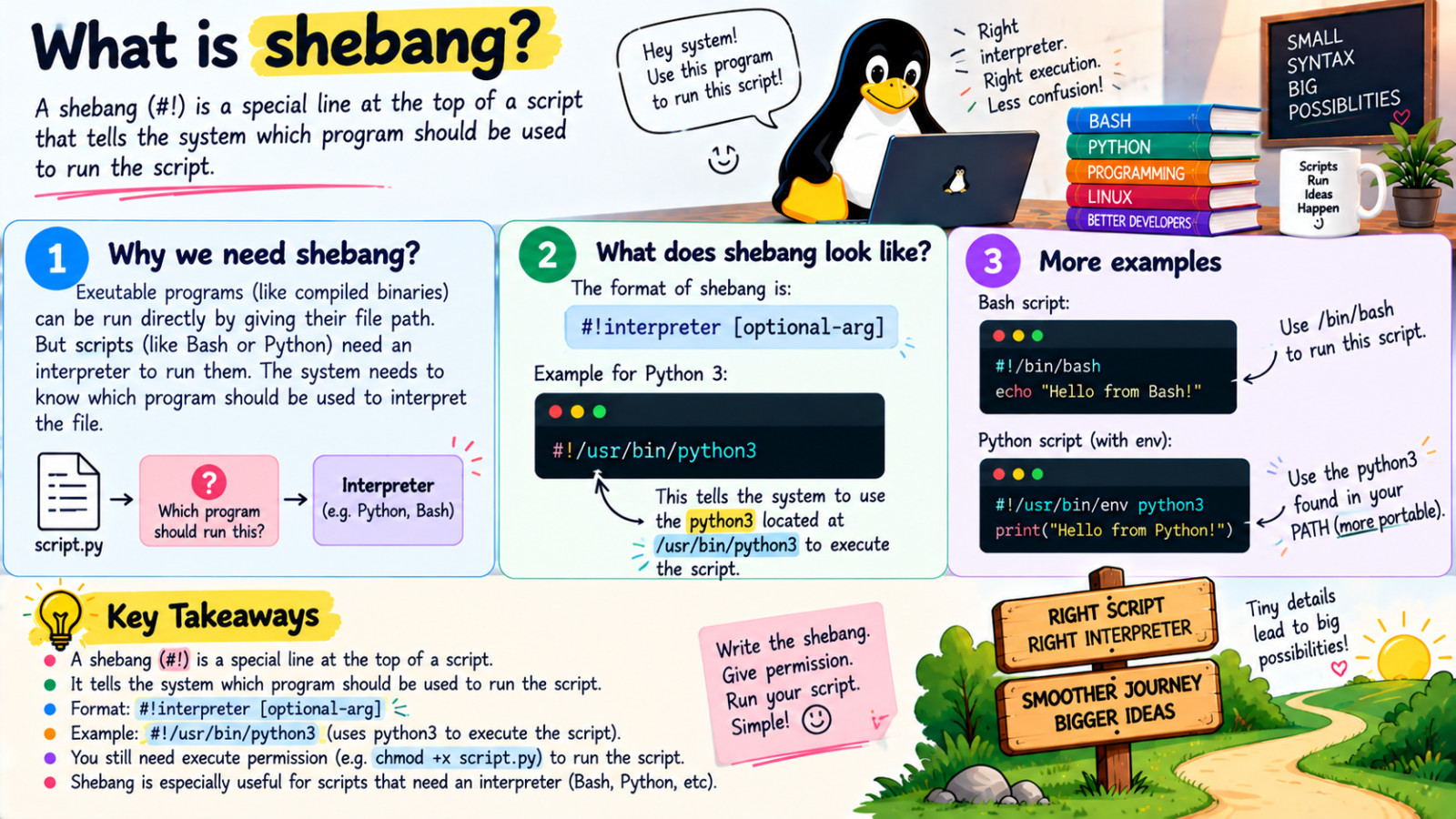
You can run an executable program by giving its file path, as long as you have permission to execute the file. You can run an executable program by giving its file path. But what about scripts that need an interpreter, such as Bash or Python, to run them?
The system needs to know which program should be used to interpret the file.
A shebang (#!) is a special line at the top of a script that tells the system which program should be used to run the script.
The format of shebang is :
#!interpreter [optional-arg]
For example, if your script is the python script and you want to use python3 to execute the script, your shebang might look like this:
#!/usr/bin/python 3
This tells the system to use the python 3 located at /usr/bin/python 3 to execute the script.
Environment variables vs shell variables
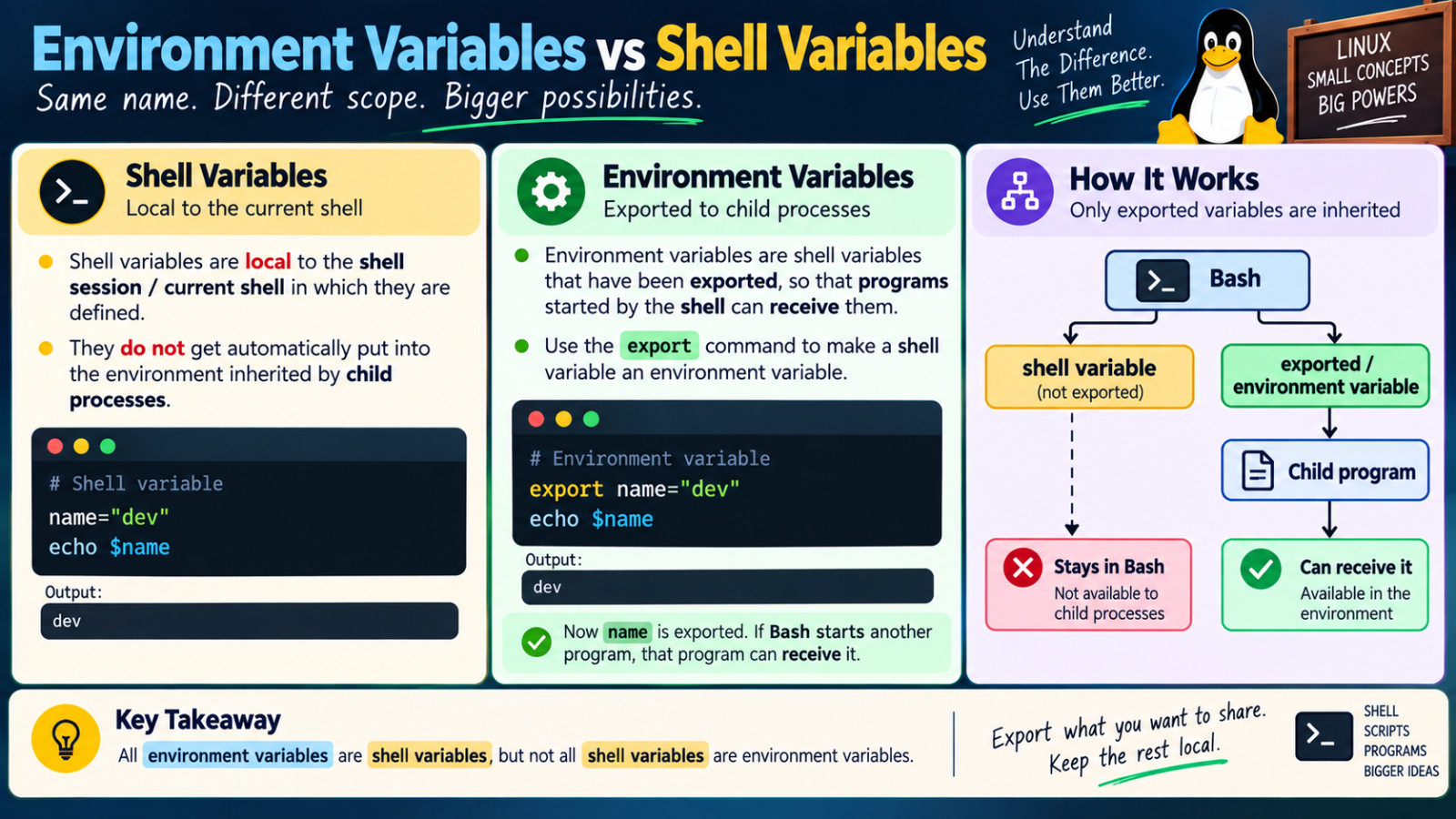
There is an important distinction (difference) between shell variables and environment variables:
Shell variables are local to the shell session / current shell in which they are defined.
They does not put automatically into the Environment inherited by child processes.
#Shell variable

name="dev"
echo $name
- Environment variables are shell variables that has been
exported, so that the program start by the shell can recieve them.
#Environment variable

export name="dev"
echo $name
Now name is exported. If the Bash starts another program, that program can recieve it.
             Bash
              |
       ┌──────┴──────┐
       │             │
   shell variable   exported / environment variable
       │             │
       │             ↓
       │        Child program
       │             │
       │             ↓
       │       can receive it
       │
       └── stays in Bash
Types of Environment Variables in Linux
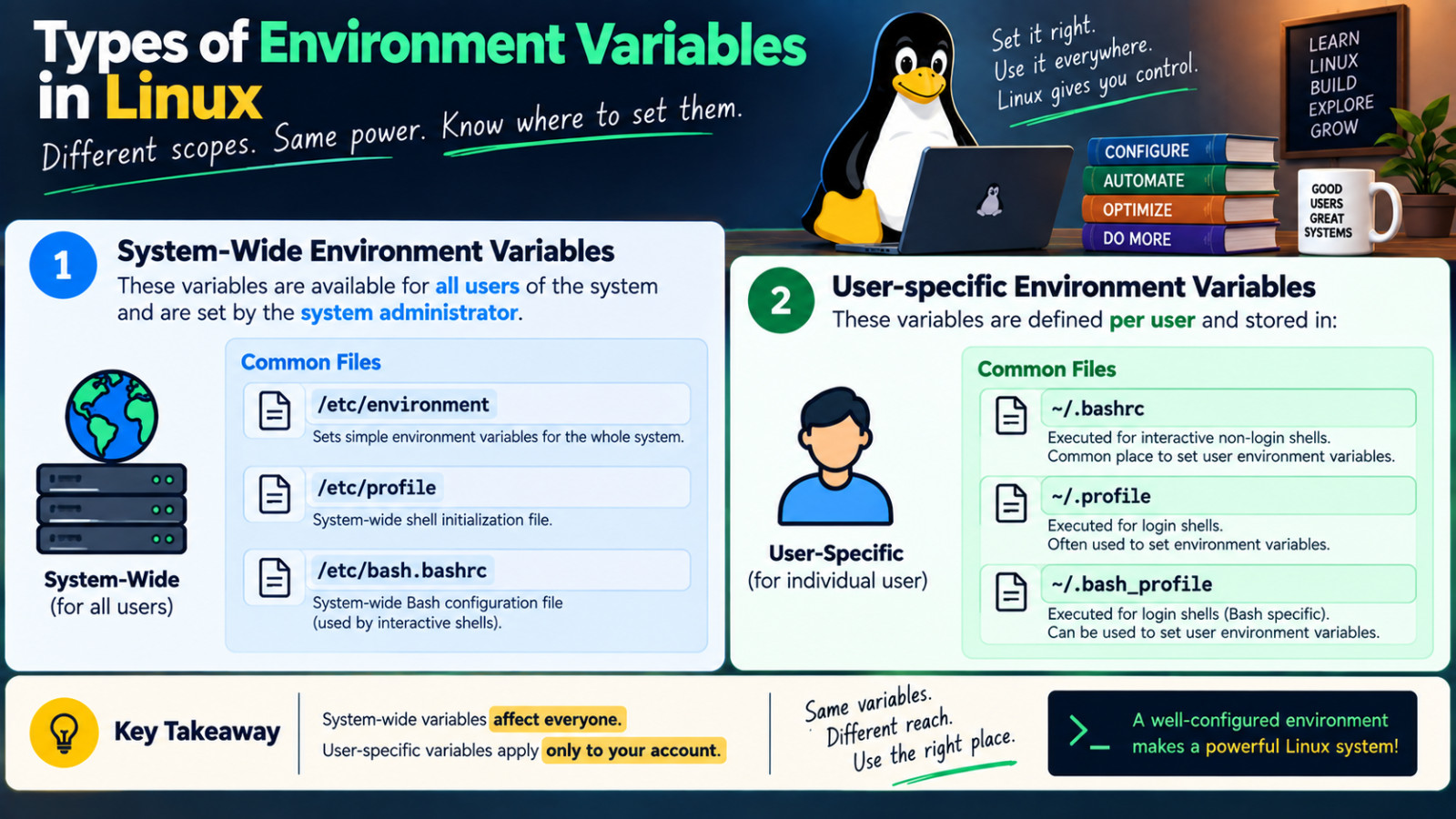
- System-Wide Environment Variables
These variables are availabe for all users of the system and are set by the system adminstrator.
/etc/environment/etc/profile/etc/bash.bashrc
2. User-specific Environment variables
These variables are defined per user and stored in:
~/.bashrc~/.profile~/.bash_profile
View Environment variable
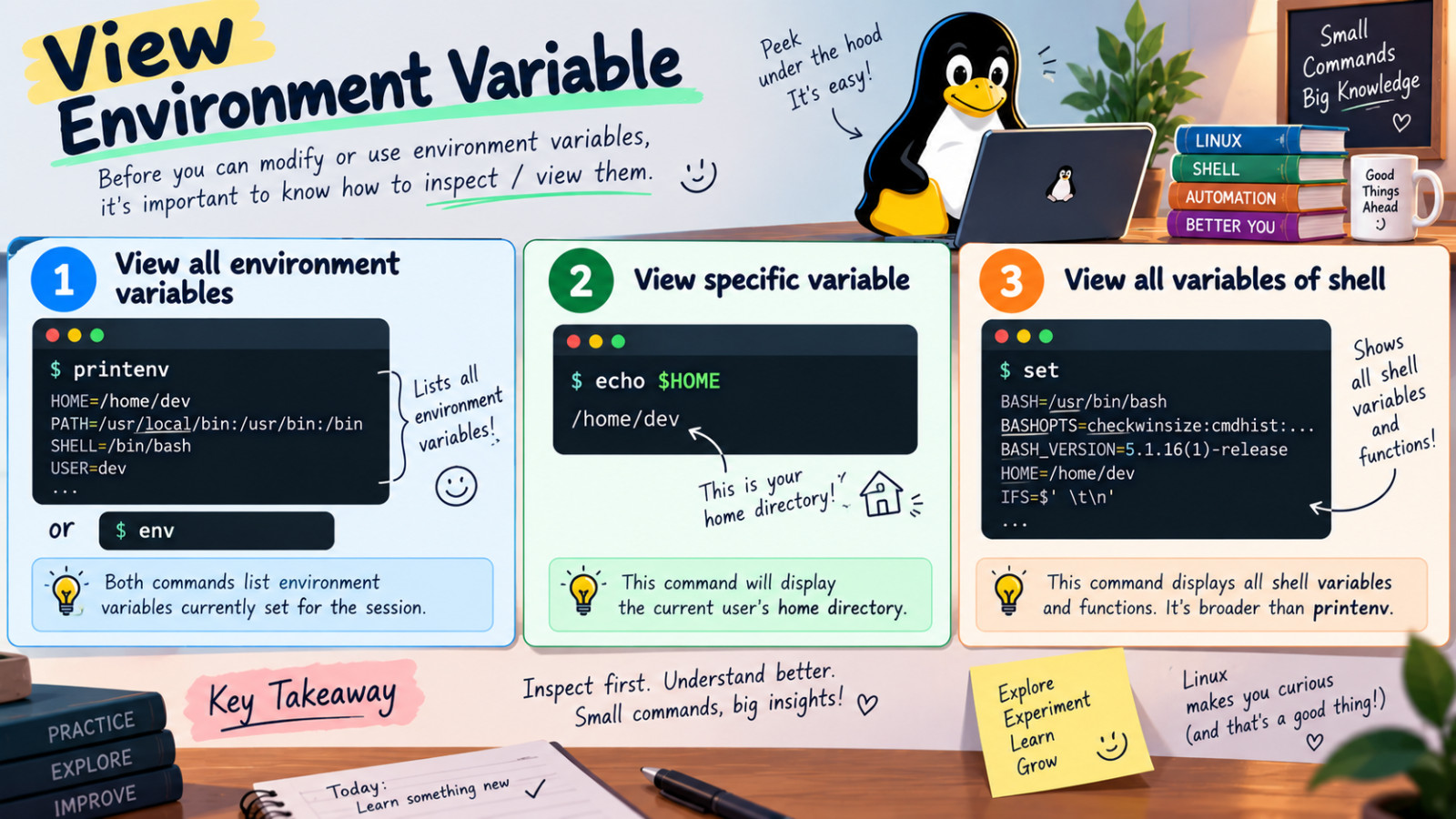
Before you can modify or use environment variables, it's important to know how to inspect / view them.
- View all environment variables
printenv
Both commands can show the environment variables of the current shell environment. printenv is specifically designed to print environment variable values.
env
However, env command has a broader purpose. Its main job is to run a command with a modified environment, although running env command without arguments displays the current environment variables.
2.View specific variable
echo $HOME
    or
printenv HOME USER
This command will display the current user's home directory.
printenv also supports giving one or more variable names as arguments.
3.View all variables of shell
set
This command displays all shell variables and functions. It's broader than printenv.
When set is run without options or arguments, it displays the name and value of shell variables and functions.
PATH Environment variable
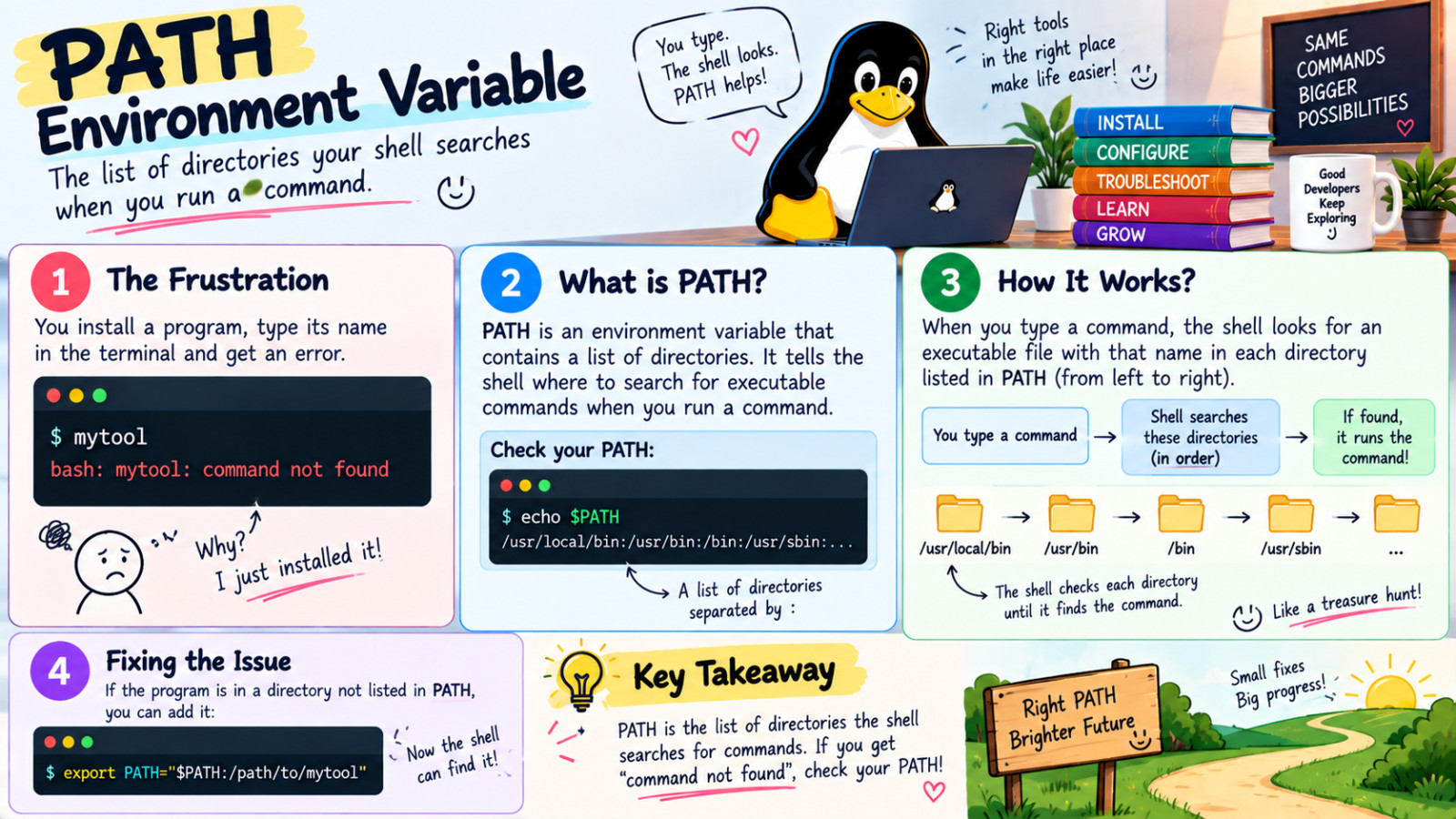
Sooner or later every developer installs a program, types its name in the terminal and gets hit with an error : command not found. Usually the culprit is PATH Environment variable:
PATH stores absolute directory paths separated by colons. When you run a command without a full path, your shell inspects each directory in order and executes the first matching file with execute permissions.
It's the list of directories and it tells the shell search these directories when someone try to run a command. The directories are separated by :
For example:
echo $PATH
Output look like this:
/usr/local/bin:/usr/bin:/bin
It means the shell searches these directories when you type a command such as:
ls
Shell searches like this:
ls
 ↓
/usr/local/bin
 ↓
/usr/bin
 ↓
/bin
If the same executable name exists in more than one directory, the first directory in this list wins.
Setting and Exporting Environment Variables
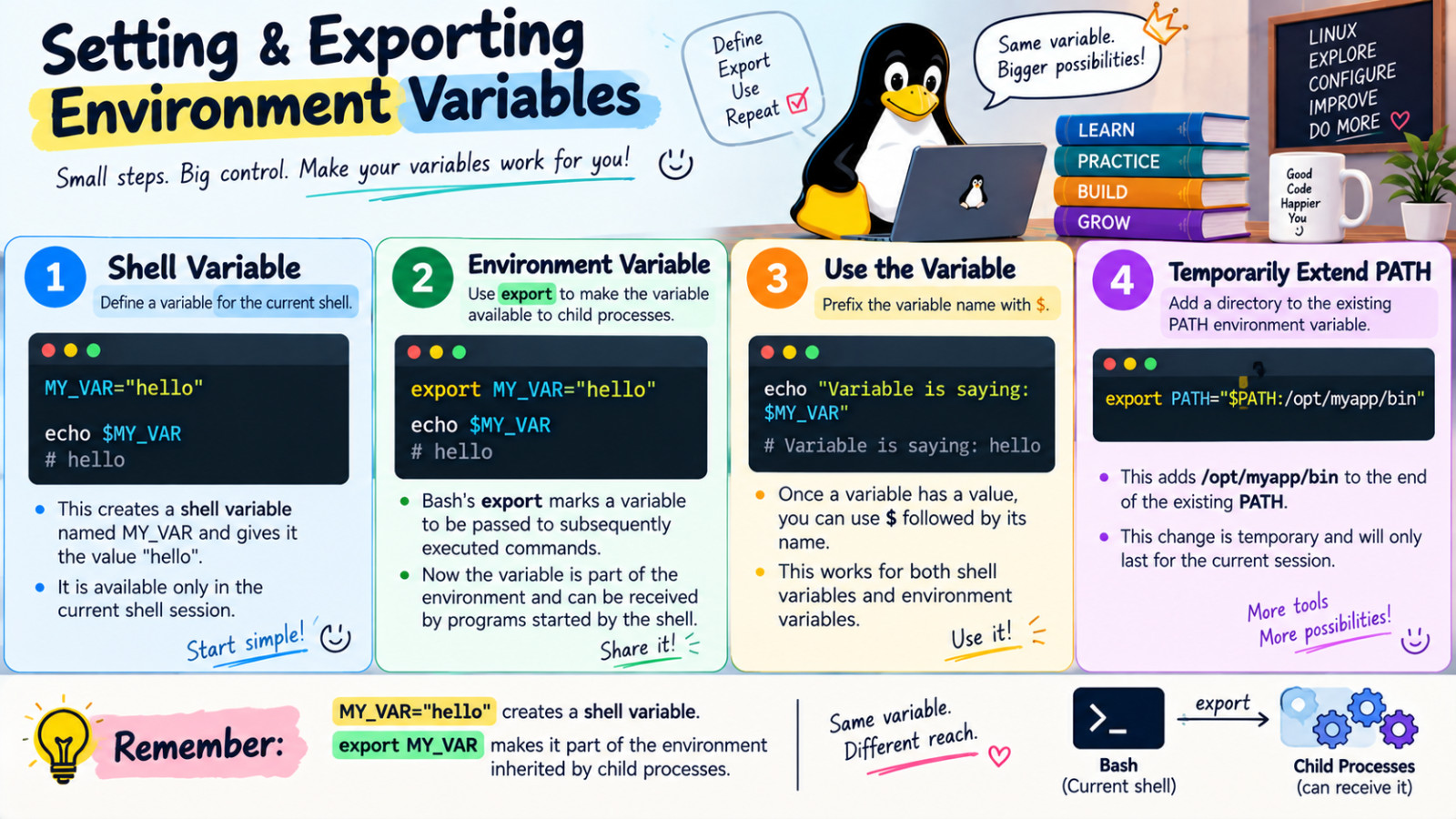
You can define variables in the shell but these aren't permanent
1.Setting a variable
To create a variable:
MY_VAR="hello"
This creates a shell variable named MY_VAR and gives it the value "hello"
To check the variable:
echo $MY_VAR
    or
printenv MY_VAR
This is basic Bash syntax for assigning and checking the variable.
2.Create Environment Variable
A normal shell variable is available to the current shell. If you want programs started by the shell to recieve the variable, you can export it.
Bash's export command marks a variable to be passed to subsequently (after) executed command.
To create the variable:
export MY_VAR="hello"
To check the variable:
echo $MY_VAR
3.Using a variable
Once a variable has a value, you can use $ followed by its name:
echo "Variable is saying: $MY_VAR"
Output:
Variable is saying: hello
4.Temporary PATH update
You can temporarily add a directory to the PATH environment variable
export PATH="$PATH:/opt/myapp/bin"
This adds /opt/myapp/bin to the end of the existing PATH.
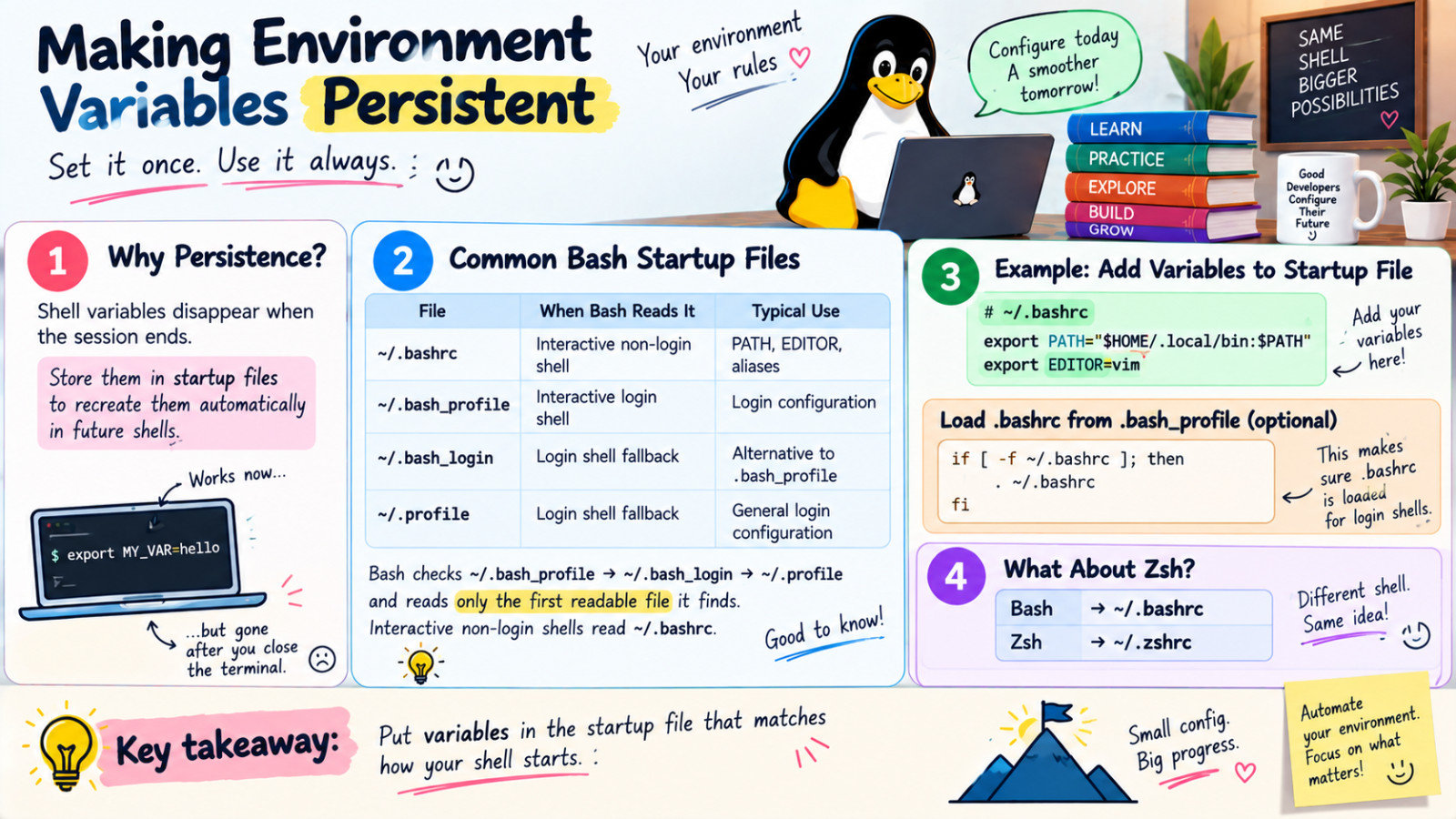
Making Environment Variables persistent
Variables defined in the shell are lost once the session ends. You need to store them in a shell configuration file.
common shell startup files:
~/.bashrc
~/.bashrc: This files is normally read whenBashstarts as an interactive non-login shell.For example, when you open a new terminal window, your terminal will often start an interactive Bash shell, which commonly reads -
.bashrc. This makes.bashrca common place for things such as:
export PATH="$HOME/.local/bin:$PATH"
export EDITOR=vim
~/.bash_profile
~/.bash_profile: This file can be read whenBashstarts as a login shell.Bashchecks these files in this order:
~/.bash_profile
~/.bash_login
~/.profile
Shelluses the first one that exists and readable.
A common setup is for .bash_profile to load .bashrc, so that the same interactive configuration is availabe in both situations.
if [ -f ~/.bashrc ]; then #if .bashrc is availabe, source that.
    . ~/.bashrc
fi
~/.profile
~/.profile: This another login start up file.Bashchecks it after~/.bash_profile,~/.bash_login.
.bash_profile = .bash_login = .profile ❌️
They are alternative login startup files, and Bash doesn't automatically read all three.
~/.zshrc
If you use ZSH instead of Bash, ZSH has its own startup files.
~/.zshrc is read for interactive ZSH shells.
So:
Bash → ~/.bashrc
Zsh  → ~/.zshrc
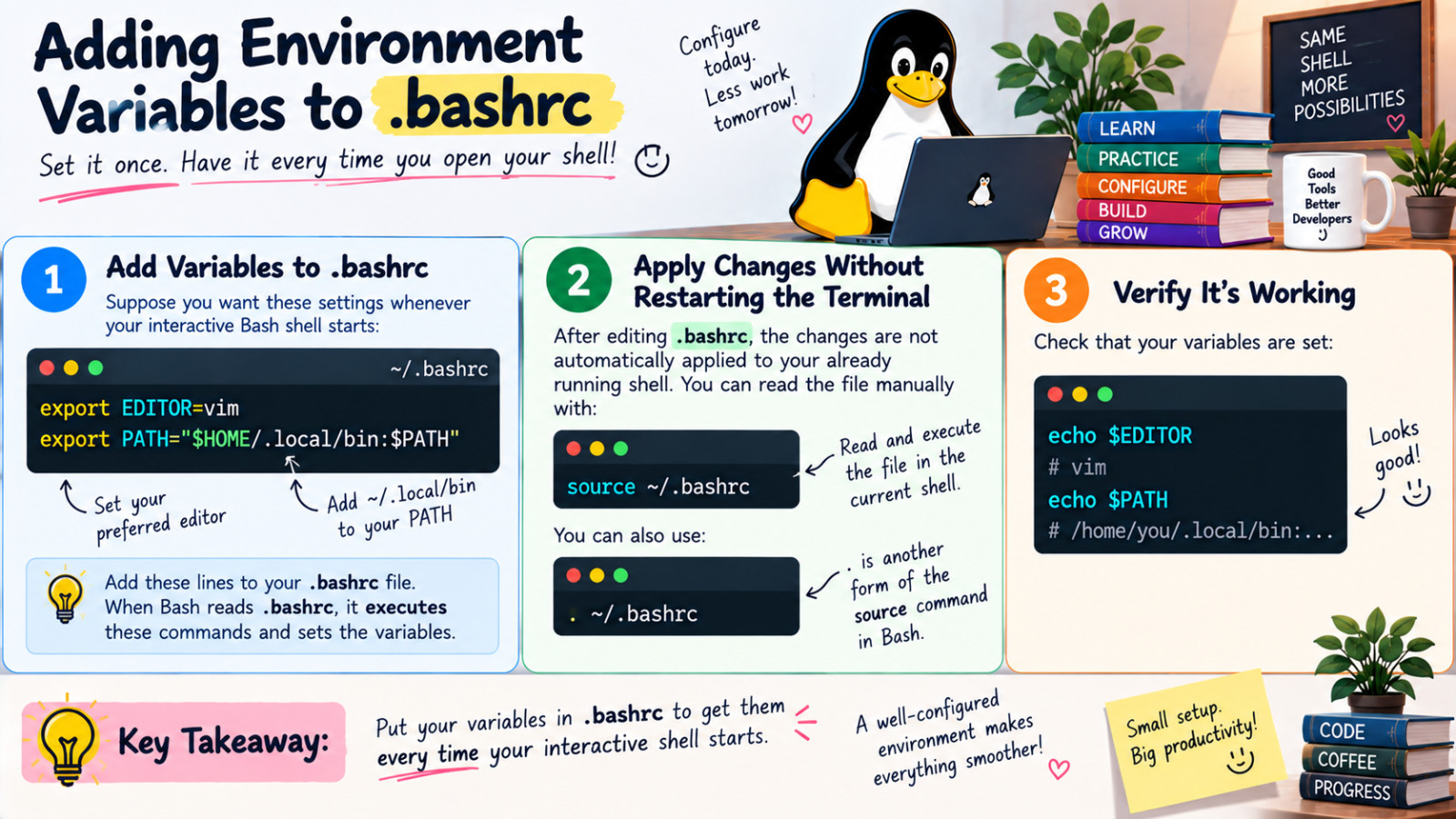
Adding Environment Variables to .bashrc
Suppose you want these settings whenever your interactive Bash shell starts:
export EDITOR=vim
export PATH="$HOME/.local/bin:$PATH"
You can add them to: .bashrc file. Then when Bash reads .bashrc, it executes those commands and sets the variables.
Apply changes without restarting the terminal
After editing .bashrc , the changes are not automatically applies to your already running shell. You can read the file manually with:
source ~/.bashrc
source tells Bash to read and execute the commands in that file in the current shell.
You can also use:
. ~/.bashrc
The . is another form of source command in Bash.
Conclusion
Environment Variables are a fundamental part of the Linux shell. They provide essential configuration for your system and applications.