
Linux File System Explained: A Beginner’s Guide
Understand how Linux organizes files, directories, and system data under /
Linux was harder to understand than I expected. Maybe Linux was designed in a way that prefers the command line instead of graphical tools.
I soon realized that /etc was not a place for random files, /usr was not where users stored their personal files, and /bin was not a trash bin. I realized that I needed to learn how Linux organizes its directories and what each directory is used for.
/etc
It's used for system configuration files. The Filesystem Hierarchy Standard describes /etc as the location for host-specific configuration.
For example - you may find configuration related to:
/etc/
├── hostname
├── hosts
├── fstab
└── ...
/usr
The /usr is primarily for software, commands, libraries, and other shared read-only data.
The Filesystem Hierarchy Standard specifies /usr/bin as primary directory for executable commands on the system.
You can think of it roughly as:
/usr
├── bin   → programs/commands
├── lib   → libraries
├── share → shared data
└── ...
/bin
The /bin contains essential command binaries, such as commands needed by user and the system.
On many modern Linux distributions, /bin is also a symbolic link to /usr/bin, so the exact layout can vary by distribution.
A general purpose computer needs a place to permanently store different kinds of data, such as the operating system, applications, documents, photos, and other files. There are several reasons why a computer needs permanent storage because of the RAM, it normally loses its data when the power is turned off.
Some types of memory can keep data without power, but using them for large amounts of storage has traditionally been more expensive. This is why computers use storage devices such as HDDs and SSDs.
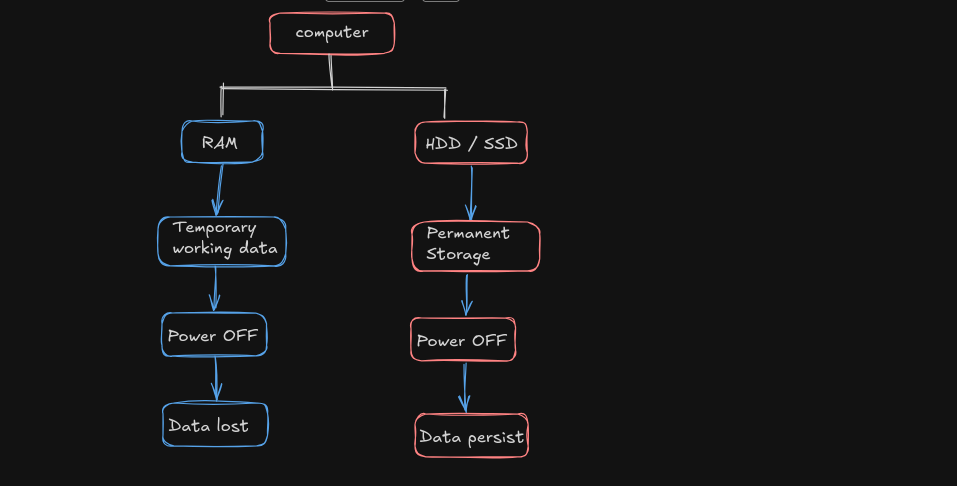
Therefore, we need a logical method of organizing and storing a large amount of data in such a way that makes it easy to manage. Unix represents stored data / information using files. In Unix-like systems, files and directories are organized into a hierarchical filesystem.
All data in Unix is organized into files. All files are organized into directories.
All files are organized into directories. These directories are organized into a tree-like structure called the “Filesystem”.
                    /
                    │
       ┌────────────┼────────────┐
       │            │            │
     /home         /etc         /usr
       │                         │
     /john                      /bin
       │                         │
   ┌───┴────┐                  programs
   │        │
Documents Downloads
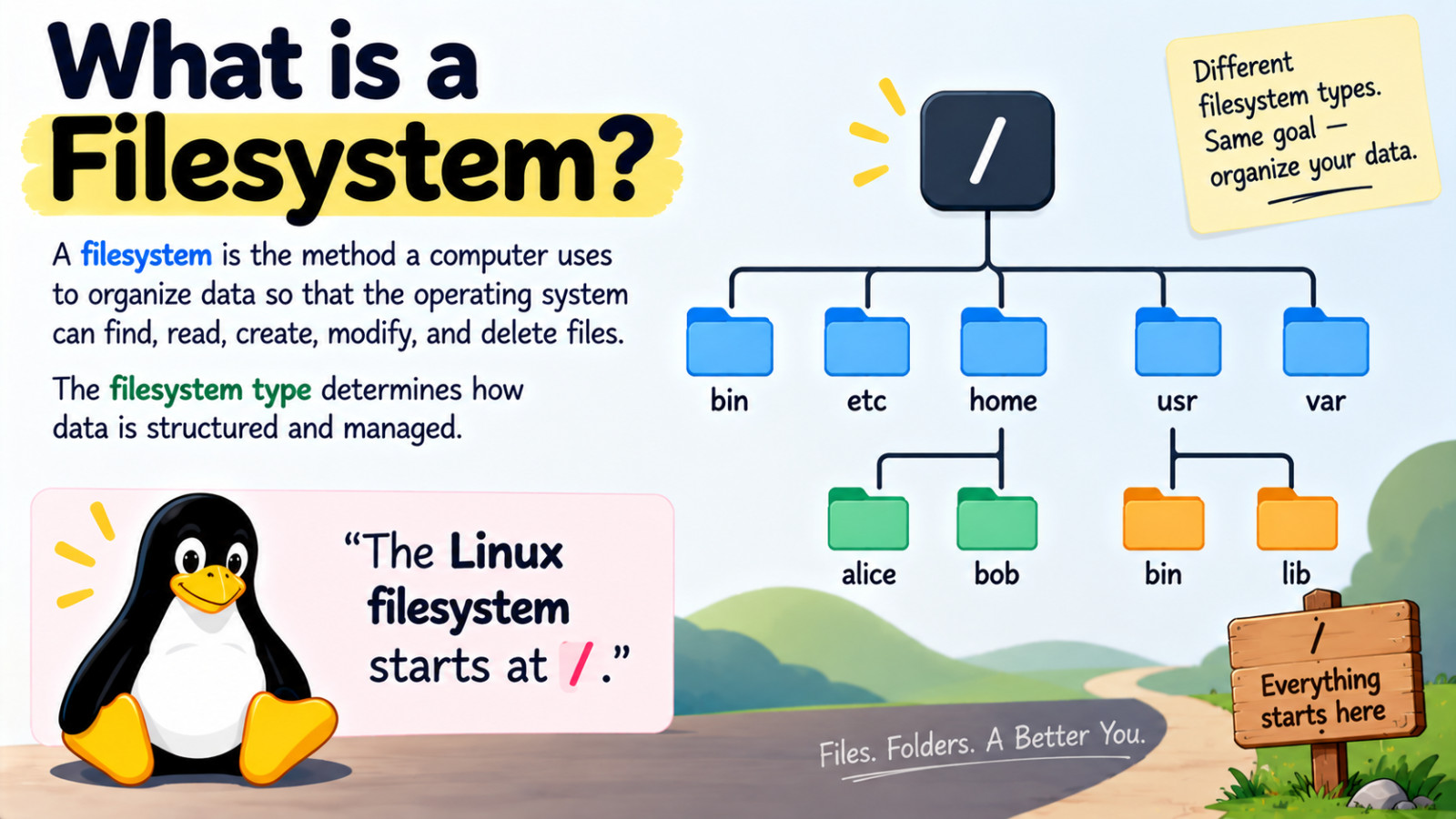
A Linux filesystem is an organized tree of directories and files, starting from the root directory
/.
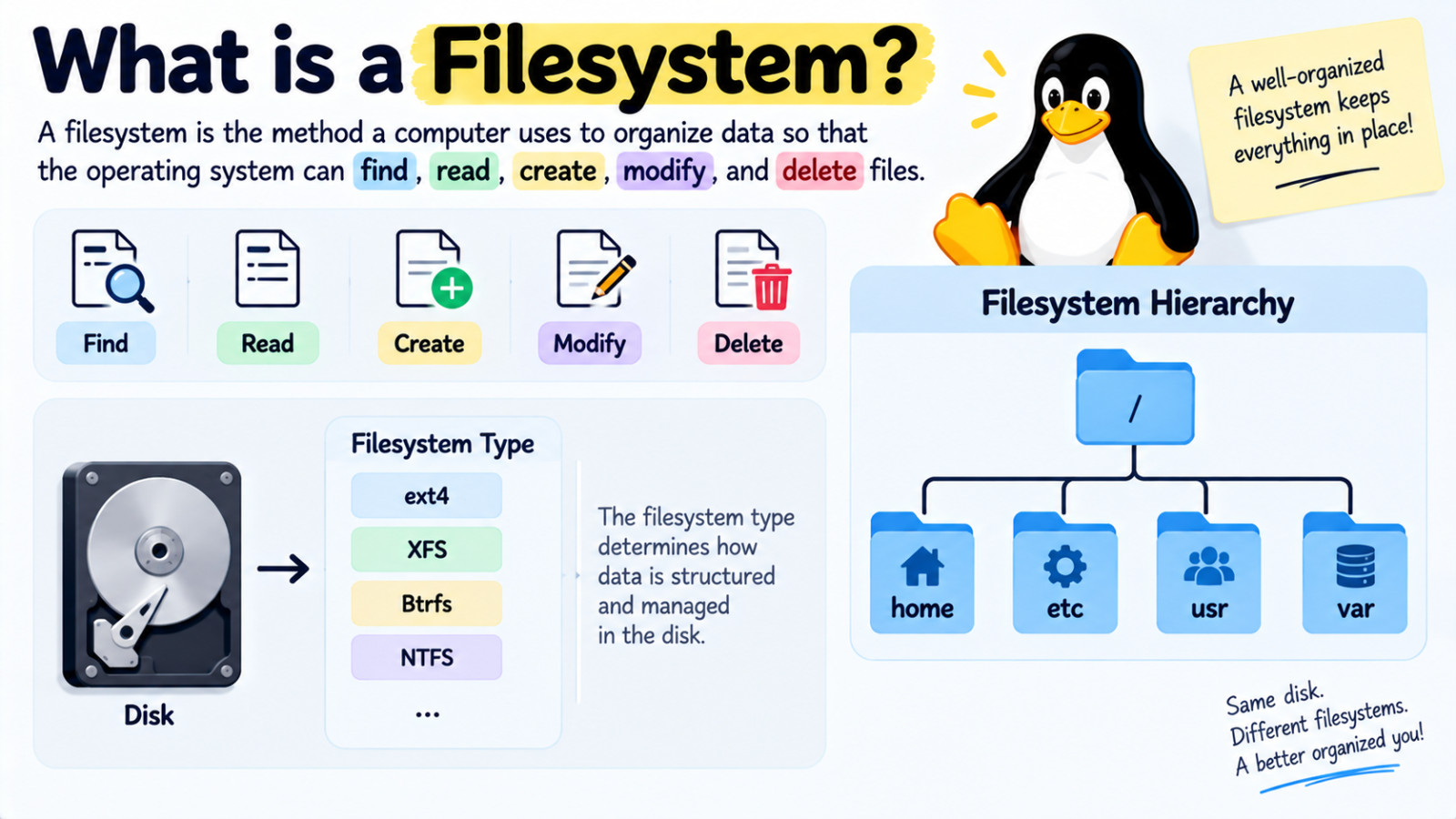
What is a file system
The word ‘filesystem’ can be confusing because it is used in different ways. Sometimes it means the directory structure used to organize files, such as /, /home, and /etc.
Other times, it means a filesystem type, such as ext4 or XFS, which defines how files and data are organized and managed. You need to look at the context to understand which meaning is intended.
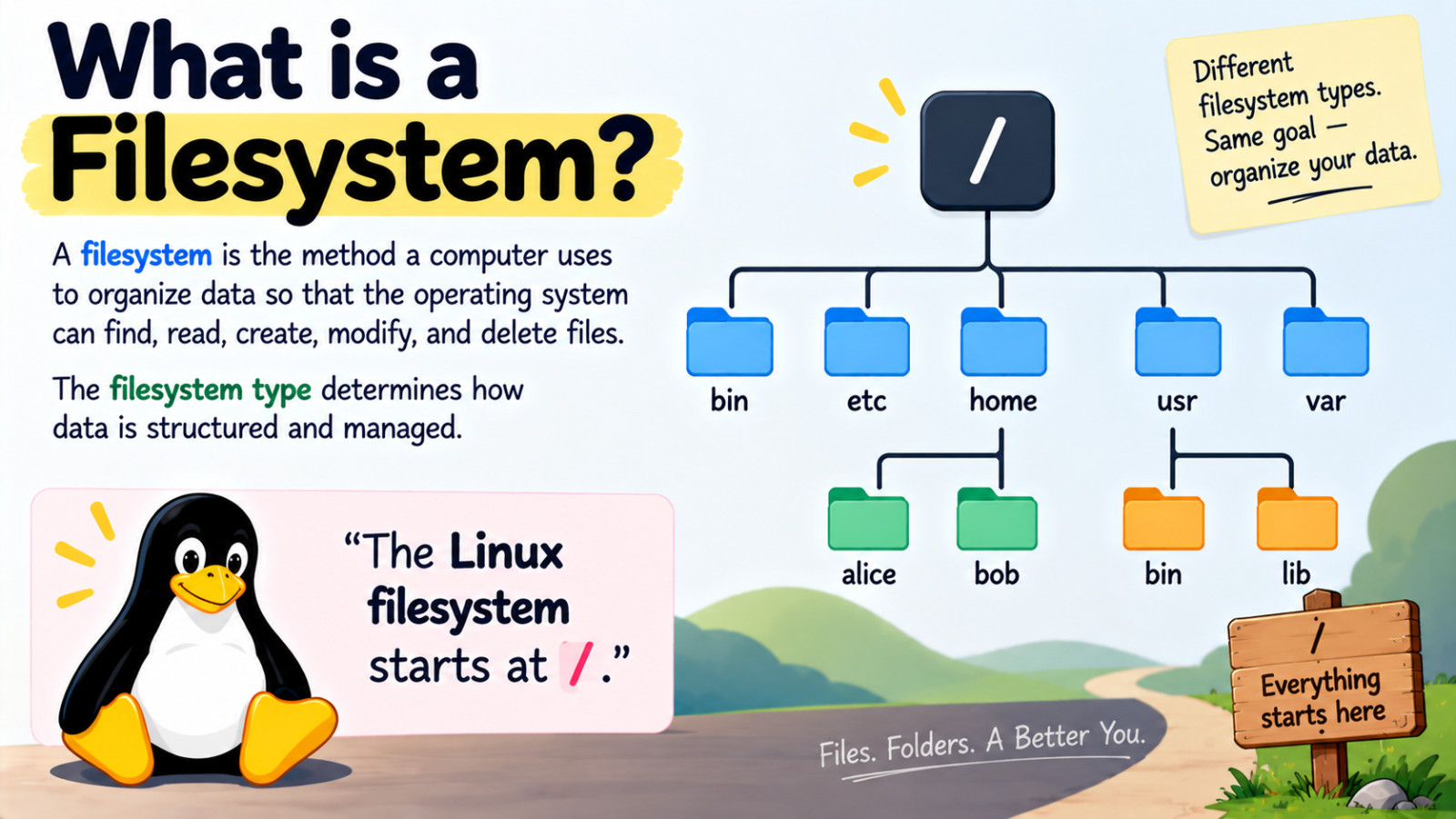
The filesystem type determines how data is structured and managed in the disk such as
ext4,XFS,Btrfs,NTFS.
Filesystem
│
├── Filesystem type
│      └── ext4
│
└── Filesystem hierarchy
       └── /
          ├── home
          ├── etc
          ├── usr
          └── var
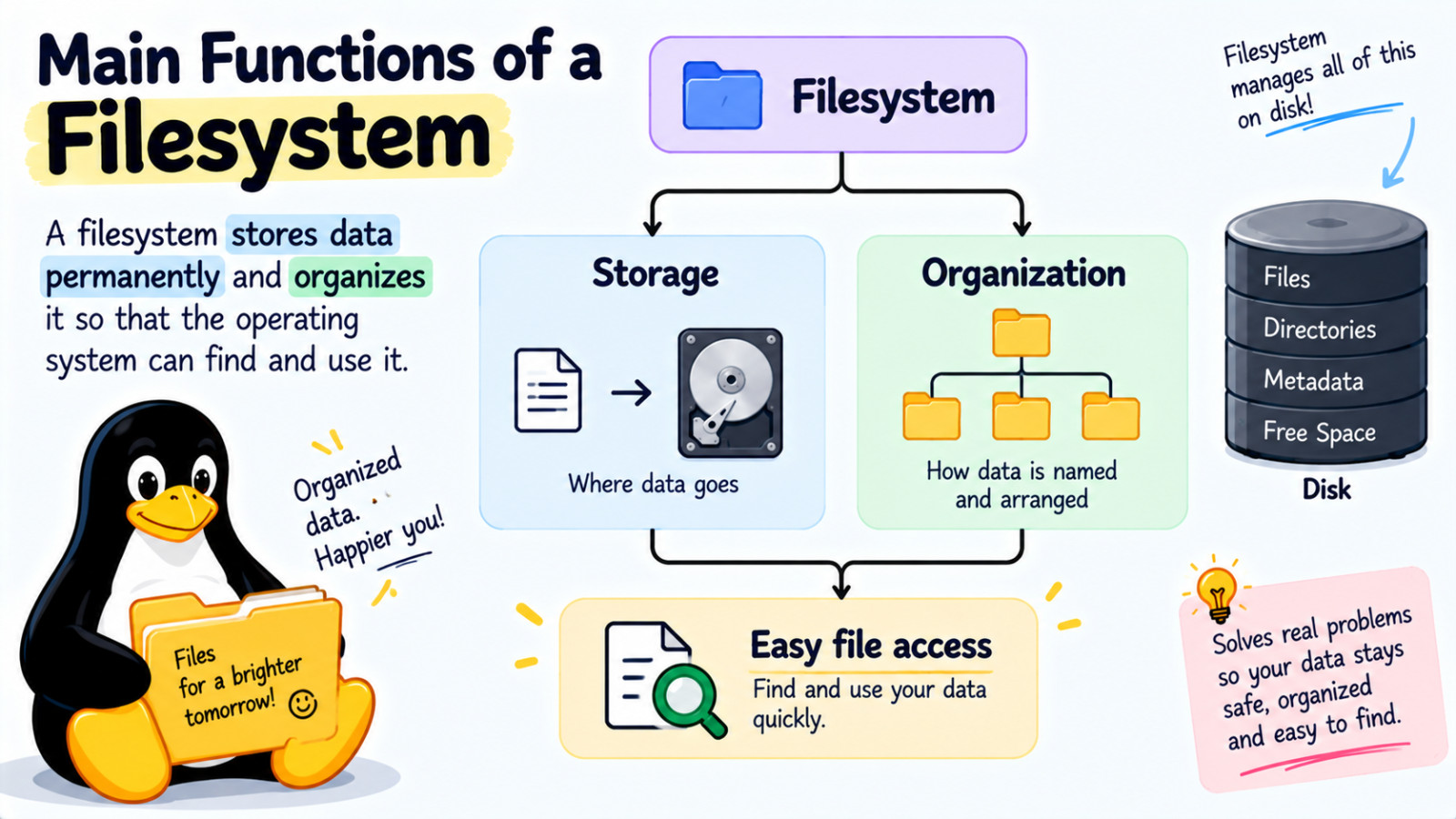
Main functions of a filesystem
The main purpose of a filesystem is to store data permanently and organize it so that the operating system can find and use it.
However, storing data on a disk creates several problems that the filesystem must solve. It needs to keep track of things such as file names, locations, sizes, directories, and available storage space.
                 Filesystem
                     │
        ┌────────────┴────────────┐
        │                         │
     Storage                  Organization
        │                         │
        ↓                         ↓
   Where data goes          How data is named
                             and arranged
        │                         │
        └────────────┬────────────┘
                     ↓
             Easy file access
Namespace
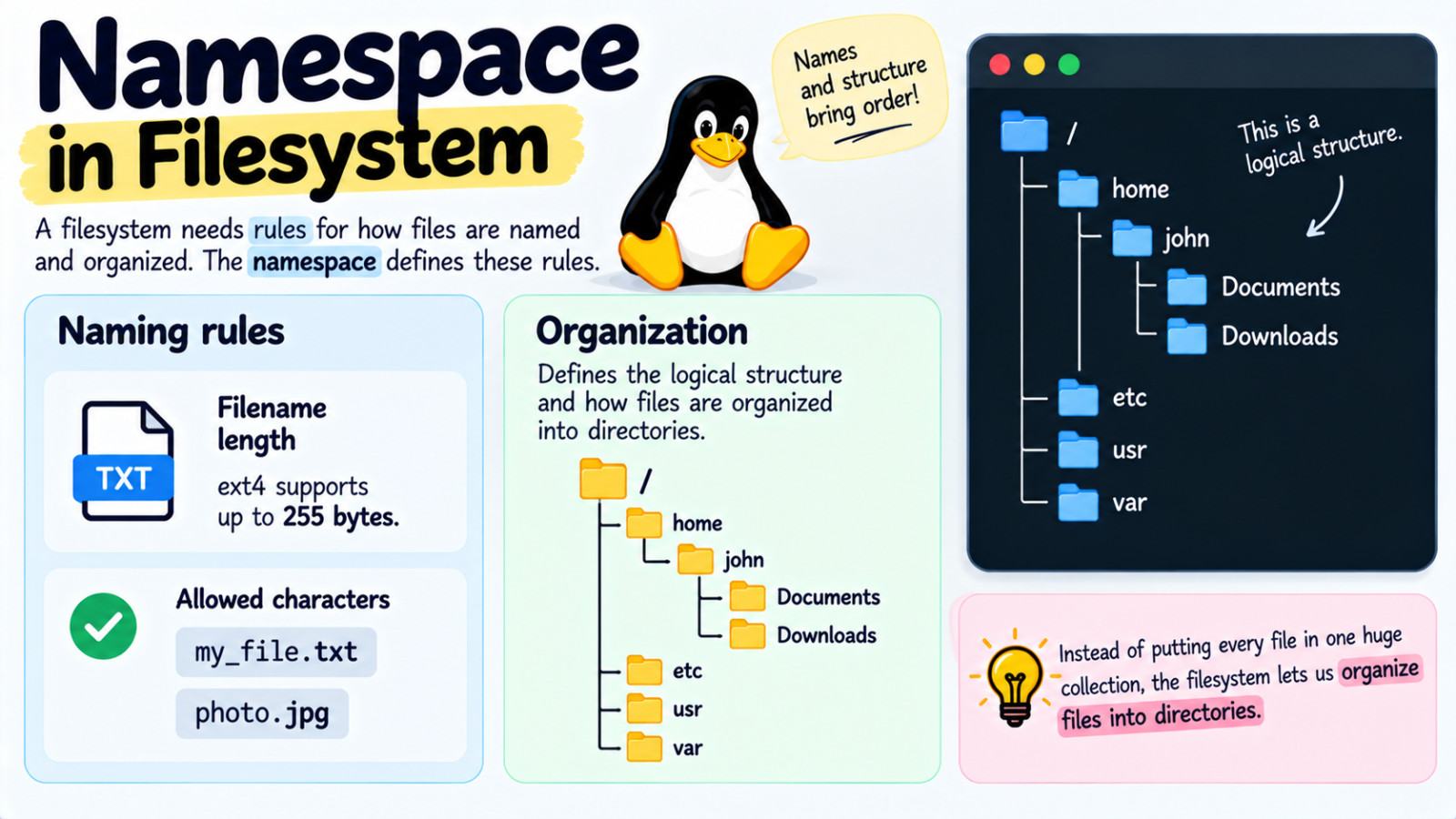
A filesystem needs rules for how files are named and organized. The namespace defines the rules for naming and organizing the files.
A filesystem may limit how long one filename can be. For example :
ext4supports filenames up to 255 bytes.The filesystem also has rules about which characters can appear in a filename. For example :
my_file.txt,photo.jpgare normal filenames.It also defines the logical structure of the data on a disk. This is the second important job of the namespace. It also determines how files are organized.
For example:
/
├── home
│   └── john
│       ├── Documents
│       └── Downloads
│
├── etc
├── usr
└── var
This is a logical structure.
- Instead of putting every file in one huge collection, the filesystem lets us organize files into directories.
Think namesapce like this:
                 Namespace
                     │
          ┌──────────┴──────────┐
          │                     │
      Naming rules        Organization
          │                     │
     ┌────┴────┐                │
     │         │                │
  Filename   Allowed       Directories
   length    characters        │
                               ▼
                         Directory tree
                               │
                               ▼
                    /home/john/Documents
Meta-Data Structure
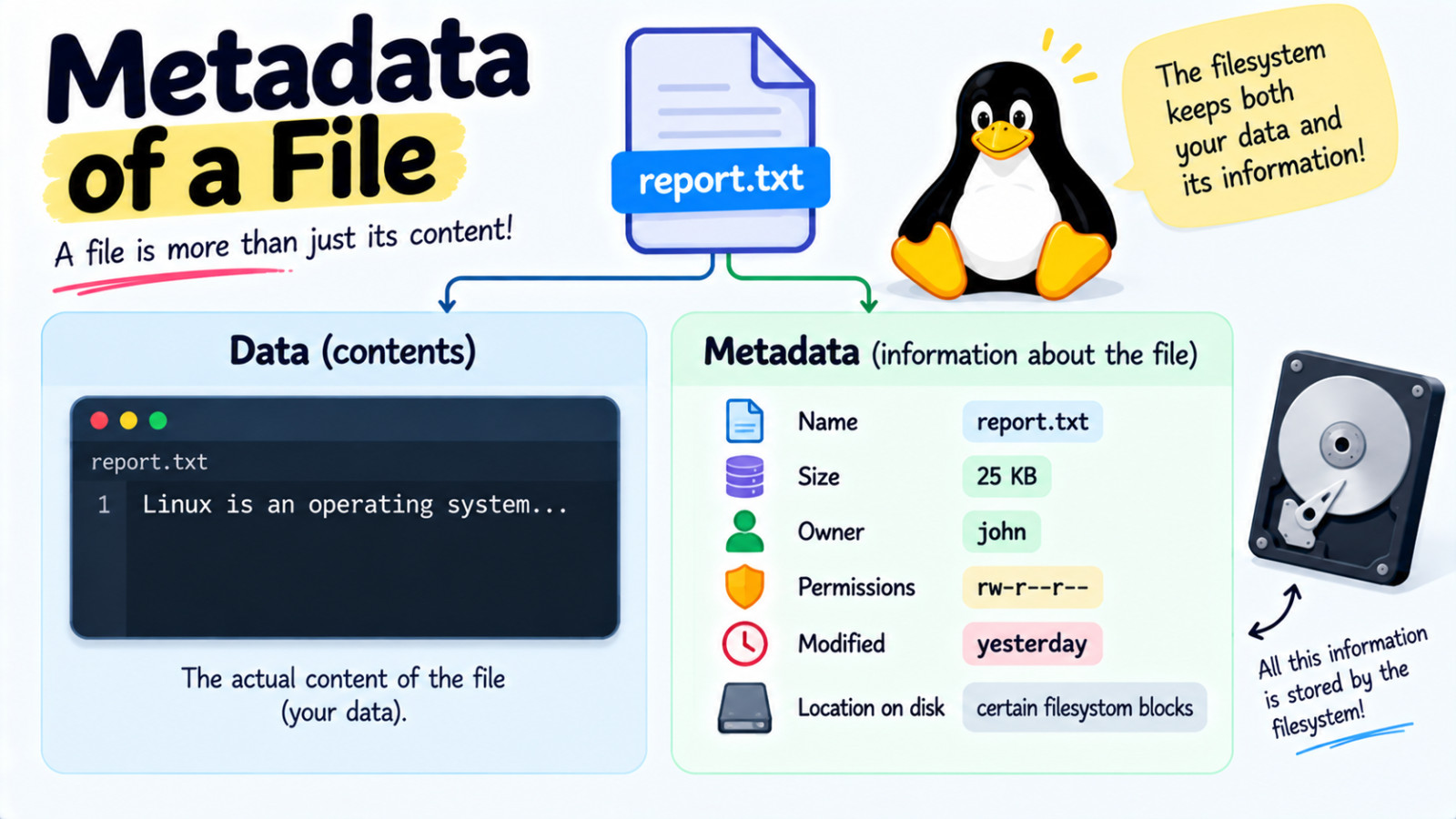
Filesystem metadata is information that describes the filesystem and the files inside it. It helps the operating system know what files exist, where they are, how large they are, and which parts of the storage are free or being used.
Meta data of a file :
Suppose you have a file named report.txt the content / data of the is Linux is an operating system... . But filesystem also needs information about that file:
Name: report.txt
Size: 25 KB
Owner: john
Permissions: rw-r--r--
Modified: yesterday
Where is its data stored? → certain filesystem blocks
This information is meta-data. Think of it like this:
                File
                 │
        ┌────────┴────────┐
        │                 │
      Data             Metadata
        │                 │
        │          ┌──────┼──────┐
        │          │      │      │
     contents    size   owner  times...
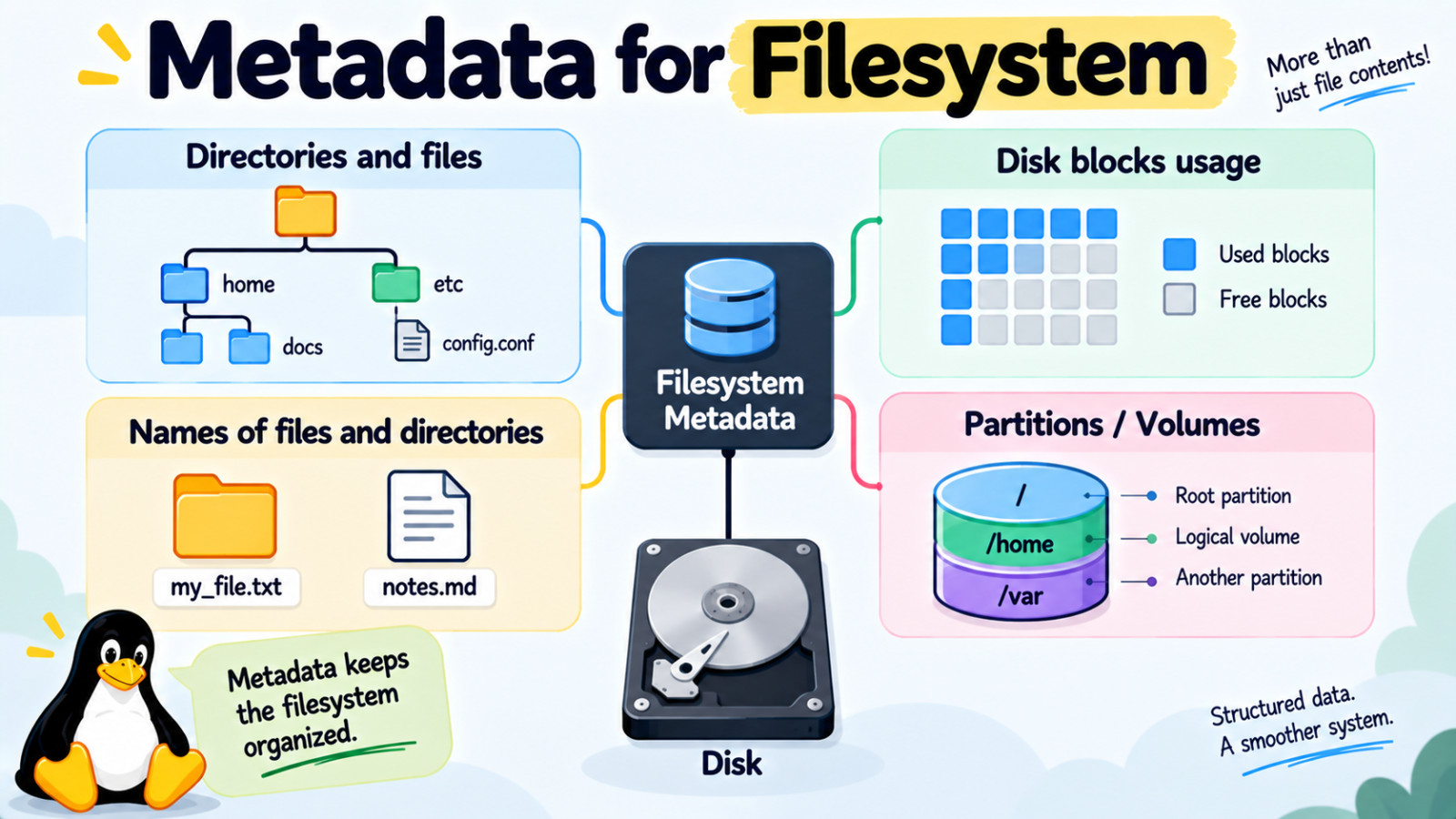
The filesystem needs structures that keep track of directories and the files inside them.
The filesystem needs structures to determine which blocks of space on the disk are used and which are available.
The filesystem needs to keep track of the names of files and directories.
Other metadata is used to store high-level information about the subdivisions of the disk, such as logical volumes and partitions.
Information about the disk's partitions or logical volumes is different from the metadata used by the filesystem itself.
Filesystem metadata is information the filesystem uses to manage itself and the files stored inside it.
API (Application Programming Interface)
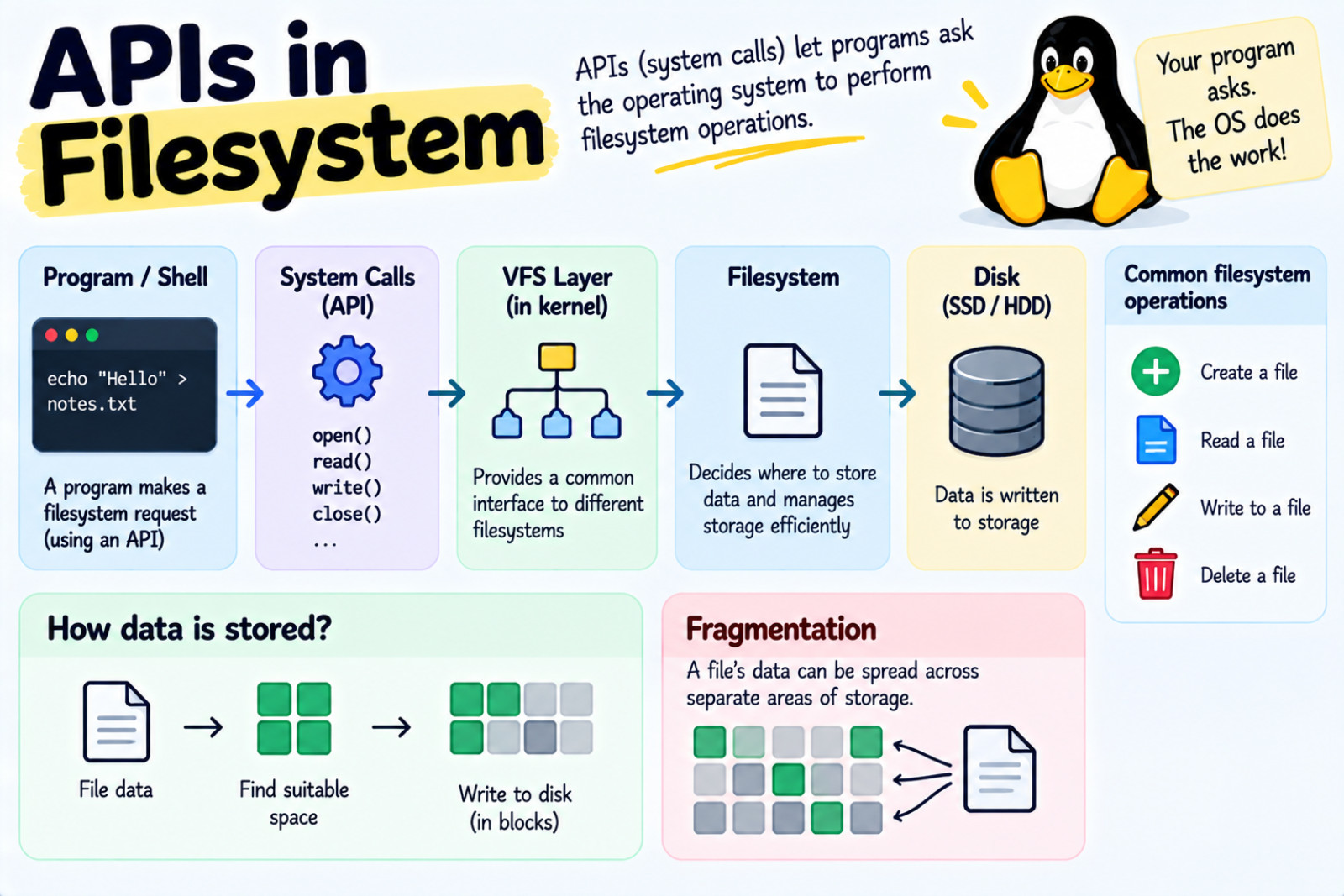
An API is simply a way for one program to ask another program / system or component to perform a task.
The API gives programs a way to ask the operating system to perform filesystem operations / function calls.
For example, a program can ask the operating system to: Create a file, Read a file, Write to a file etc.
The filesystem also contains the logic needed to decide where file data should be stored on the disk. It tries to manage storage efficiently and reduce fragmentation.
Fragmentation means that the data belonging to a file is spread across separated areas of storage.
For example, what happens when you run:
echo "Hello" > notes.txt
Conceptually :
Shell / program
      ↓
"Write data to notes.txt"
      ↓
Linux filesystem interface
      ↓
Filesystem
      ↓
Find suitable storage space
      ↓
Write the data
      ↓
SSD / HDD
Security
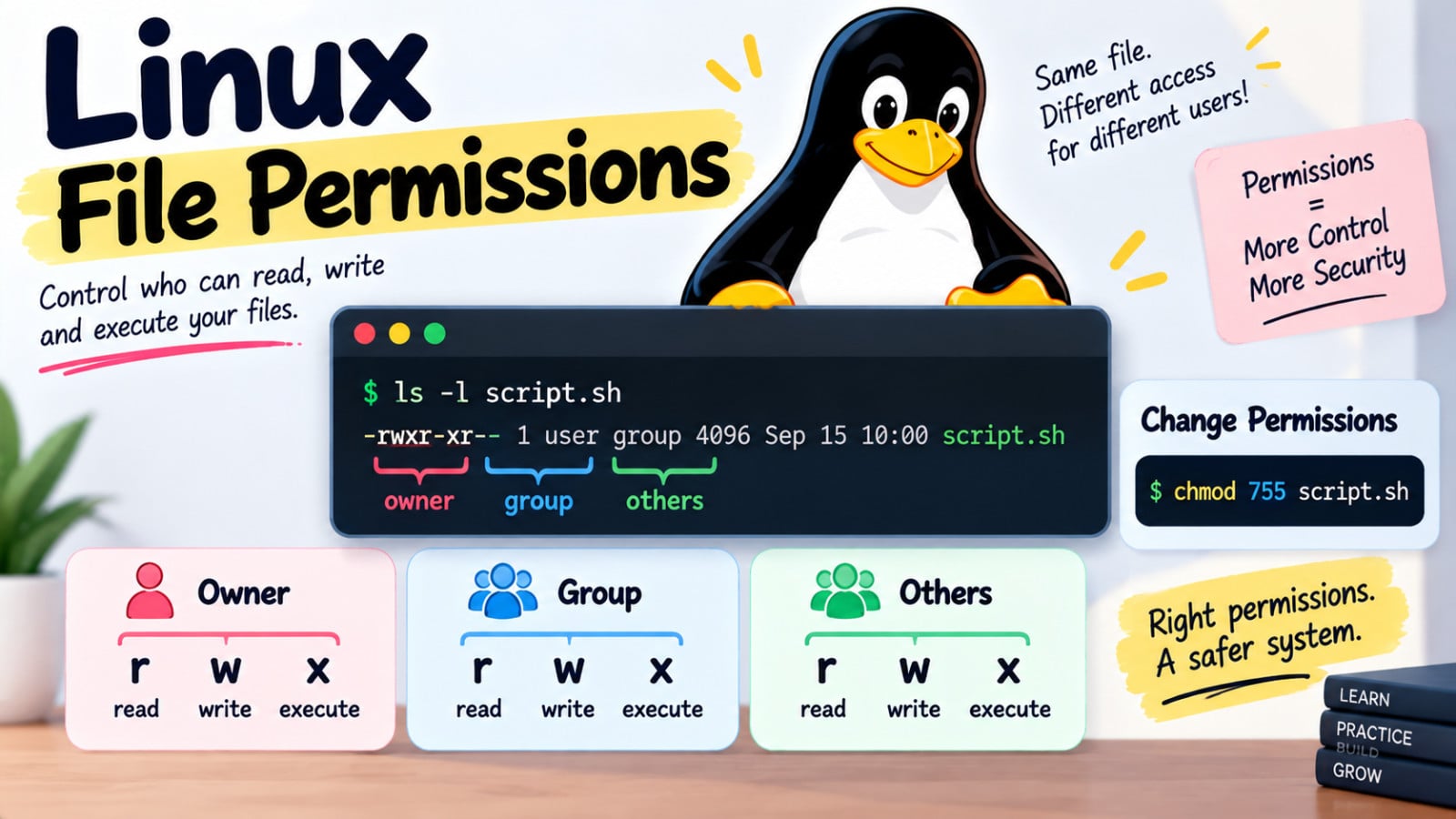
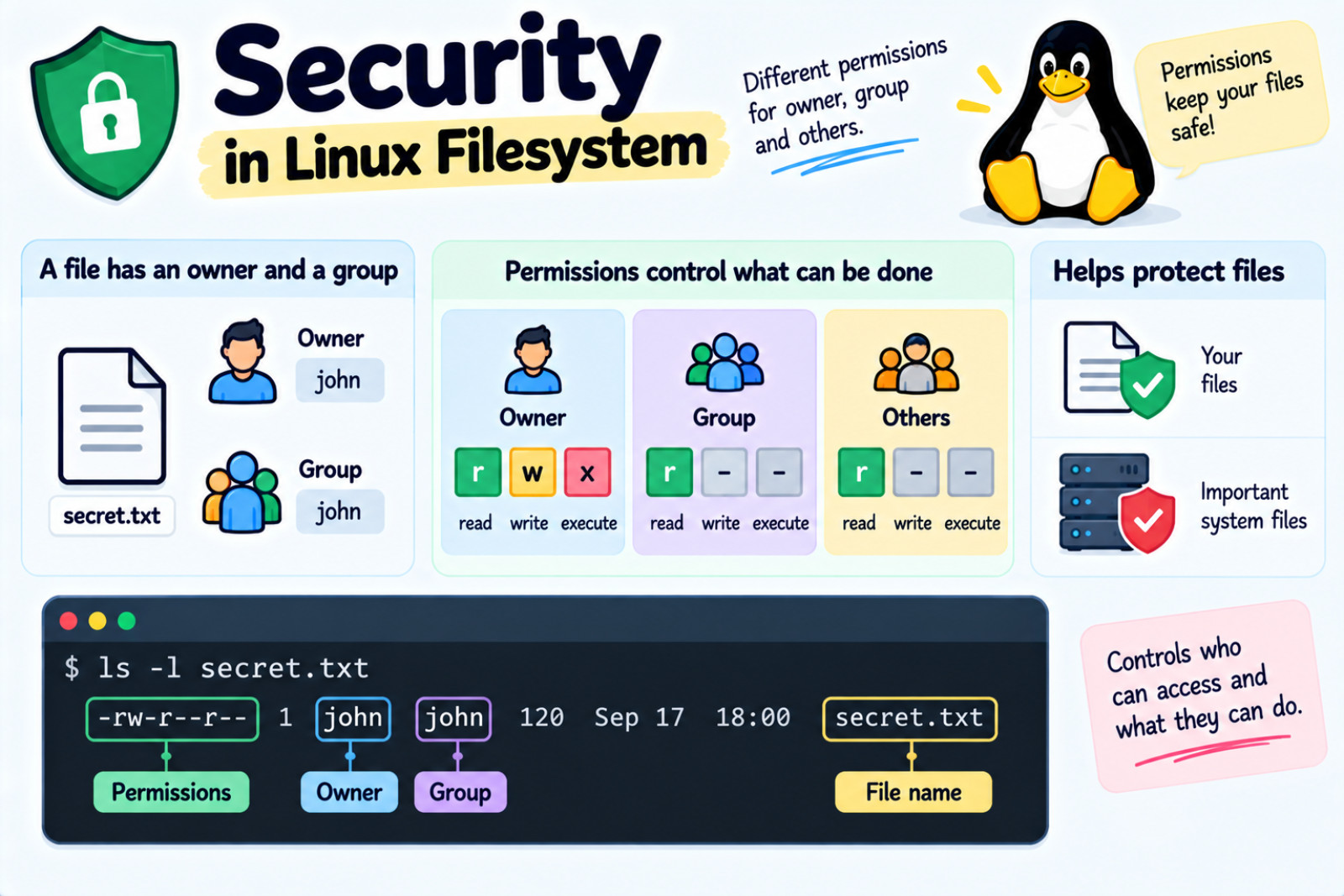
Linuxs traditionally uses permission model to set separates permissions for the owner, the group, and others.
Linux uses a permission system to control who can access files and directories and what they can do with them. Each file has an owner and a group, and permissions can be set separately for the owner, group members, and other users.
These permissions control actions such as reading, writing, and executing files. This helps protect users' files and important system files from unauthorized changes.
ls -l secret.txt
Output:
-rw-r--r-- 1 john john 120 Sep 17 18:00 secret.txt
Remember this:
             File
              │
       ┌──────┴──────┐
       │             │
    Ownership     Permissions
       │             │
   ┌───┴───┐     ┌───┼────┐
   │       │     │   │    │
 Owner   Group   r   w    x
                 │   │    │
               read write execute
Directory Structure
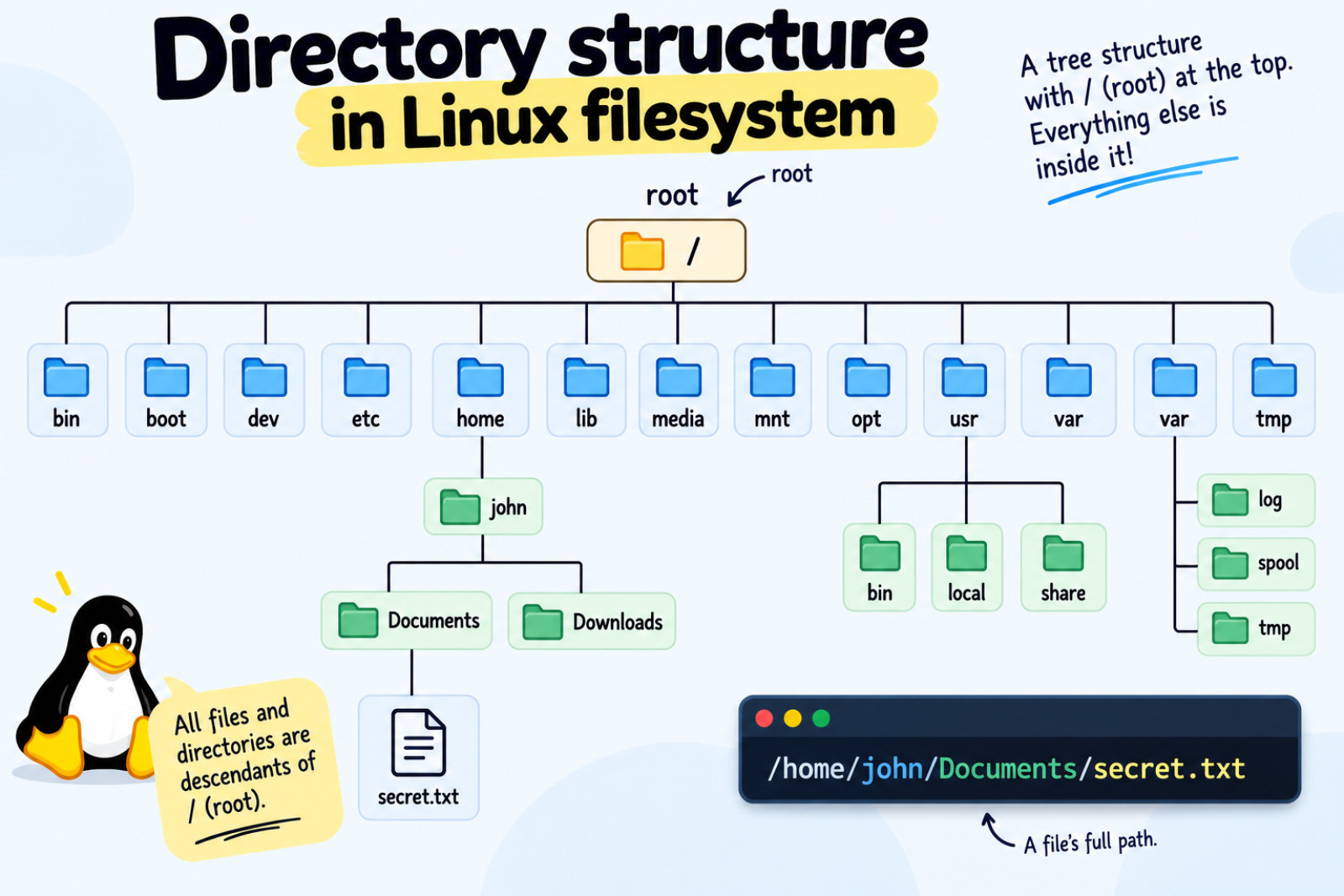
Files in Unix-like Systems are organized into multi-level hirerachy known as directory tree. At the very top of the filesystem is a directory called root which is represented by /. All other files are descendants of that root.
Something like this:
                    /
                 root
                   │
        ┌──────────┼──────────┐
        │          │          │
      home        etc        usr
        │                     │
      john                   bin
        │
   ┌────┴─────┐
Documents   Downloads
    │
secret.txt
The terminal is a great way to explore and understand the Linux filesystem. we will use “tree” package for that.
Install the package for Debian based distros (Ubuntu, Mint, Kali, Pop etc) :
sudo apt update

sudo apt install tree

Alternative: Install via Snap
sudo snap install tree
If you are a intellectual fellow 😉, for Arch-like distros (Arch Linux / Manjaro):
# Firstly update the system

sudo pacman -S tree

# for Fedora / RHEL / CentOS
sudo dnf install tree

# for openSUSE
sudo zypper install tree

#for Alpine Linux
sudo apk add tree

# for macOS (Homebrew)
brew install tree
Then run:
tree -L 1 /
You see should something like this:
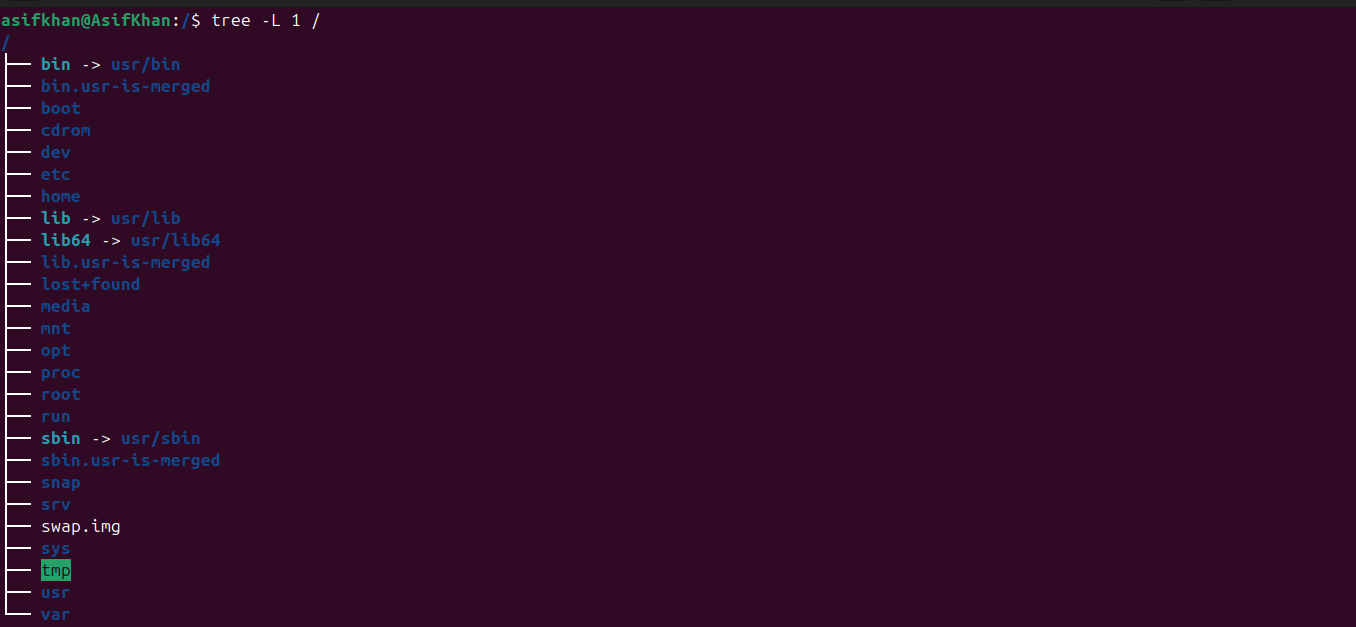
tree -L 1 / : It will restrict the view to one levels deep start at root.
If you run tree /, it will display the directory tree starting from the root directory, including the files and directories throughout the filesystem.
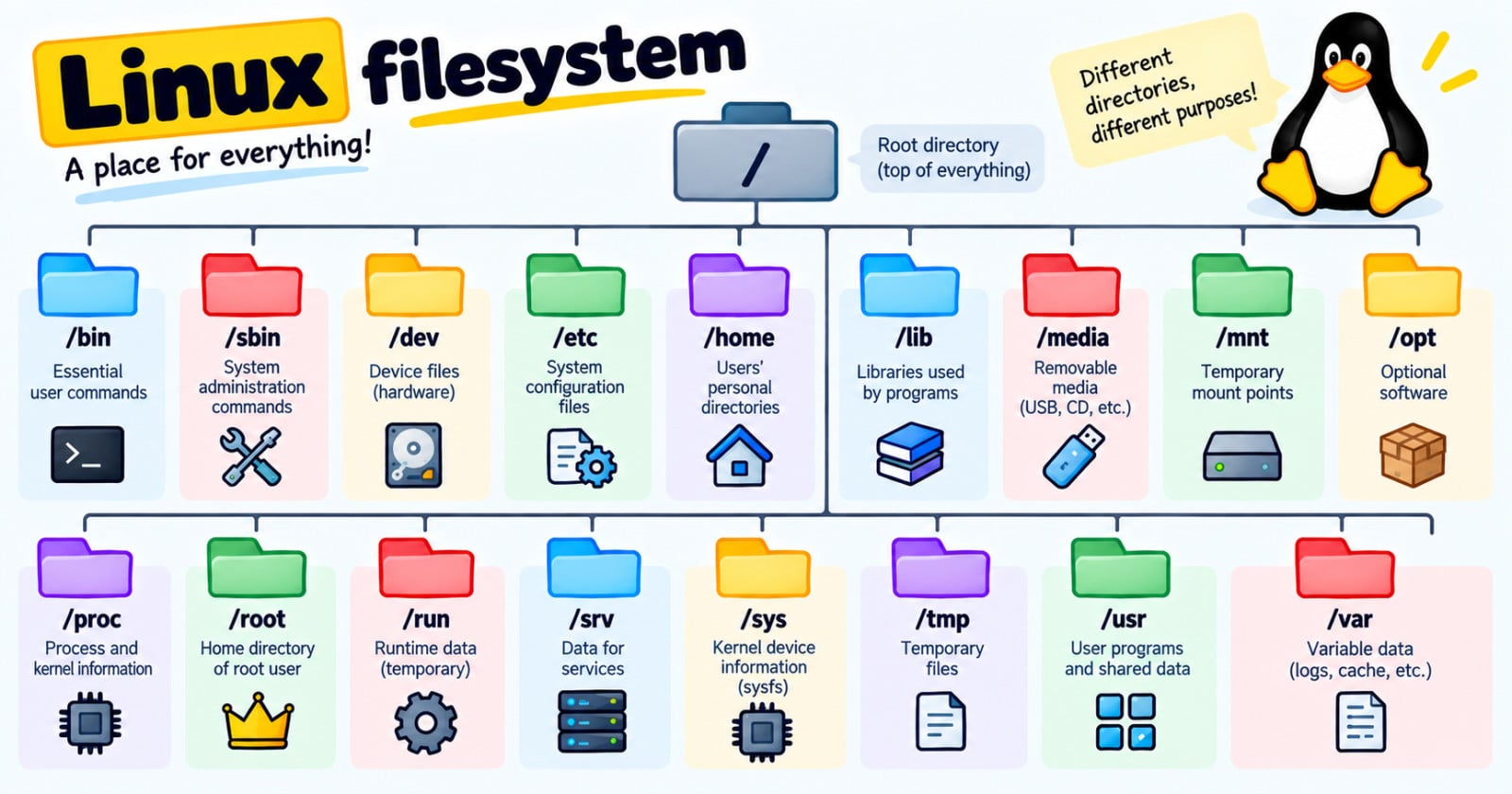
To get started, let's look at what each directory is used for. As we go through them, you can use ls to see what each directory contains.
A brief description of all directories and files:
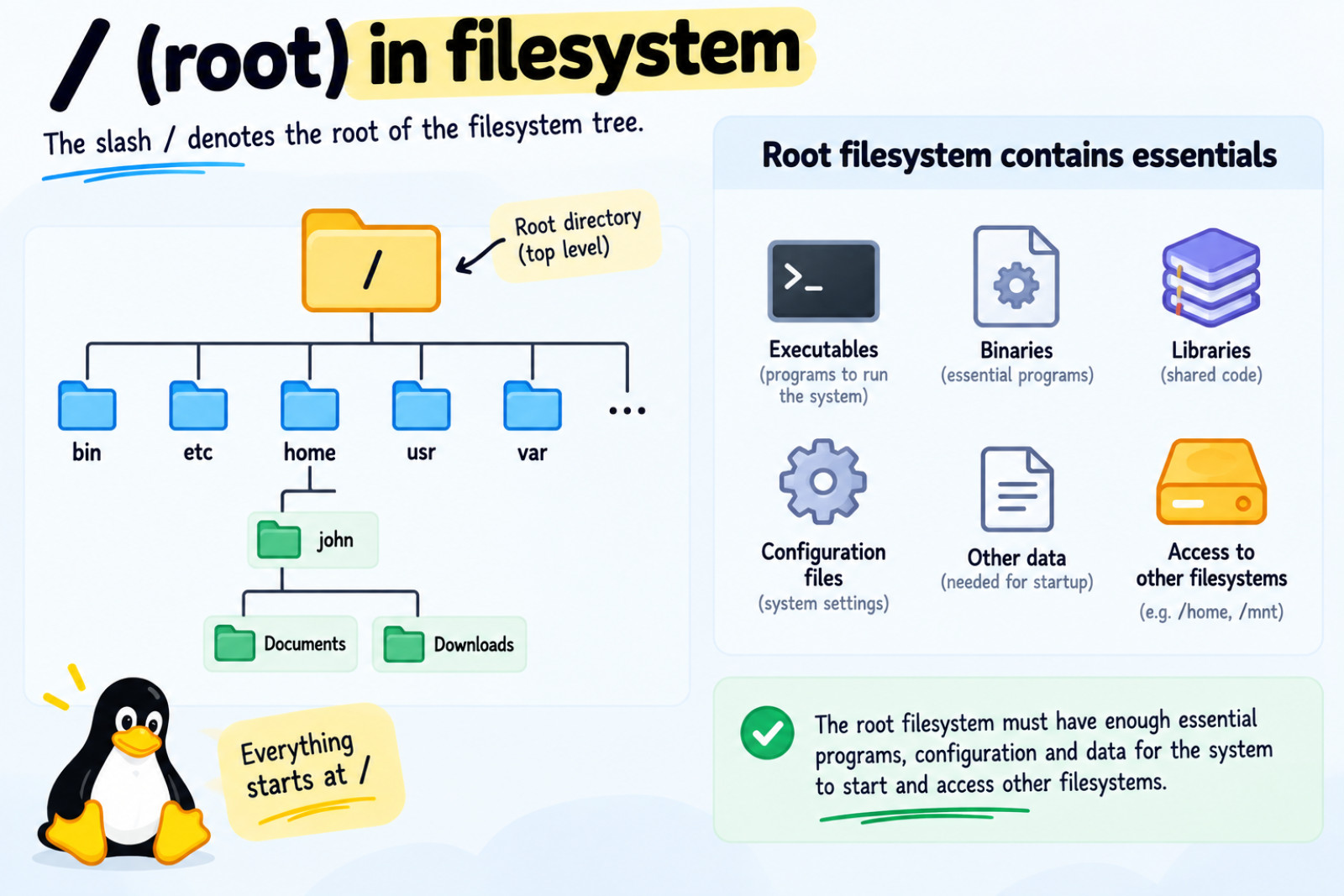
/ : The slash
The slash / character alone denotes the root of the filesystem tree. This is the top level directory of the filesystem. The root filesystem must contain enough essential programs as executable, binaries, libraries, configuration, and other data for the system to start and access other filesystems.
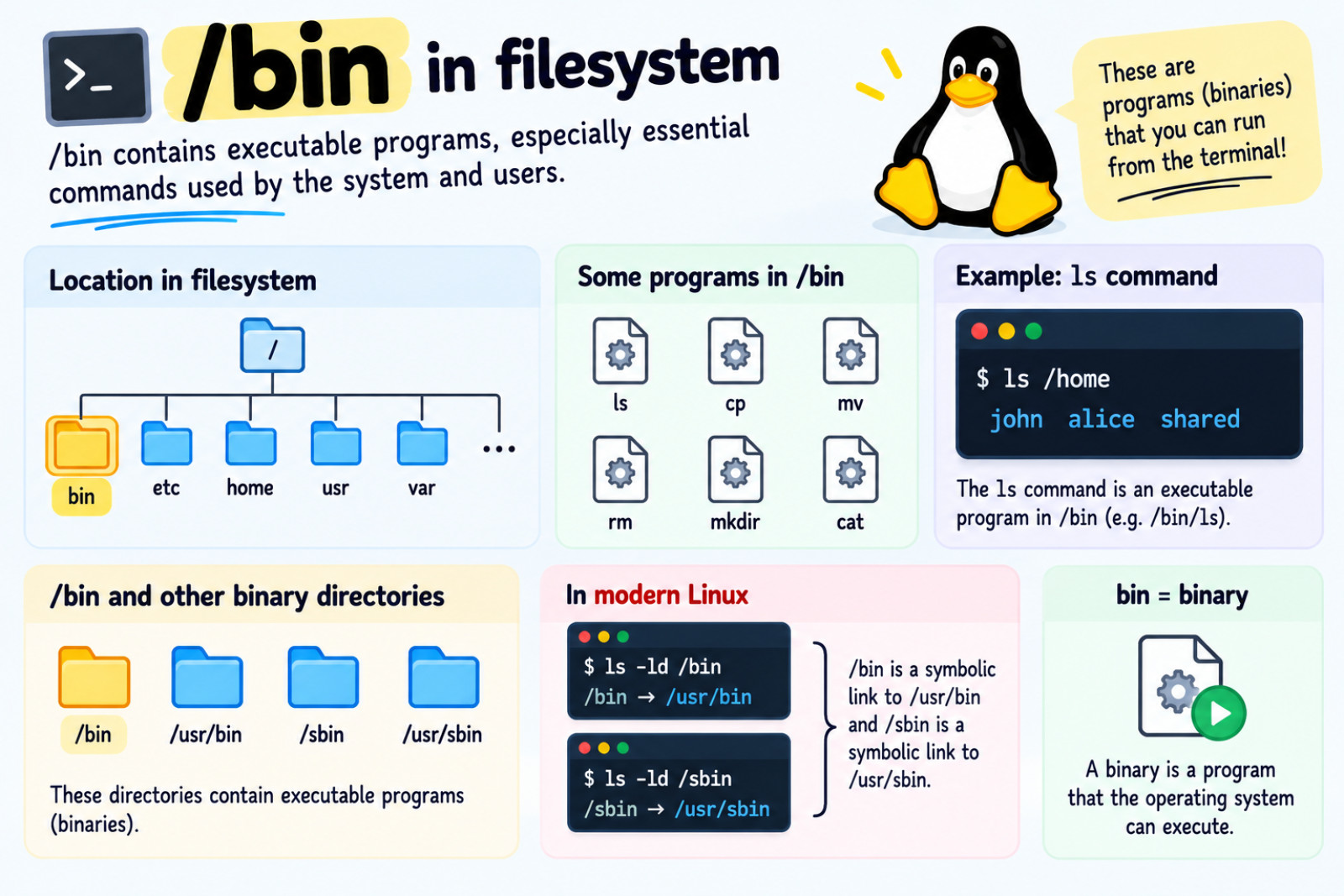
/bin :
It contains executable programs, especially essential commands used by the system and users.
Here, binary means a program that the operating system can execute.
For example:
/bin
├── ls
├── cp
├── mv
├── rm
├── mkdir
└── cat
Some of the commands you use in the terminal are executable programs stored in /bin.
For example:
ls runs the ls program.
On a traditional filesystem layout, that program could be: /bin/ls You can check where your shell finds it with: which ls or, better for understanding Bash's command lookup: type -a ls.
The ls command is one of the essential programs traditionally located in /bin. ls is used to list the contents of a directory: ls /home.
/bin contains many of the basic tools needed to work with the system from the command line. There are more /bin directories in other parts of the file system tree.
For example:
/bin
/usr/bin
/sbin
/usr/sbin
The word bin means these directories are associated with executable programs.
If you are using modern Linux: check
ls -ld /bin

ls -ld /sbin
Don't surprise with the output:
lrwxrwxrwx 1 root root 7 Apr 22  2024 /bin -> /usr/bin

lrwxrwxrwx 1 root root 8 Apr 22  2024 /sbin -> /usr/sbin
That means /bin is a symbolic link to /usr/bin and /sbin is of /usr/bin.
/boot :
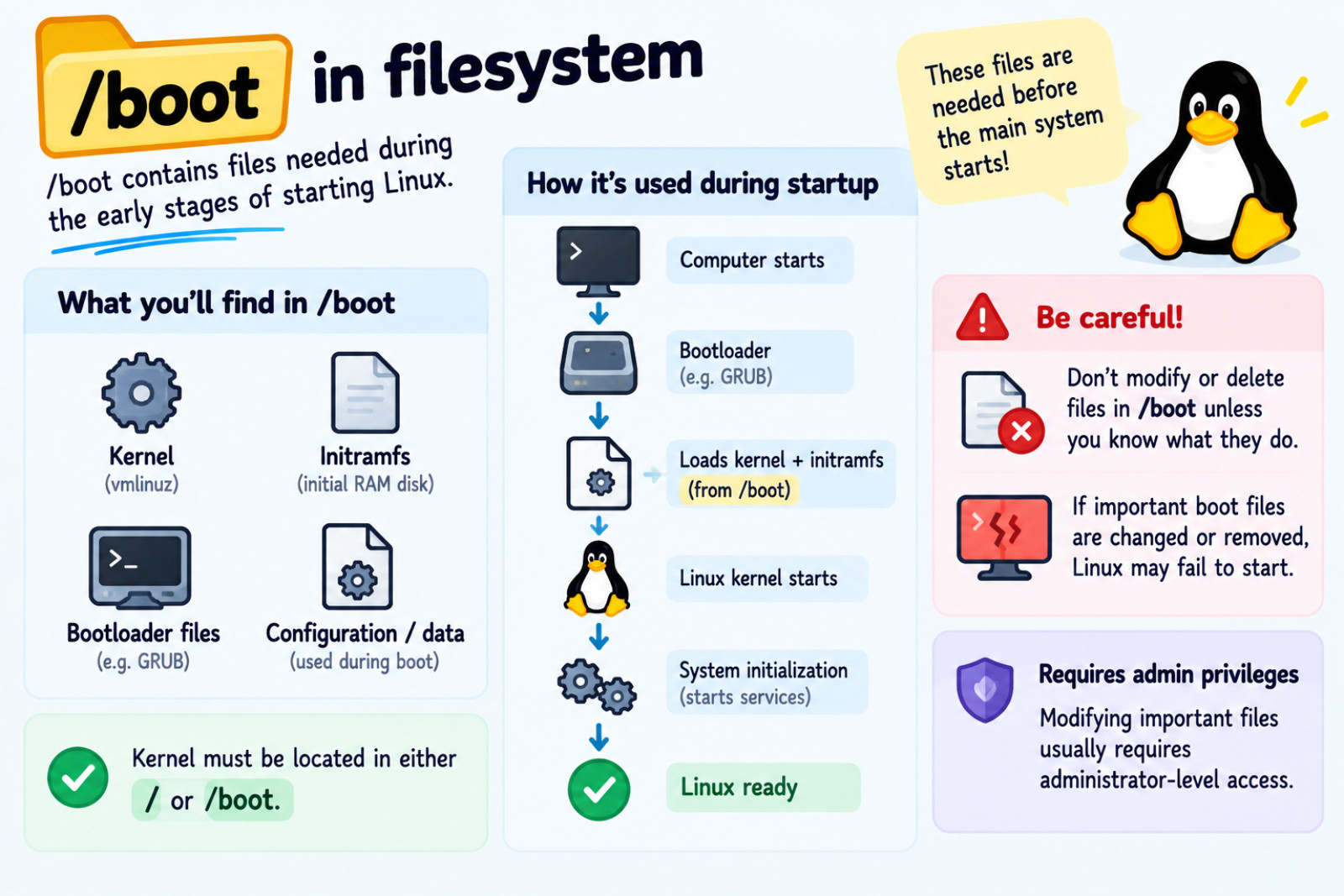
This directory contains files that are needed during the early stages of starting Linux.
For example, /boot can contain:
/boot
├── kernel
├── initramfs
├── bootloader-related files
└── configuration/data used during boot
The Filesystem Hierarchy Standard describes /boot as containing files needed for the boot process, including data used before the kernel starts executing user-space programs. It also states(tells) that the kernel must be located in either / or /boot.
Don't randomly modify or delete files in
/bootif you don't know what they do.If you incorrectly modify or remove an important boot file, Linux may fail to start normally. It can be difficult and inconvenient to fix.
However, a normal user usually cannot accidentally modify important system files.
Modifying important system files usually requires administrator-level privileges.
Think of /boot as part of the early startup area:
                 Computer starts
                       │
                       ▼
                 Bootloader
                       │
                       ▼
              Kernel + initramfs
                       │
                       ▼
              Linux kernel starts
                       │
                       ▼
             System initialization
                       │
                       ▼
                  Linux ready
/dev :
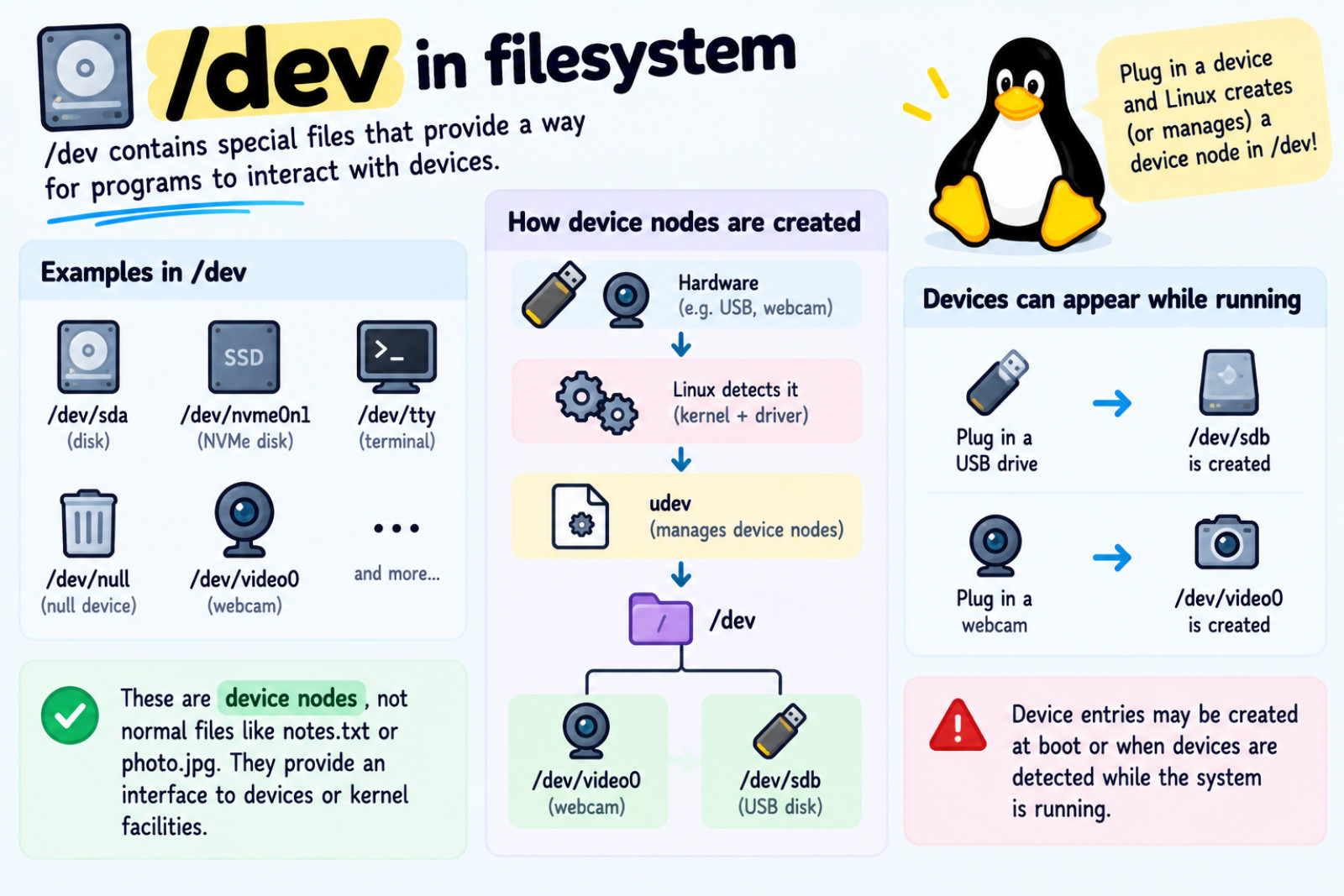
The /dev directory contains special files that provide a way for programs to interact with devices.
For example, you may see:
/dev/sda
/dev/nvme0n1
/dev/tty
/dev/null
/dev/video0
These are not normal files such as: notes.txt, photo.jpg.
They are device nodes, which provide an interface to devices or kernel facilities. The Filesystem Hierarchy Standard defines /dev as the location for special or device files.
Some device entries are created when Linux starts, while others are created or managed when devices are detected while the system is running.
For example, if you plug in a new webcam or a USB pendrive into your machine, Linux creates or manages a device node in /dev that provides an interface to the device.
                 Hardware
                    │
             Linux detects it
                    │
                    ▼
              Kernel + driver
                    │
                    ▼
                  udev
                    │
                    ▼
                  /dev
                    │
          ┌─────────┴─────────┐
          ▼                   ▼
     /dev/video0          /dev/sdb
       webcam             USB disk
/etc :
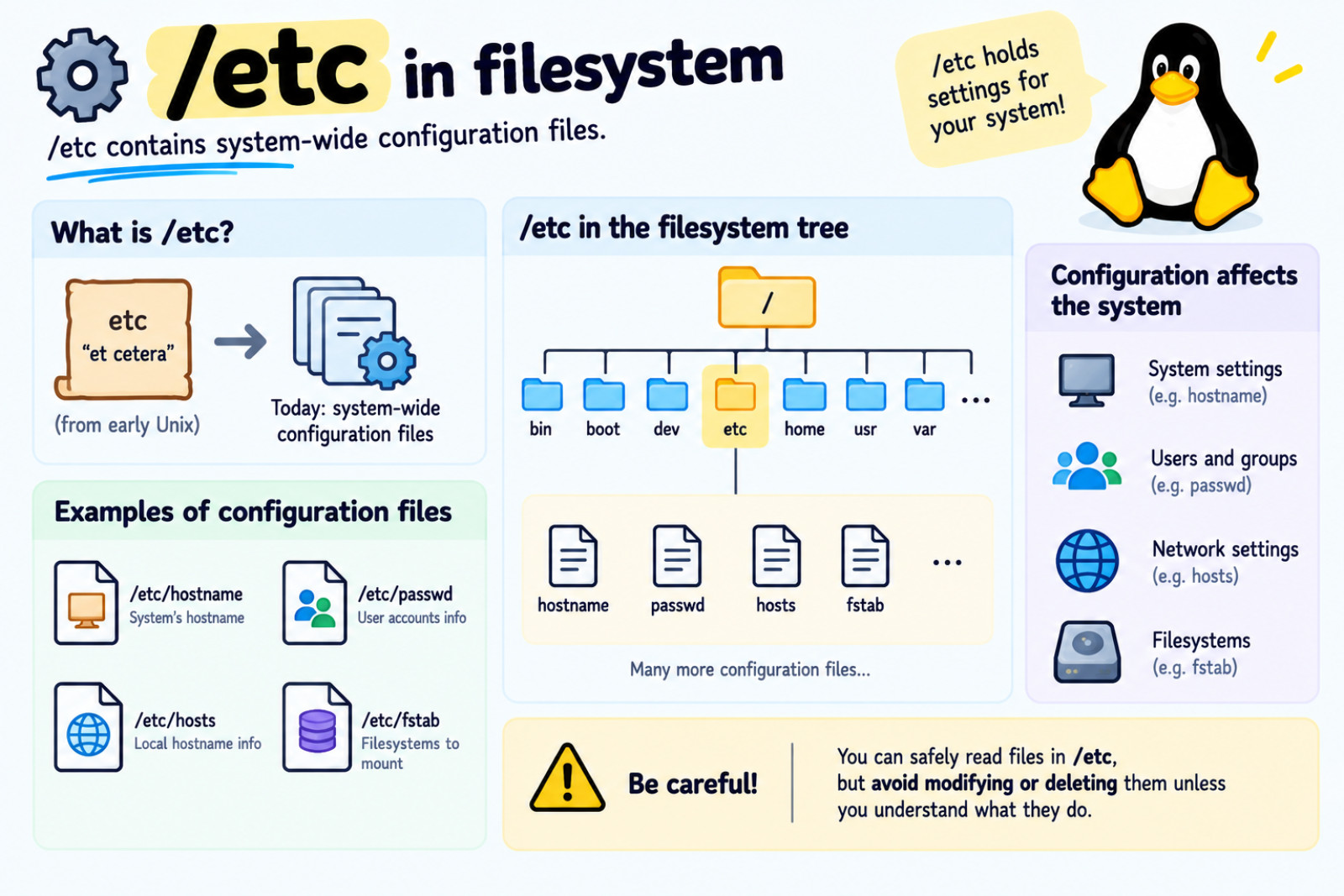
The name /etc comes from early Unix systems, where it was associated with “et cetera” and was used for various system files that did not have another specific location. Today, /etc has a much clearer purpose: it contains system-wide configuration files.
For example, /etc/hostname contains the system's hostname, /etc/passwd contains information about user accounts, /etc/hosts contains local hostname information, and /etc/fstab contains information about filesystems that should be mounted. The exact files depend on the Linux system and the software installed.
You can safely inspect files in /etc, but if you're new to Linux, avoid modifying or deleting configuration files until you understand what they do.
A useful mental model is:
             /etc
               │
      ┌────────┼────────┐
      │        │        │
   hostname  hosts    fstab
      │        │        │
      ↓        ↓        ↓
 computer   network   filesystems
   name      hosts     to mount
And there are many more configuration files underneath /etc.
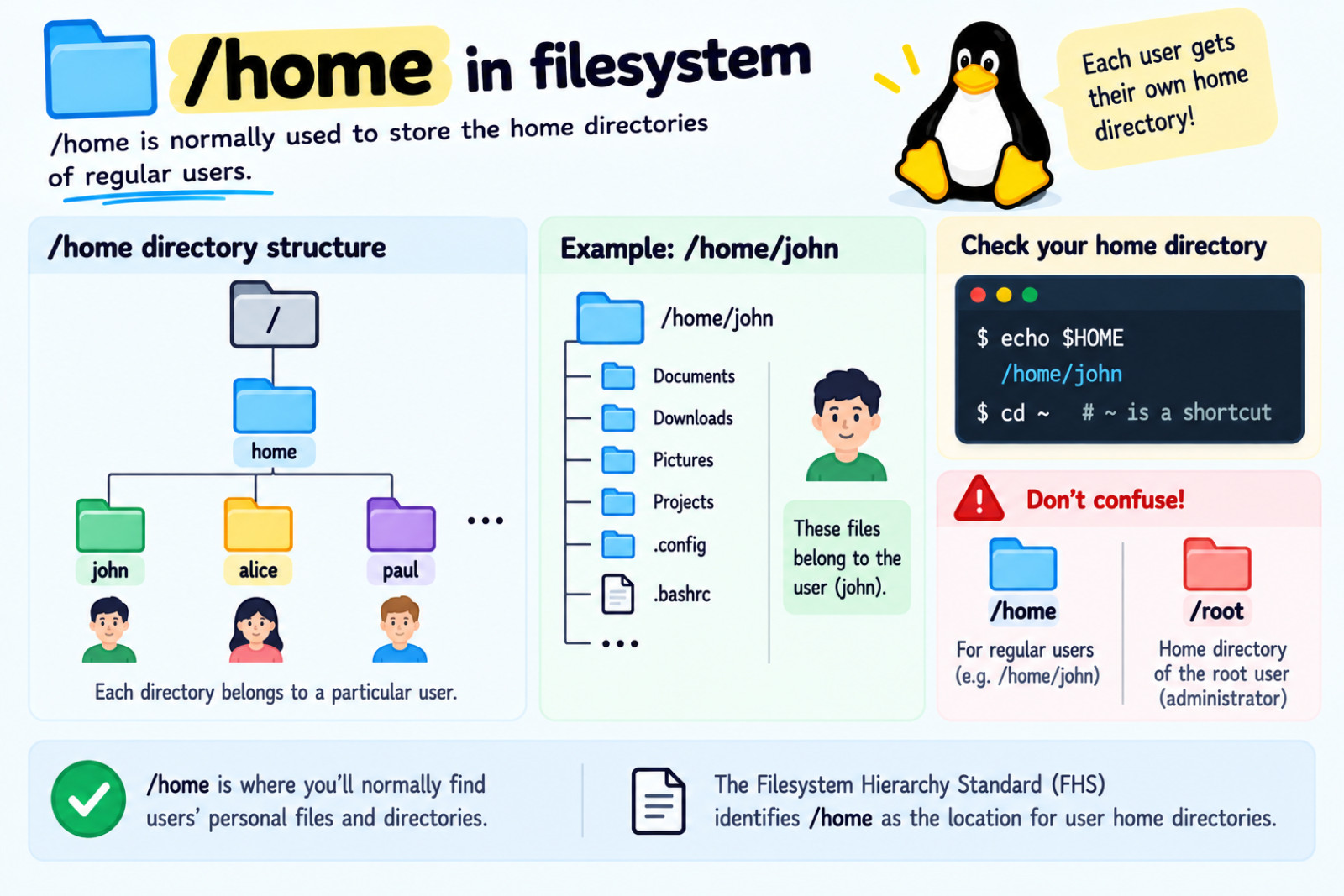
/home :
It is normally used to store the home directories of regular users.
/
└── home
    ├── paul
    ├── alice
    └── john
Each directory belongs to a particular user.
For example: /home/john is john's home directory.
The Filesystem Hierarchy Standard identifies
/homeas the location for user home directories.
On a typical Linux system, each regular user's home directory is usually a subdirectory of /home. /home is where you'll normally find users' personal directories and their personal files.
/home/john
├── Documents/
├── Downloads/
├── Pictures/
├── Projects/
├── .bashrc
├── .config/
└── ...
These files belong to the user rather than being system-wide files.
You can check your own home directory with: echo $HOME Ouput: /home/john. You can also use cd ~. Here, ~ is a shell shortcut for your current user's home directory.
Don't confuse with /home and /root. They have different purposes.
/home
├── john
├── alice
└── bob
is normally for regular users. Whereas /root is the home directory of the root user. The FHS lists /root separately from /home.
/lib :
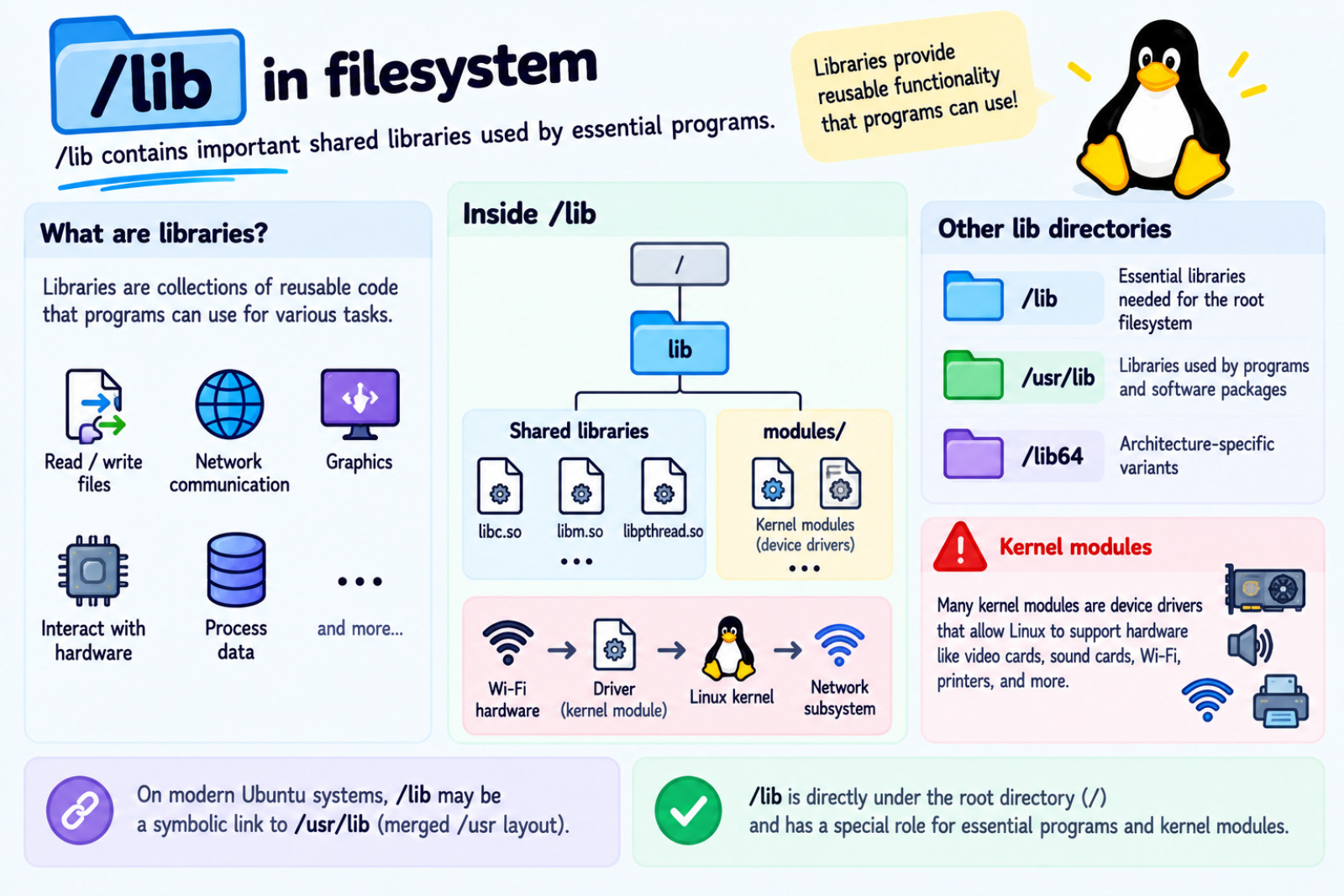
It contains important shared libraries used by essential programs. Libraries provide reusable functionality that programs can use. For example, a program may use libraries to:
Read/write files, Communicate over a network, Work with graphics, Interact with hardware, and Process data etc.
There are more lib directories scattered around the filesystem such as**:** /lib, /usr/lib, /lib64 etc.
The important distinction is:
/lib
 ↓
Essential libraries needed for the root filesystem

/usr/lib
 ↓
Libraries used by programs and software packages

/lib64
 ↓
architecture-specific variants
/libis directly under the root directory/.
Its special role is that it contains libraries needed by essential programs and can also contain loadable kernel modules. The FHS specifically lists /lib/modules for loadable kernel modules.
A kernel module is code that can be loaded into the Linux kernel when needed.
Many kernel modules are device drivers that allow Linux to support particular hardware. These drivers make things work like video card, sound card, WiFi, printer, and so on...
For a Wi-Fi adapter:
Wi-Fi hardware
      ↓
Wi-Fi driver
      ↓
Linux kernel
      ↓
Network subsystem
      ↓
Your application
The driver understands how to communicate with the particular hardware.
/lib may be a symbolic link to /usr/lib because of the merged /usr filesystem layout.The mental model
                    /
                    │
                   lib
                    │
          ┌─────────┴─────────┐
          │                   │
     Shared libraries      modules/
                              │
                              ▼
                       Kernel modules
                              │
                       ┌──────┴──────┐
                       │             │
                    Drivers       Other modules
                       │
                       ▼
                    Hardware
/media :
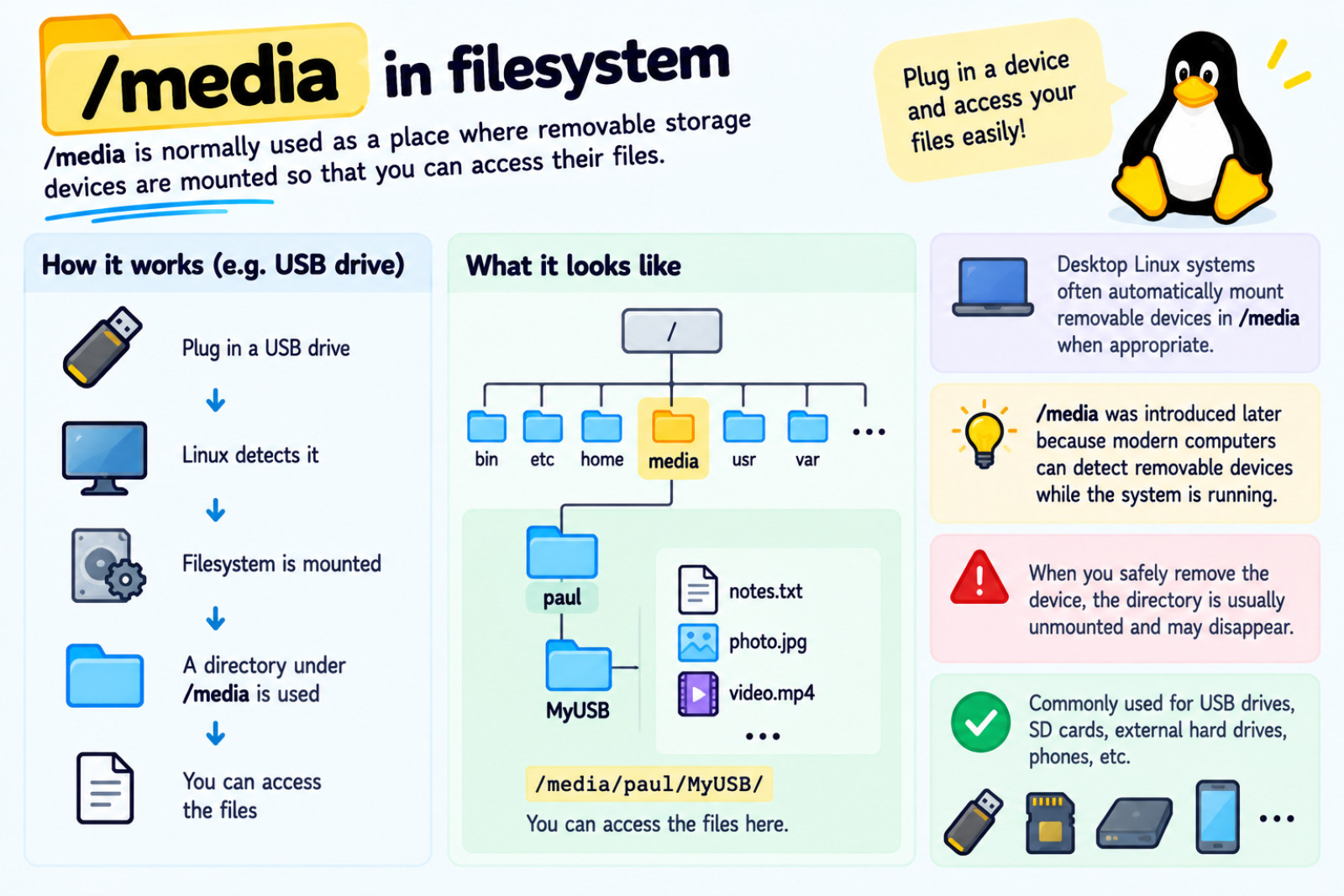
It is normally used as a place where removable storage devices are mounted so that you can access their files.
Suppose, you plug in a USB drive:
USB drive
    ↓
Linux detects it
    ↓
Filesystem is mounted
    ↓
A directory under /media is used
    ↓
You can access the files
You might see something like: /media/paul/MyUSB/. Desktop Linux systems commonly detect removable storage and automatically mount it when appropriate.
Unlike many traditional Unix directories, /media was introduced much later. Modern computers can detect removable devices while the system is already running, which wasn't a normal part of early Unix systems.
/mnt :
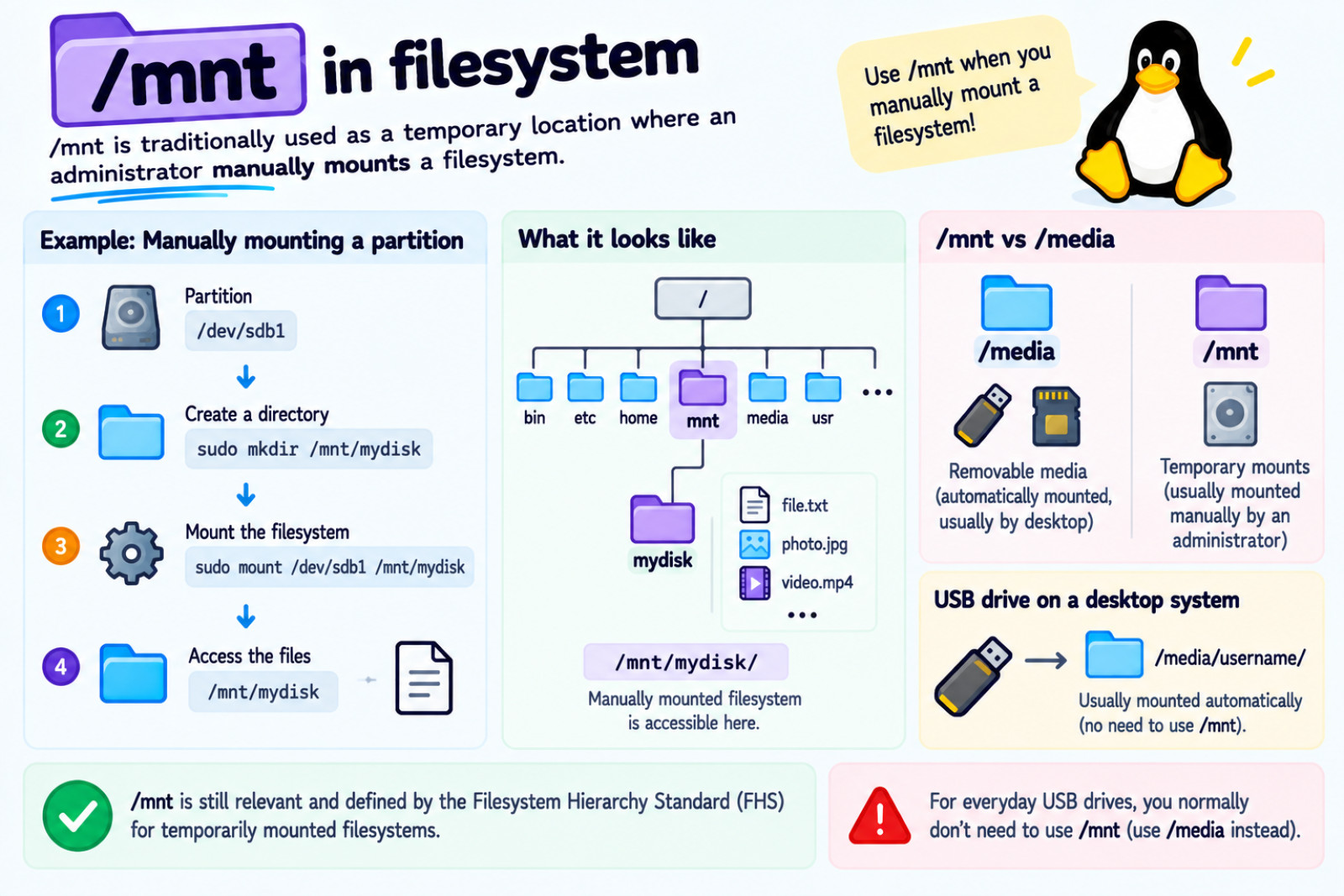
This directory is an older part of the Unix/Linux filesystem structure that is still used today. It is traditionally used as a temporary location where an administrator manually mounts a filesystem.
For example, suppose you have a partition: /dev/sdb1. Now you can create a directory: sudo mkdir /mnt/mydisk. Then mount the filesystem there: sudo mount /dev/sdb1 /mnt/mydisk Now you can access its files through: /mnt/mydisk.
The Filesystem Hierarchy Standard still defines /mnt as a mount point intended for filesystems that are temporarily mounted, so /mnt is absolutely still relevant.
For example, when you plug in a USB drive into System:
USB drive
    ↓
Linux detects it
    ↓
Desktop automatically mounts it
    ↓
Usually appears under /media/<username>/
You normally don't need to manually run: mount /dev/sdb1 /mnt/mydisk. That's why /mnt isn't used as often for everyday desktop removable-storage use.
The mental model:
                 Filesystem
                     │
          ┌──────────┴──────────┐
          │                     │
       /media                  /mnt
          │                     │
   removable media        temporary mounts
          │                     │
    USB drive              manually mounted
    external SSD           filesystem
/opt :
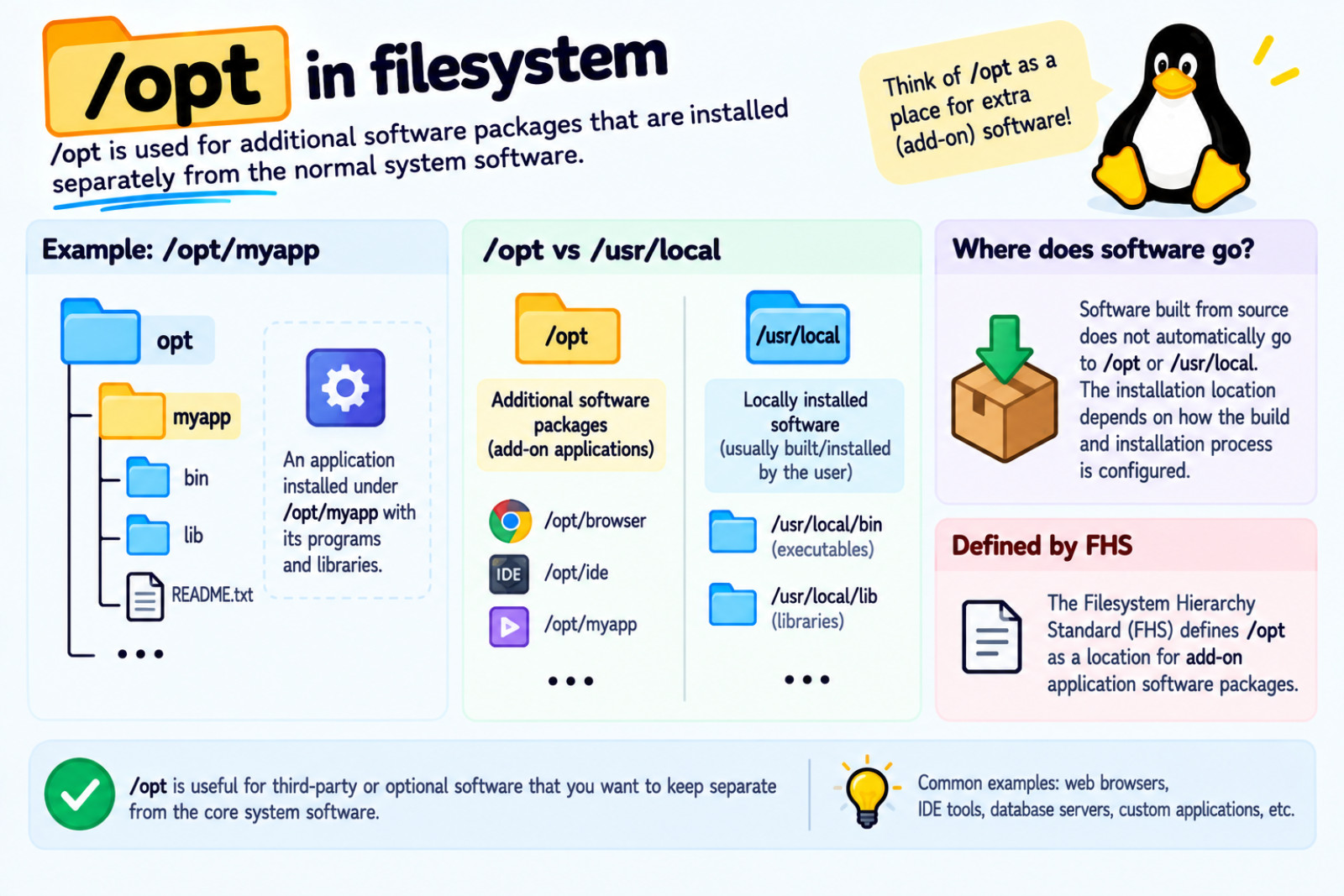
It is used for additional software packages that are installed separately from the normal system software. For example, an application may be installed under /opt/myapp, with its programs and libraries inside that directory.
The FHS defines
/optas a location for add-on application software packages.
Another common location for software installed locally is /usr/local. Executable programs are commonly placed in /usr/local/bin, while libraries can be placed in /usr/local/lib.
Software built from source does not automatically go to /opt or /usr/local. The installation location depends on how the software's build and installation process is configured. Some software lets you choose the installation location explicitly.
The mental model is :
                 Software installation
                         │
             ┌───────────┴───────────┐
             │                       │
           /opt                 /usr/local
             │                       │
      Additional software      Locally installed
         packages                  software
             │                       │
        /opt/myapp             /usr/local/bin
        ├── bin                /usr/local/lib
        └── lib
/proc :
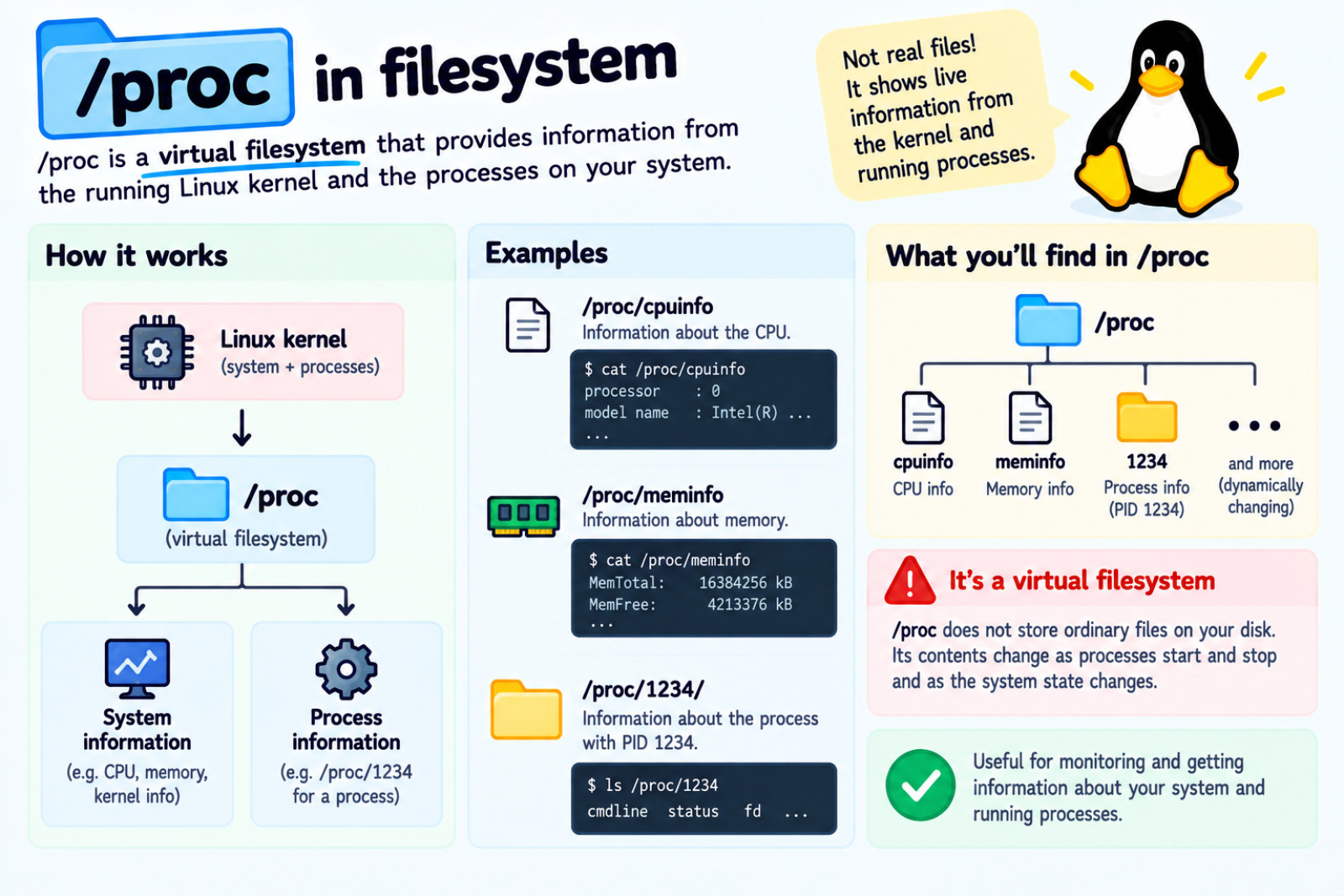
It is, like /dev, is a virtual filesystem. It does not store ordinary files on your disk. Instead, it provides information from the running Linux kernel and the processes currently running on your system.
For example, /proc/cpuinfo provides information about the CPU, while numbered directories such as /proc/1234 contain information about the process with PID 1234. The contents of /proc change dynamically as processes start and stop and as the state of the system changes.
                 Linux kernel
                      │
        ┌─────────────┴─────────────┐
        │                           │
   System information          Process information
        │                           │
        └─────────────┬─────────────┘
                      ▼
                    /proc
                      │
          ┌───────────┼───────────┐
          │           │           │
      cpuinfo      meminfo      1234
          │                       │
       CPU info             Process 1234
/root :
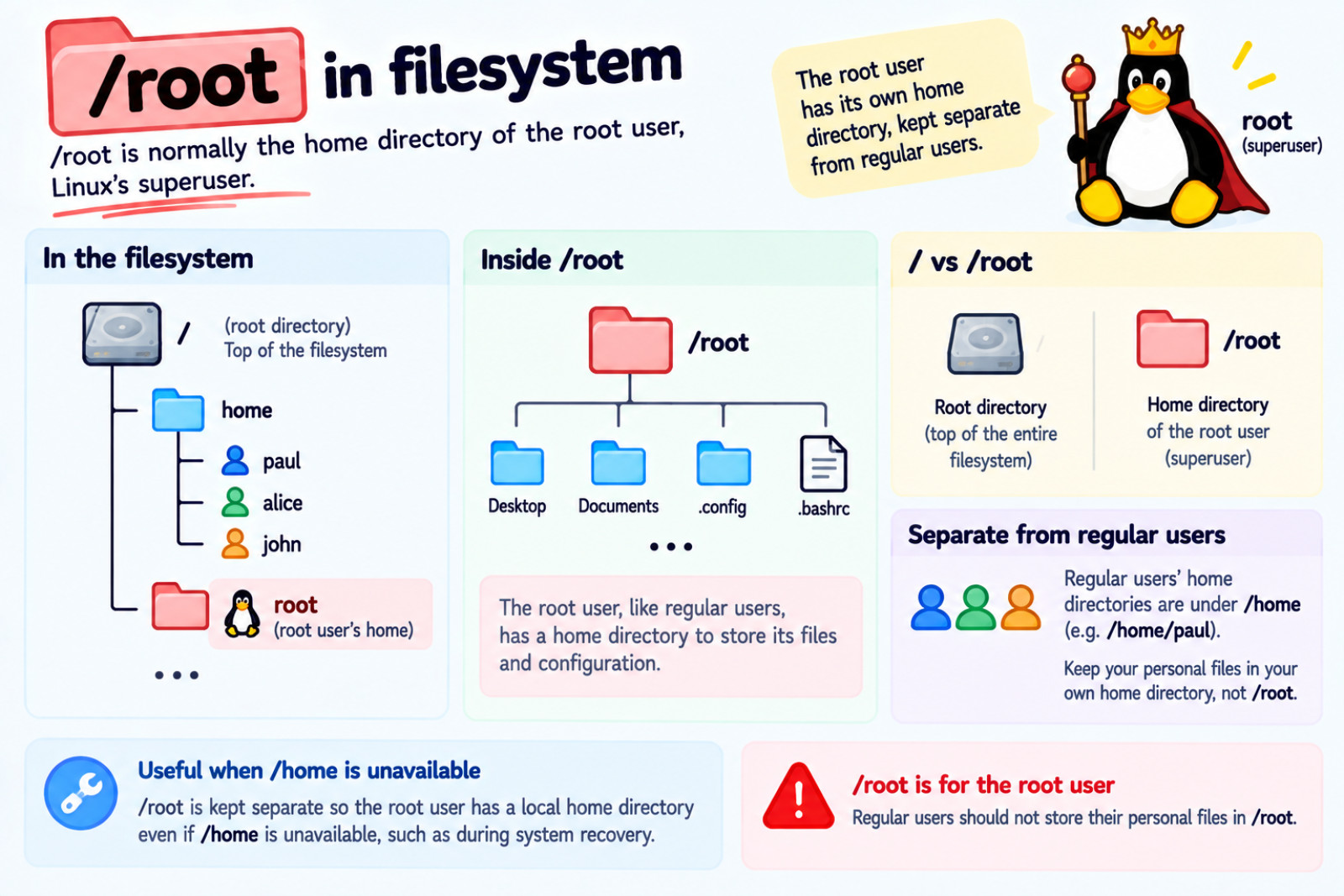
It is normally the home directory of the root user, Linux's superuser. It is kept separate from the regular users' home directories, which are normally located under /home.
This allows the root user to have a local home directory even when /home is unavailable, such as during system recovery. If you're a regular user, you normally store your personal files in your own home directory rather than /root.
/ vs /root :
/ : The root directory, the top of the entire filesystem hierarchy.
/root : The home directory of the root user.
/              → root directory
/home/paul     → paul's home directory
/root          → root user's home directory
/run :
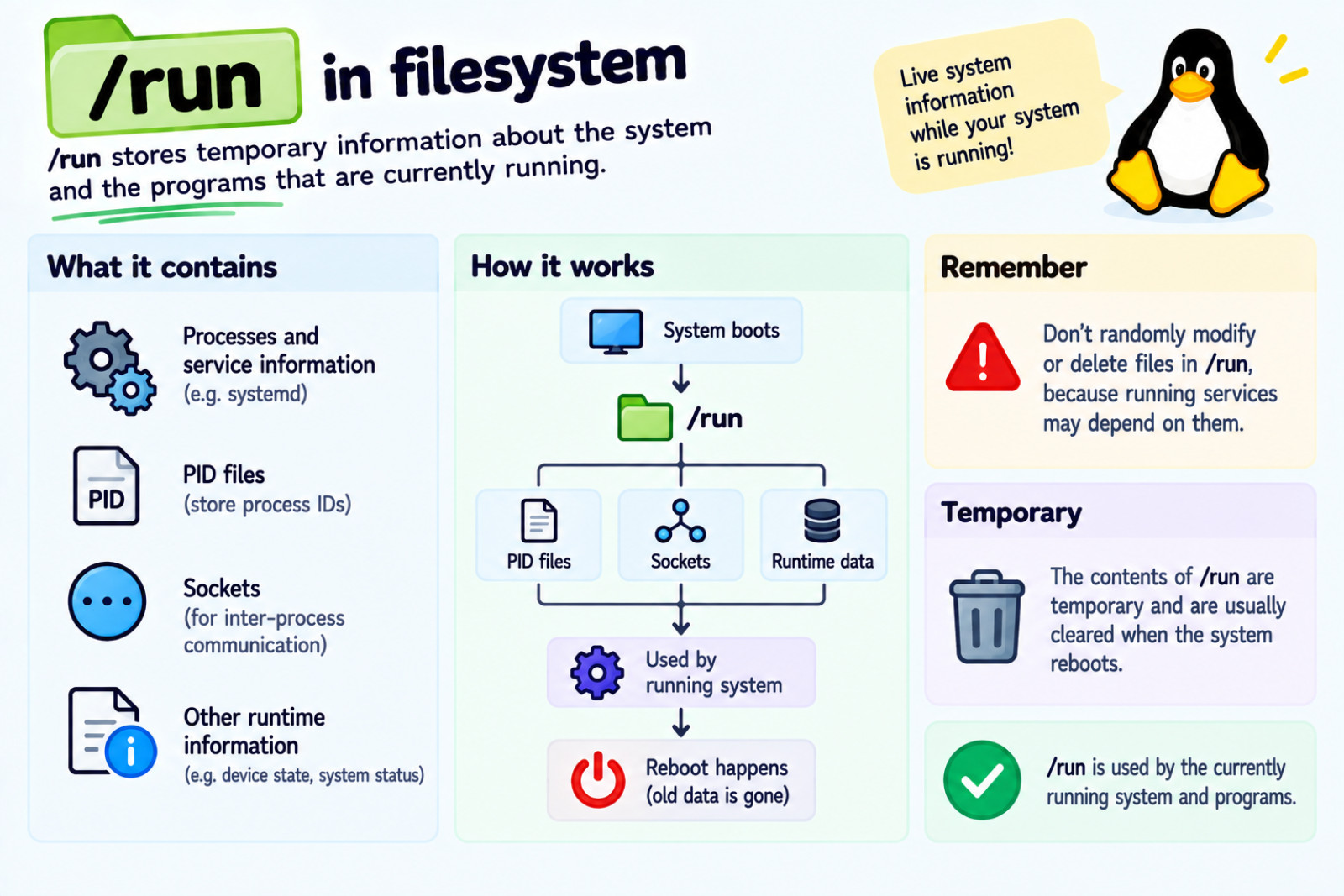
It stores temporary information about the system and the programs that are currently running.
For example, /run can contain information such as:
/run
├── processes and service information
├── PID files
├── sockets
└── other runtime information
Don't randomly modify or delete files in /run, because running services may depend on them.
                 Computer boots
                       ↓
                    /run
                       ↓
        ┌──────────────┼──────────────┐
        ↓              ↓              ↓
   PID files        Sockets       Runtime data
        │              │              │
        └──────────────┼──────────────┘
                       ↓
              Used by running system
                       ↓
                 Reboot happens
                       ↓
              Old runtime data gone
/sbin :
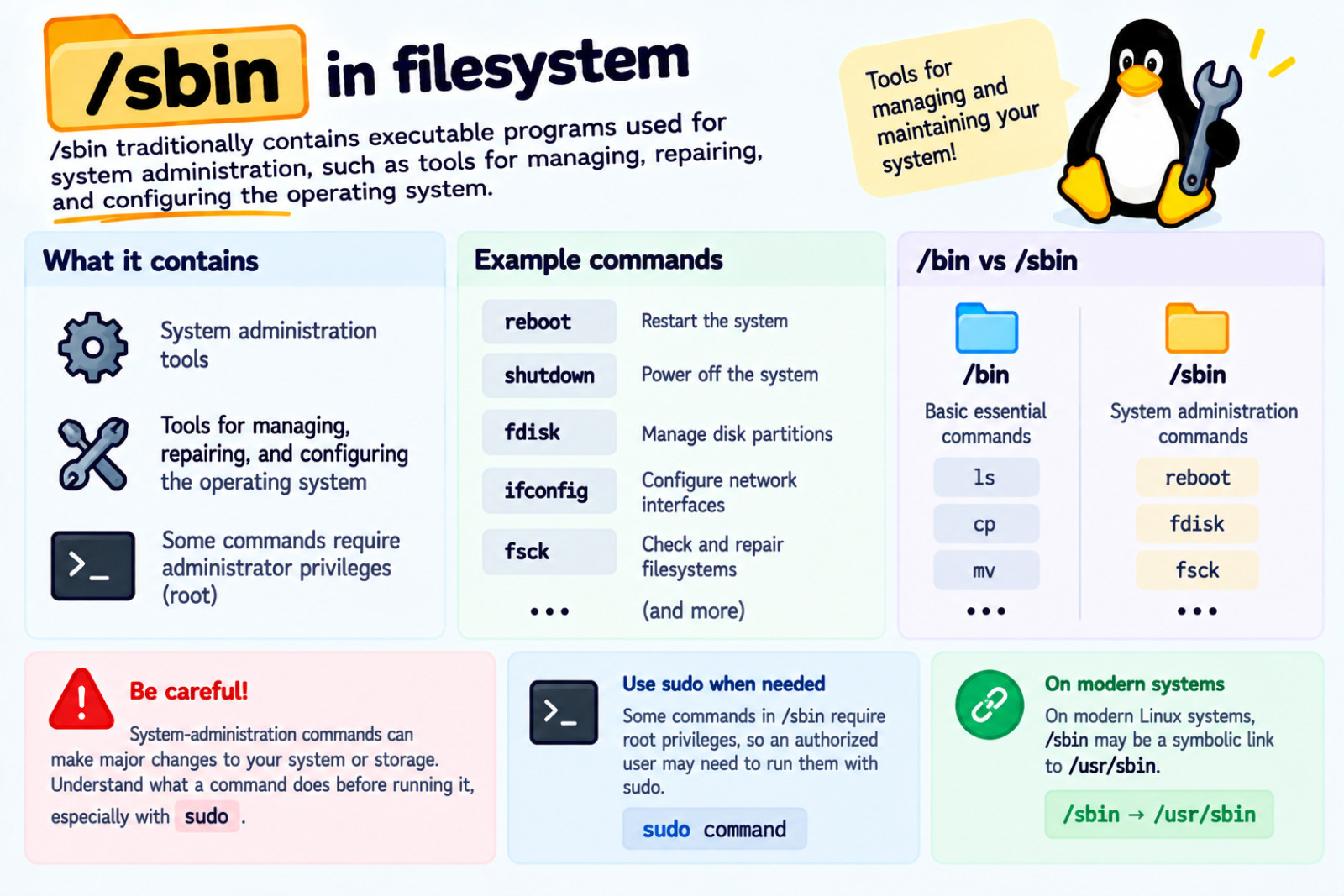
It is traditionally contains executable programs used for system administration, such as tools for managing, repairing, and configuring the operating system. Some of these commands require administrator privileges, so an authorized user may need to run them with sudo.
Because some system-administration commands can make major changes to the system or its storage, you should understand what a command does before running it, especially with sudo. On modern Linux systems, /sbin may be a symbolic link to /usr/sbin.
/bin
 ↓
Basic essential commands

/sbin
 ↓
System administration commands
 ↓
Some require root privileges
 ↓
Use sudo when appropriate
/usr :
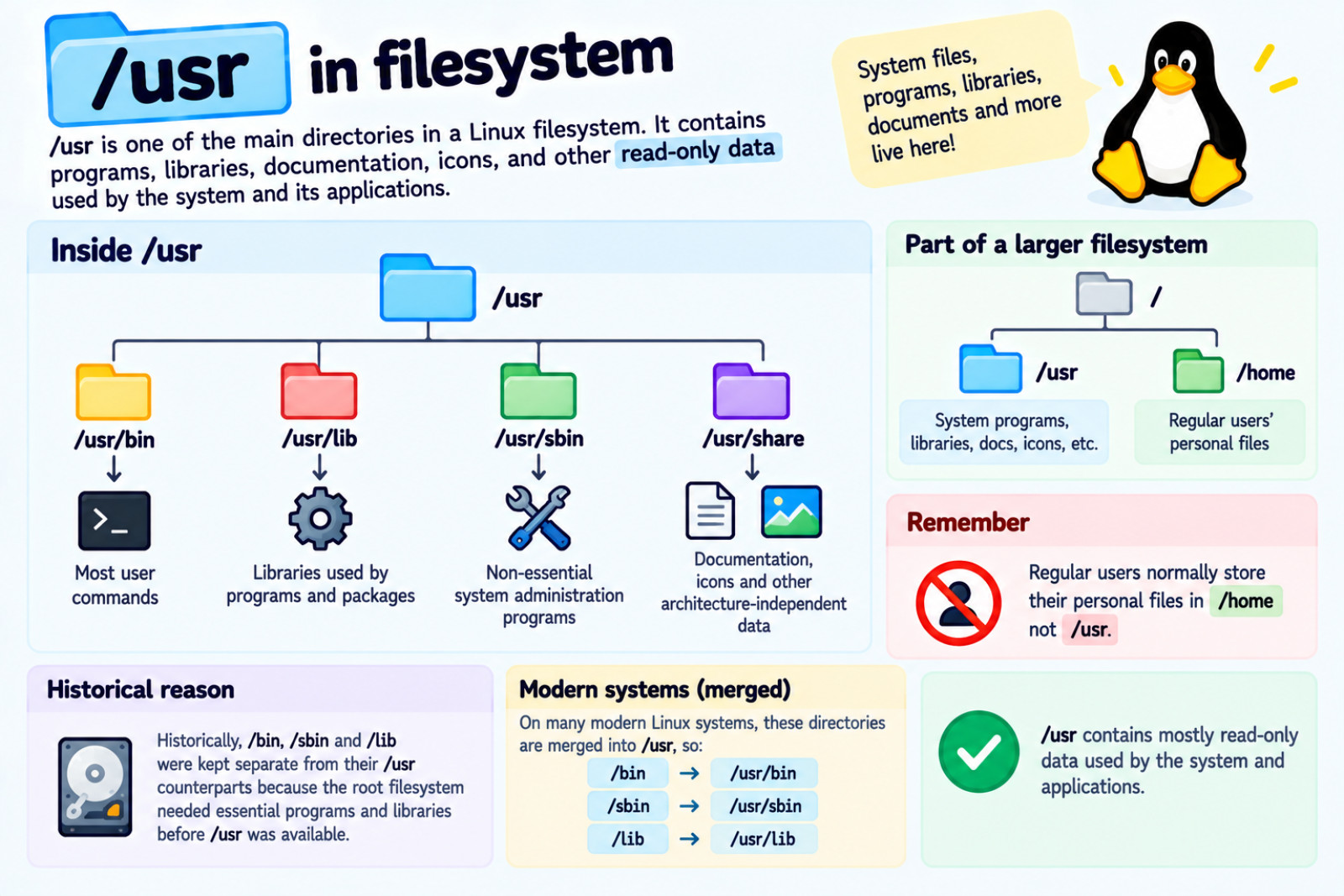
It is one of the main directories in a Linux filesystem. It contains programs, libraries, documentation, icons, and other read-only data used by the system and its applications. Regular users normally store their personal files in /home, not /usr.
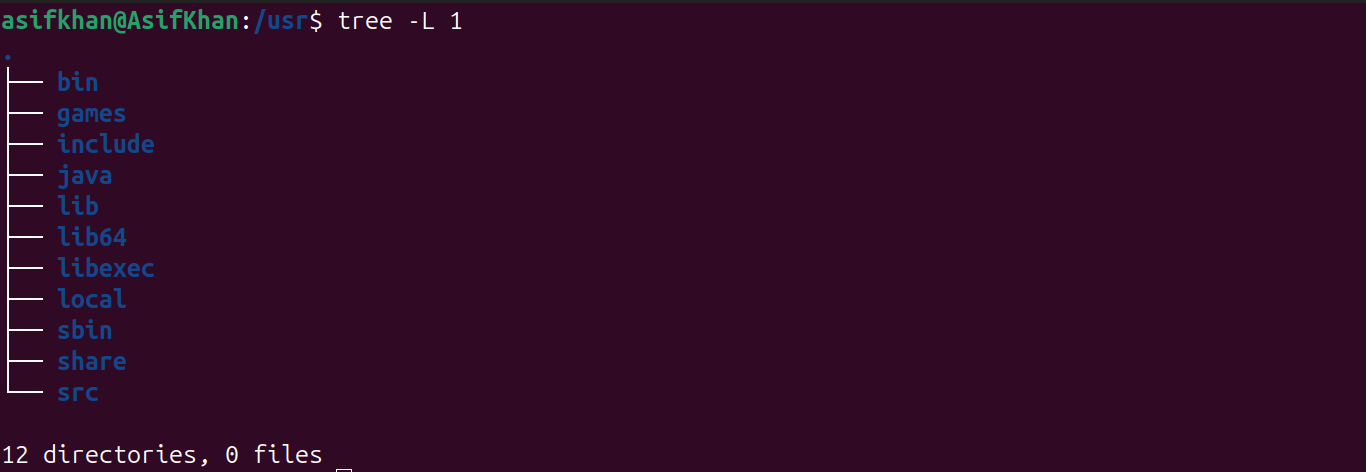
Inside /usr, you will find directories such as /usr/bin, /usr/lib, /usr/sbin, and /usr/share.
/usr/bin contains most user commands, /usr/lib contains libraries used by programs and packages, /usr/sbin contains non-essential system-administration programs, and /usr/share contains architecture-independent data such as documentation and icons.
Historically, /bin, /sbin, and /lib were kept separate from their /usr counterparts because the root filesystem needed essential programs and libraries before /usr was available.
On many modern Linux systems, these directories are merged into /usr, so /bin may simply be a symbolic link to /usr/bin, /sbin to /usr/sbin, and /lib to /usr/lib.
                         /
                         │
          ┌──────────────┴──────────────┐
          │                             │
        /bin                          /usr
          │                             │
    essential commands          ┌────────┼────────┐
                                │        │        │
                              bin      lib      share
                                │        │        │
                           programs   libraries  docs/icons
/srv :
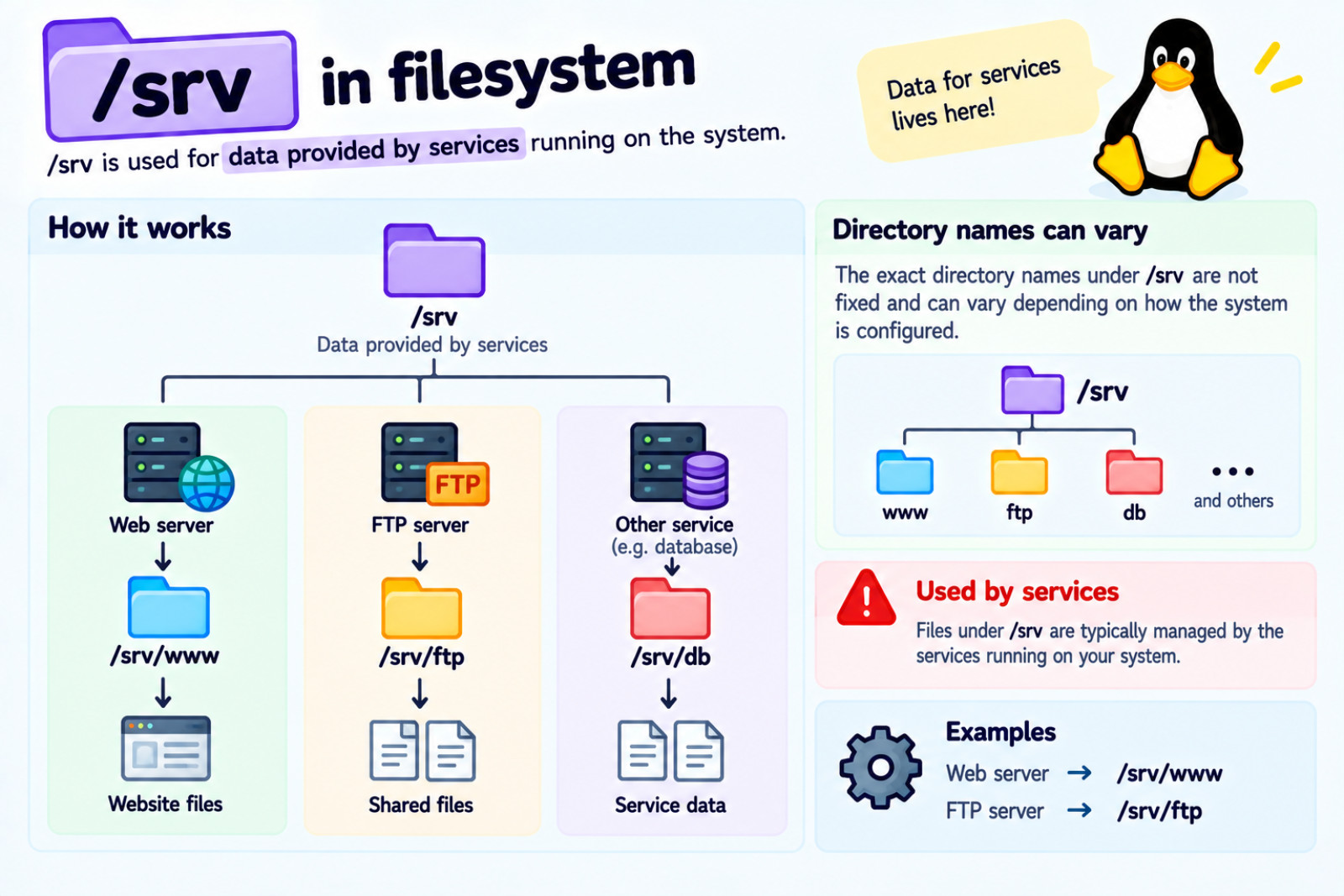
It is used for data provided by services running on the system. For example, if your Linux computer runs a web server, its website data could be stored under /srv/www.
If it runs an FTP service, its shared files could be stored under /srv/ftp. The exact directory names under /srv are not fixed and can vary depending on how the system is configured.
                  /srv
                    │
          Data provided by services
                    │
          ┌─────────┴─────────┐
          │                   │
       Web server          FTP server
          │                   │
      /srv/www            /srv/ftp
          │                   │
      Website files       Shared files
/sys :
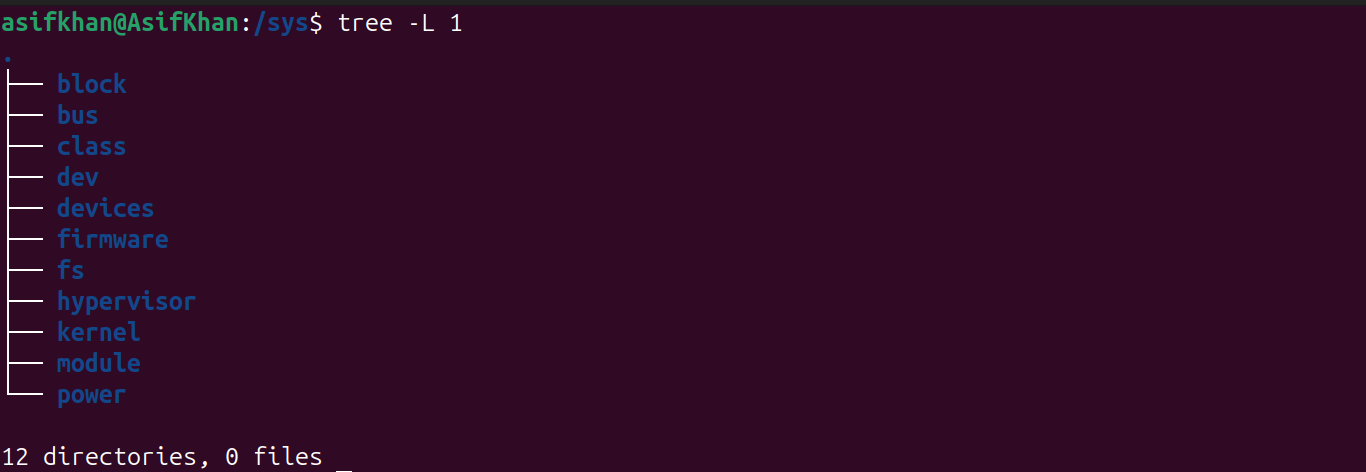
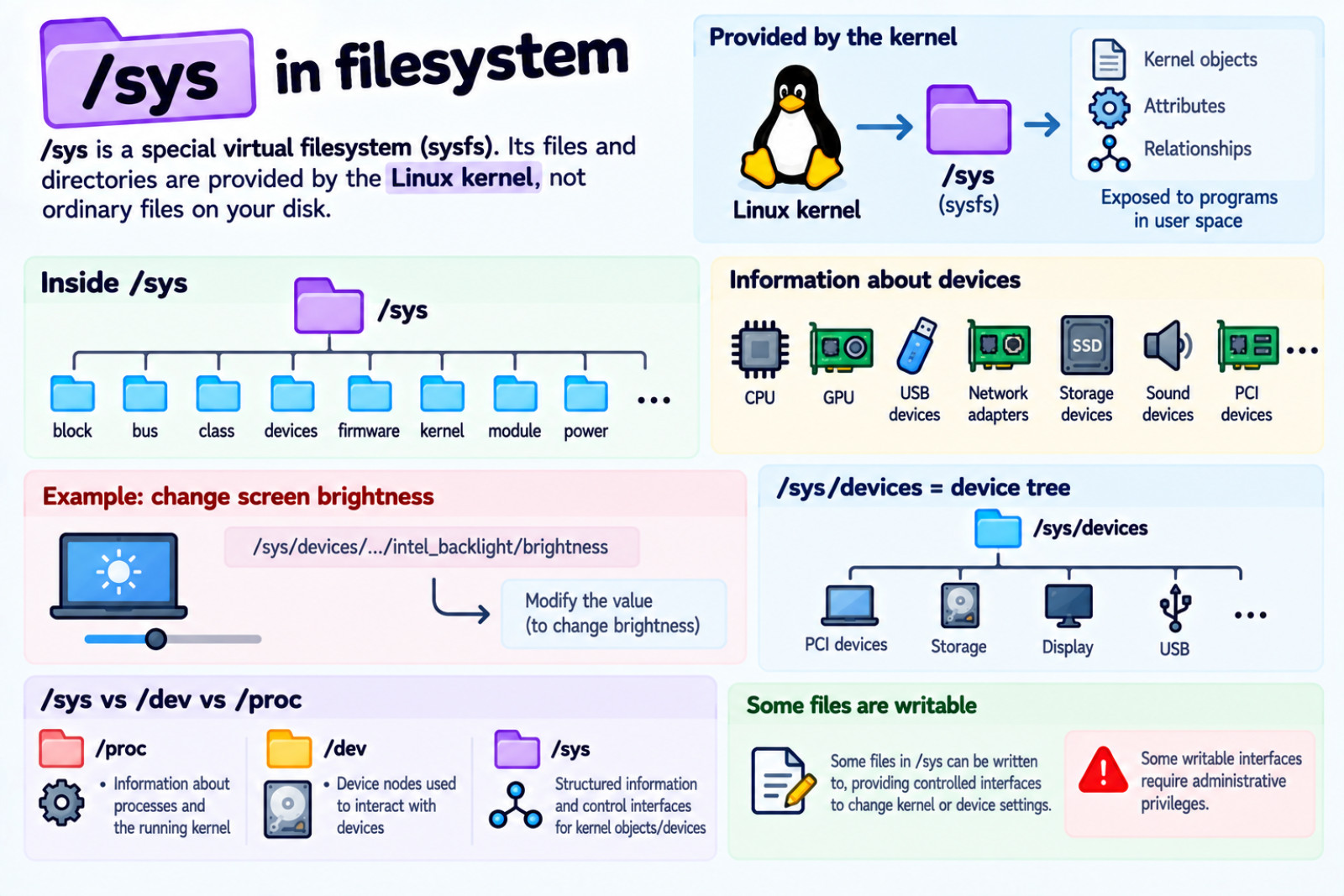
It is a special virtual filesystem. Its files and directories are provided by the Linux kernel rather than being ordinary files stored on your disk. The filesystem mounted at /sys is called sysfs.
sysfs is a RAM-based filesystem that provides a way for the kernel to expose its internal objects, their attributes, and relationships to programs running in user space.
/sys
  ↓
sysfs
  ↓
information and interfaces provided by the kernel
For example, /sys contains directories such as:
/sys/block
/sys/bus
/sys/class
/sys/devices
/sys/firmware
/sys/kernel
/sys/module
/sys/power ...
/sys contains information about devices that the Linux kernel knows about.
For example, Linux may know about:
CPU
GPU
USB devices
Network adapters
Storage devices
Sound devices
PCI devices
For example,I can change the brightness of the screen of my laptop by modifying the value stored in the /sys/devices/pci0000:00/0000:00:02.0/drm/card1/card1-eDP-1/intel_backlight/brightness file (on your machine you will probably have a different file).
The /sys/devices hierarchy provides a representation of the kernel's device tree.
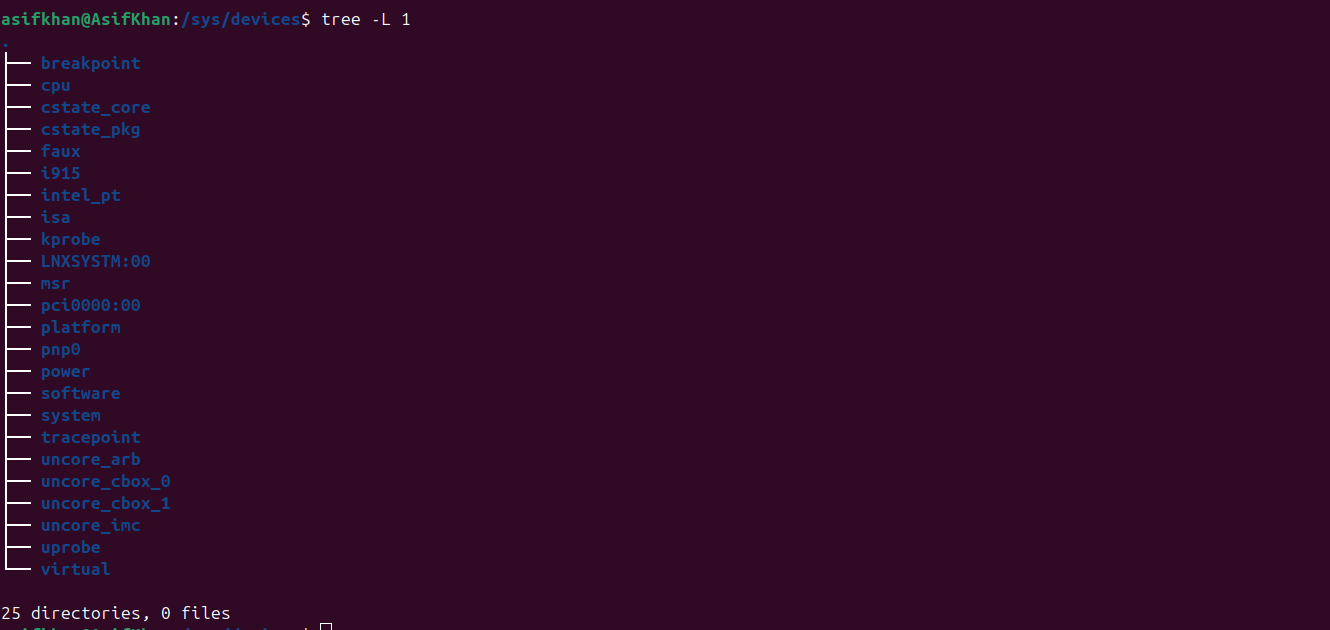
/sys vs /dev vs /proc
Since you've already learned /dev and /proc, this comparison is useful:
/proc
   ↓
Information about processes
and the running kernel

/dev
   ↓
Device nodes used to interact
with devices

/sys
   ↓
Structured information and control
interfaces for kernel objects/devices
Some files in /sys are writable and provide controlled interfaces for changing specific kernel or device settings. Some writable sysfs interfaces require administrative privileges.
                    Linux kernel
                         │
            ┌────────────┼────────────┐
            │            │            │
         Devices       Drivers      Modules
            │            │            │
            └────────────┼────────────┘
                         │
                         ▼
                        /sys
                         │
             ┌───────────┴───────────┐
             │                       │
          Read info             Some controls
             │                       │
             ▼                       ▼
       "What is this?"        "Change this setting"
/tmp :
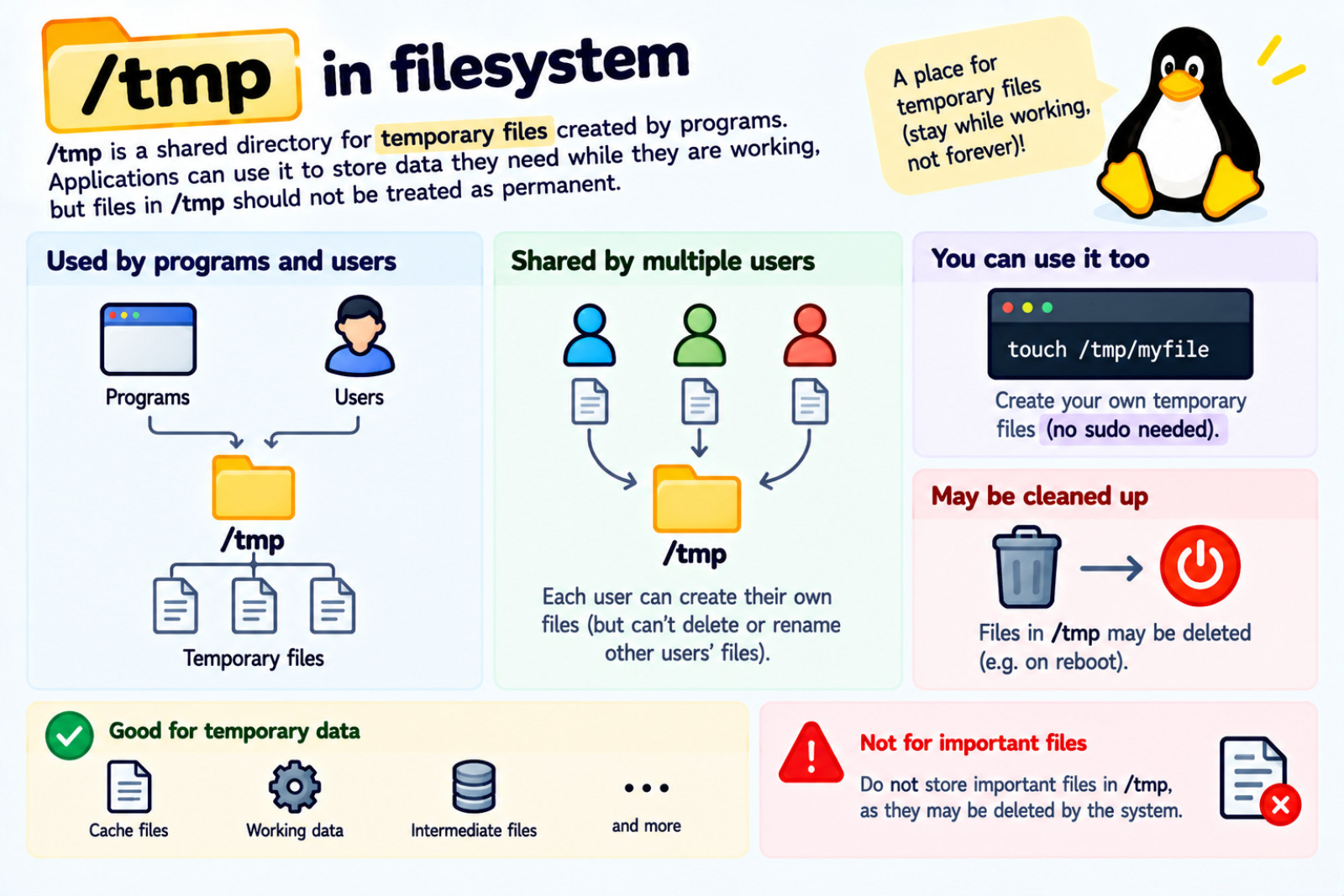
It is a shared directory for temporary files created by programs. Applications can use it to store data they need while they are working, but files in /tmp should not be treated as permanent.
You can also create your own temporary files there without normally needing administrator privileges. Because /tmp is shared by multiple users, it is normally configured with special permissions that prevent users from deleting or renaming each other's files.
The system may clean up /tmp when it reboots, so you should not store important files there.
                    /tmp
                      │
             Temporary storage
                      │
          ┌───────────┴───────────┐
          │                       │
       Programs                 Users
          │                       │
   temporary files         your temporary files
          │                       │
          └───────────┬───────────┘
                      ↓
               May be deleted
/var :
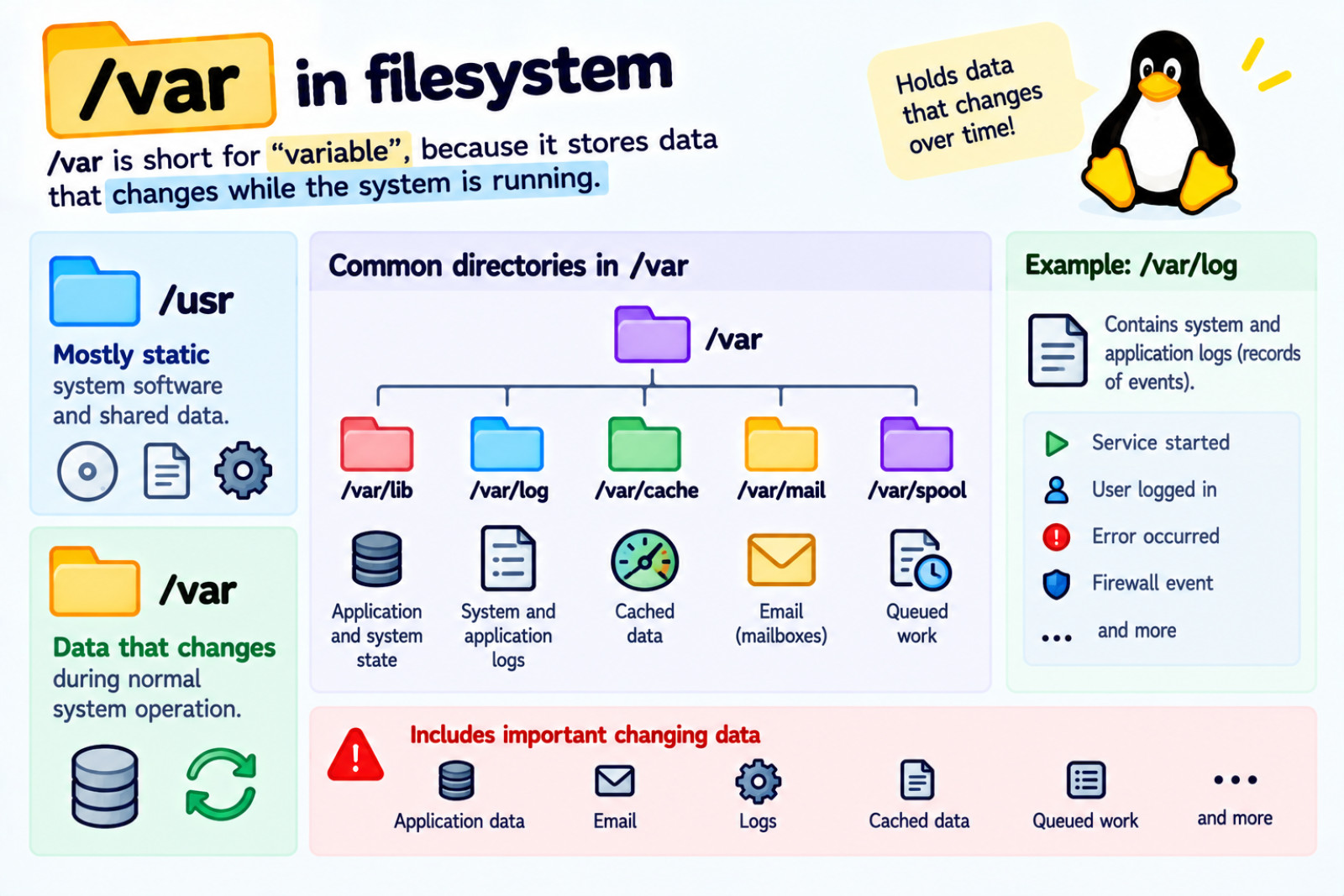
It is short for “variable,” because it stores data that changes while the system is running.
/usr
 ↓
Mostly static system software and shared data

/var
 ↓
Data that changes during normal system operation
This can include application data, database state, email, cached data, queued work, and other information that changes over time.
One important directory inside /var is /var/log. It contains system and application logs. Logs are records of events that happen on the system, such as services starting, users logging in, or errors occurring.
If your system or firewall is configured to record certain events, those events may also appear in the logs.
                         /var
                           │
             Data that changes over time
                           │
        ┌──────────┬───────┼────────┬──────────┐
        ↓          ↓       ↓        ↓          ↓
      /lib       /log    /cache    /mail     /spool
        │          │       │        │          │
   App/system    Events   Cache    Mail      Queued
      state      records   data   boxes       work
Digging deeper
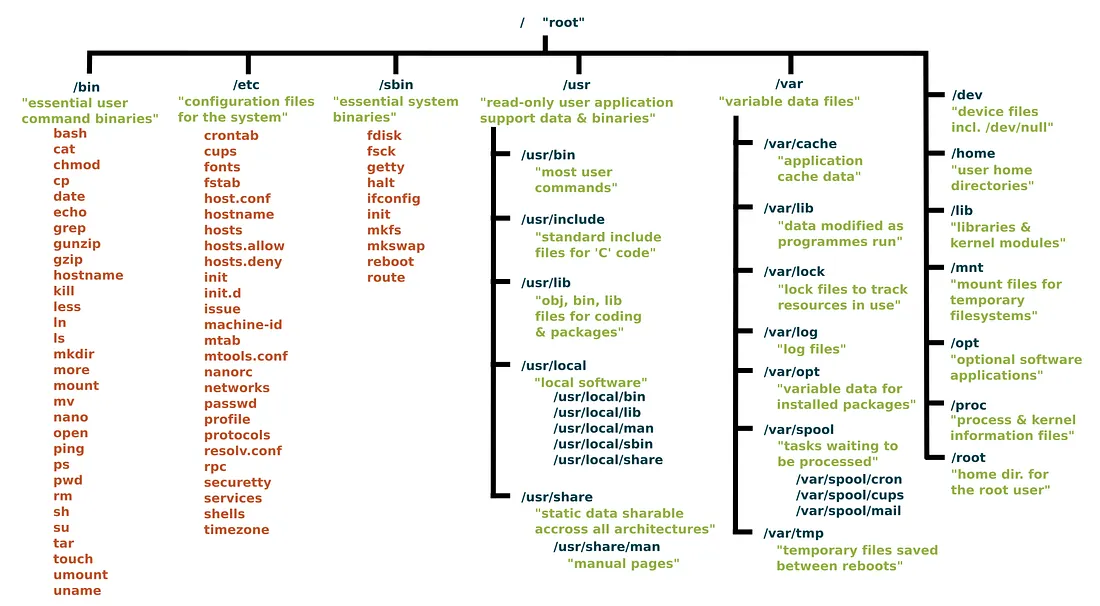
We just covered level 1 of the root directory. Your Linux system may contain many directories and subdirectories that we haven't covered yet. Be sure to refer to the official Linux filesystem Hierarchy Standard web page for more details.
Conclusion
Although Linux distributions have some differences in their filesystem layouts, they generally follow the same overall hierarchy and conventions. The Filesystem Hierarchy Standard (FHS) helps make the locations and purposes of common directories predictable for both users and software.
The best way to become familiar with the Linux filesystem is to explore it yourself. Use commands such as tree, ls, and cd to move through directories, inspect their contents, and see how everything fits together.